Dispensing Guide - New SignatureRx Dispensing Web-Portal
Dispensing Guide - New SignatureRx Dispensing Web-Portal
This guide provides a comprehensive reference for dispensing electronic prescriptions using the SignatureRx platform, in conjunction with Standard Operating Procedures.
Dispensing Guide
This guide can be used as a reference for dispensing electronic prescriptions using the SignatureRx platform, in conjunction with our Standard Operating Procedures.
Flow Diagram Summarising Patient Journey
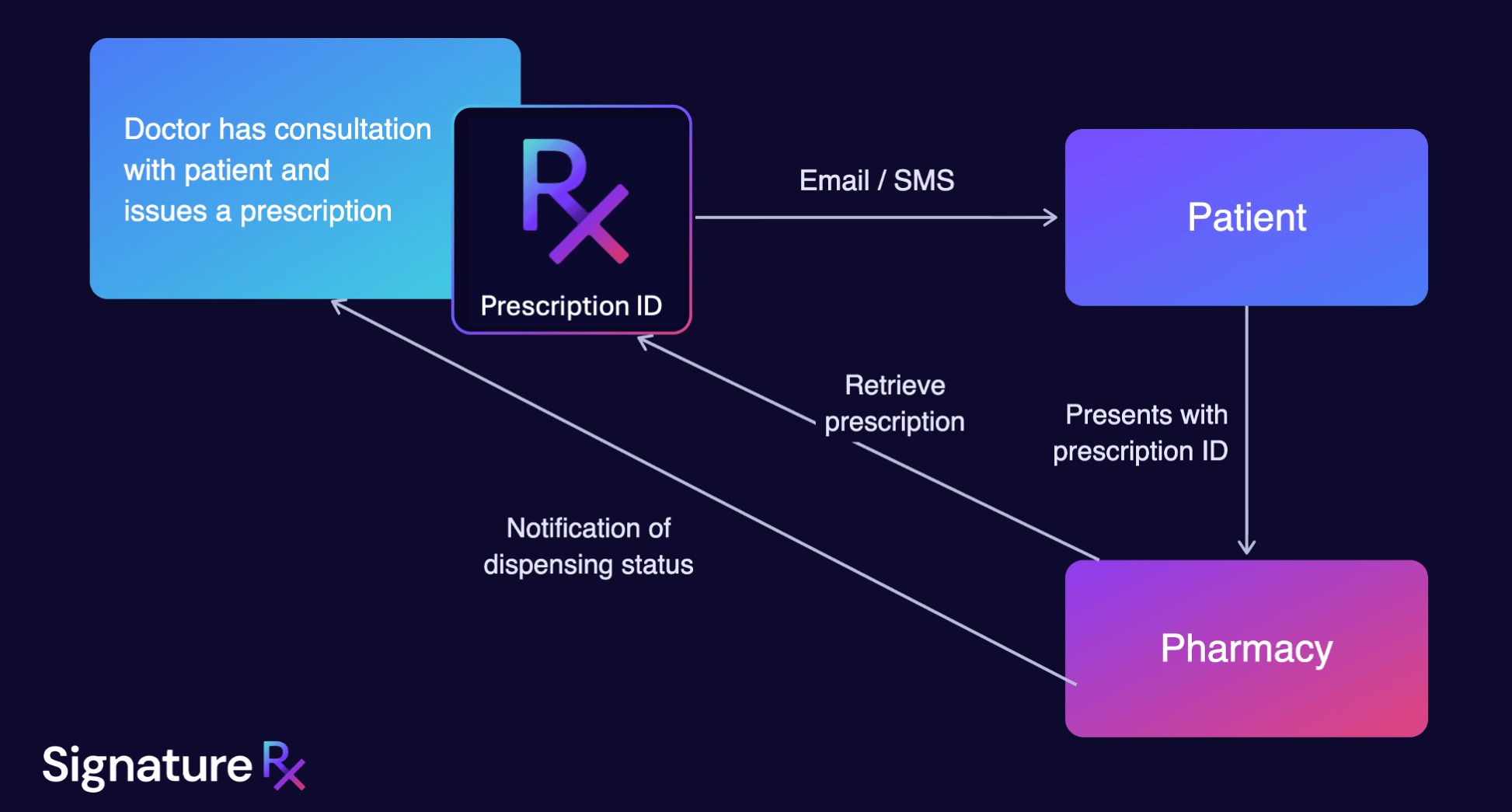
Summary of Private Prescription Dispensing Procedure
- Note down the prescription ID and patients' DOB
- Access the prescription with these details at www.signaturerx.co.uk/dispense
- Enter your Pharmacy Group, Pharmacy name, address and postcode
- View the prescription and clinically check the prescription
- Ensure the patient is available for dispensing and charge the patient in line with any relevant SOPs and pharmacy margins
- Print dispensing token
- Mark the prescription as dispensed by clicking MARK AS DISPENSED — you will need to enter the pharmacy details when prompted
- Process the prescription according to relevant SOPs
- Ensure a record is made in the private prescription register and the dispensing token can be kept for reference for 2 years from the date of dispensing
Locating the Prescription ID
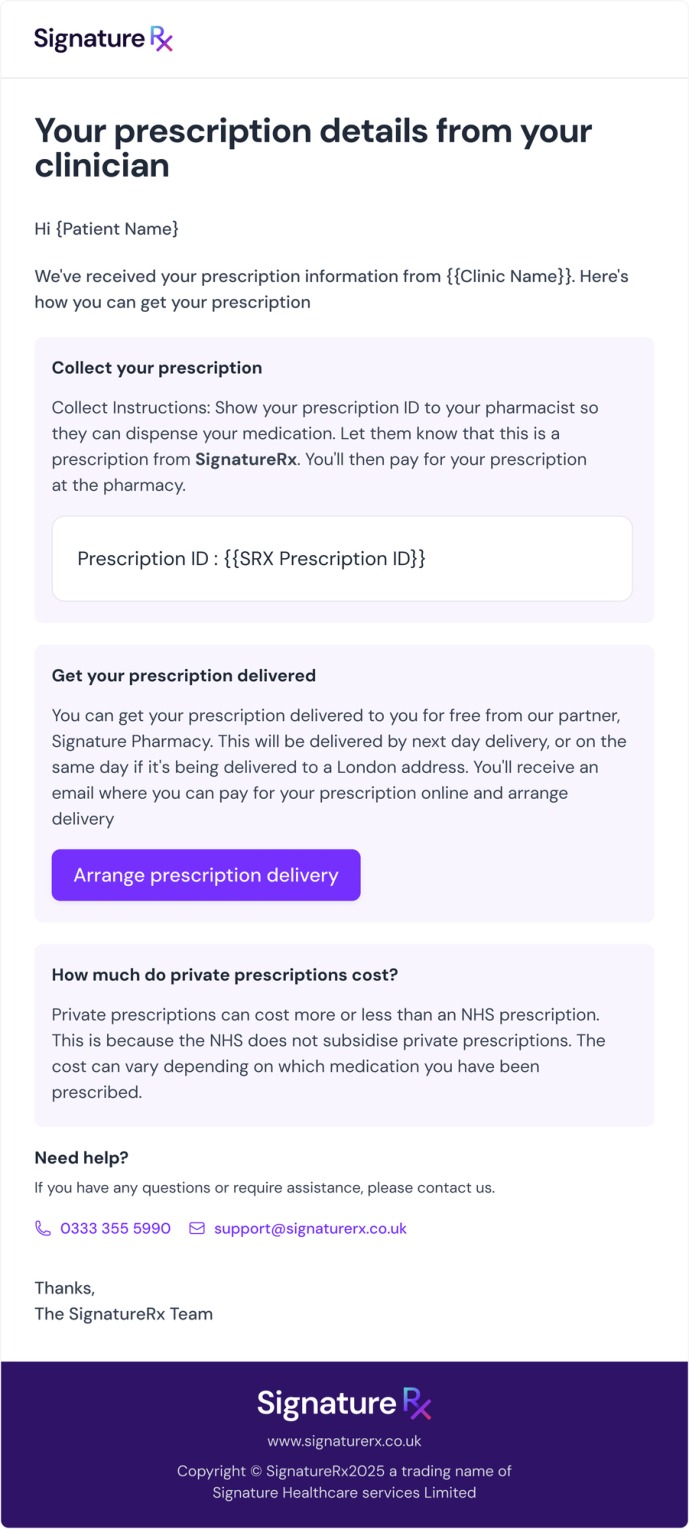
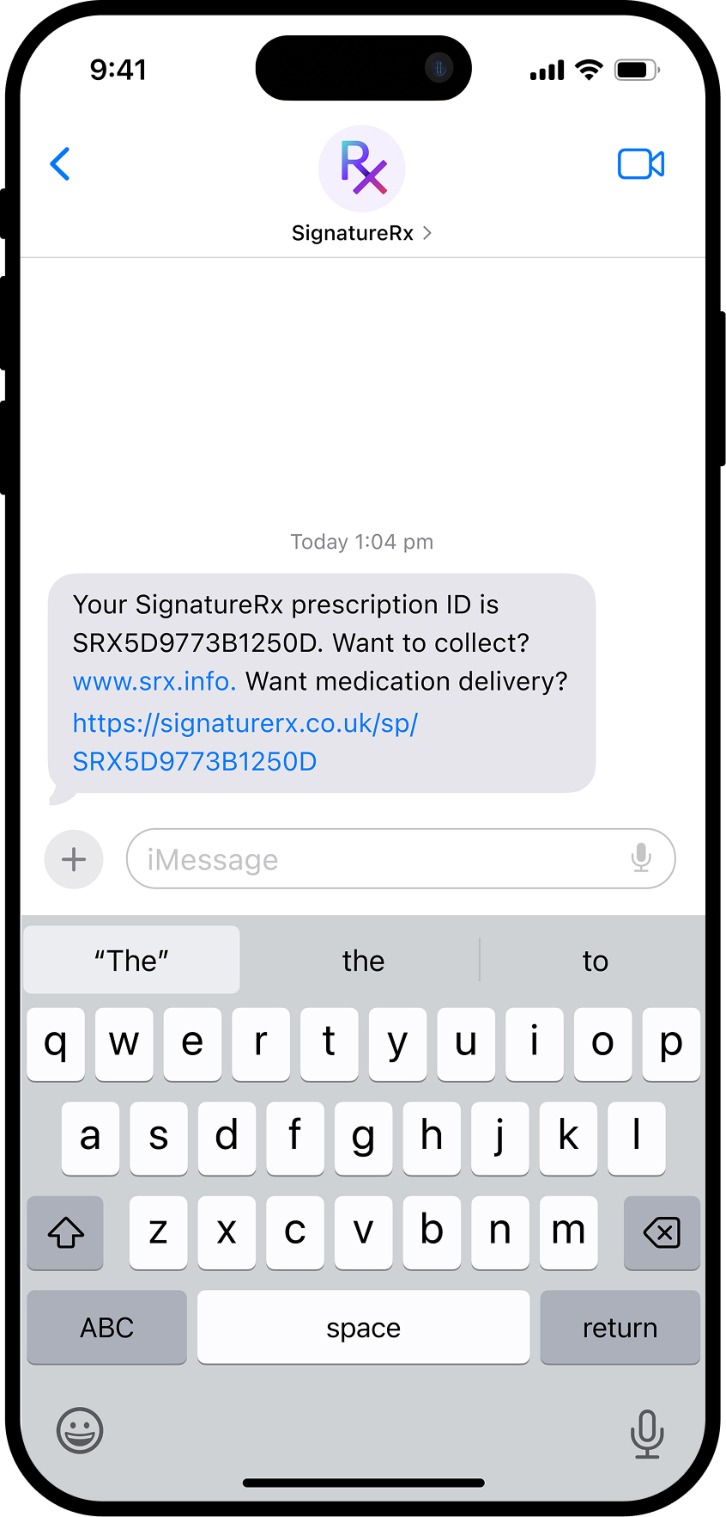
Patients will usually present the prescription ID at the pharmacy using their smartphone. The prescription ID may be available within:
- an email
- text message
- other electronic communication received from the prescriber or clinic.
In some cases, the prescription ID may be provided directly to the pharmacy by the prescriber, clinic, or patient via email or telephone. Where the prescription ID is received through these channels, the patient's date of birth must also be obtained to enable access to the prescription and to verify patient identity.
6.
Accessing the Prescription
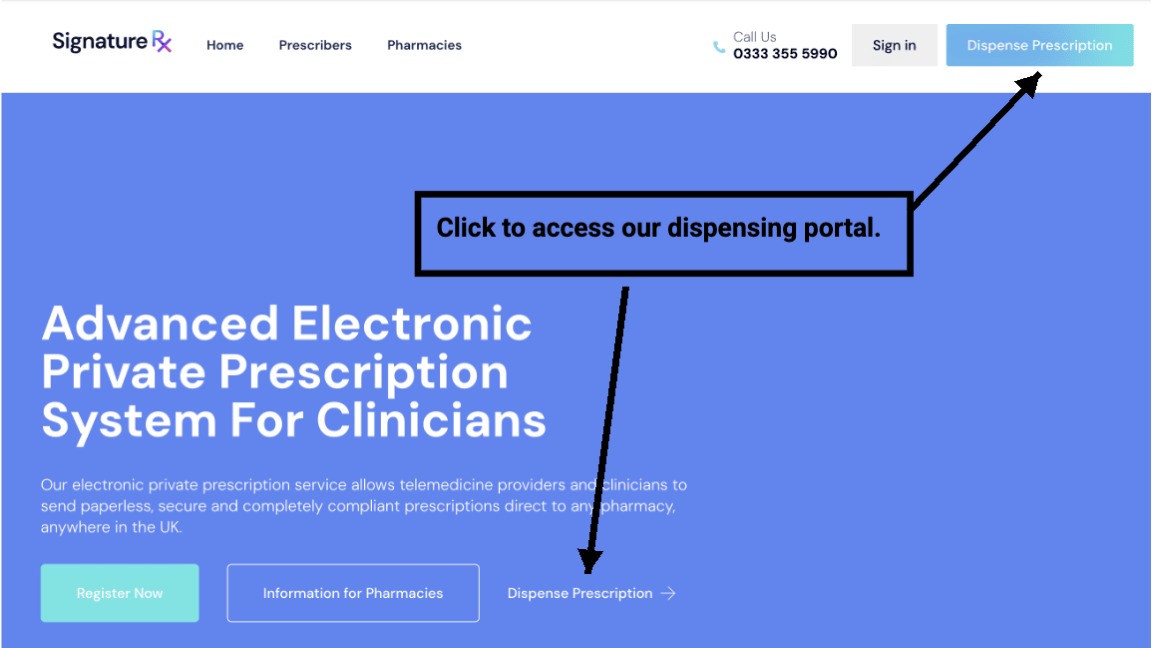
To maintain security and ensure the authenticity of prescriptions, all prescriptions must be accessed via the secure SignatureRx dispensing portal.
Where a patient presents a printed dispensing token, the prescription should still be accessed through the portal to verify its authenticity and confirm the prescription details.
To access the prescription, enter the prescription ID and the patient's date of birth into the secure portal at www.signaturerx.co.uk.
Viewing the Prescription - Step by step:
- Enter the prescription ID
- Enter the patients' date of birth in DD/MM/YYYY format
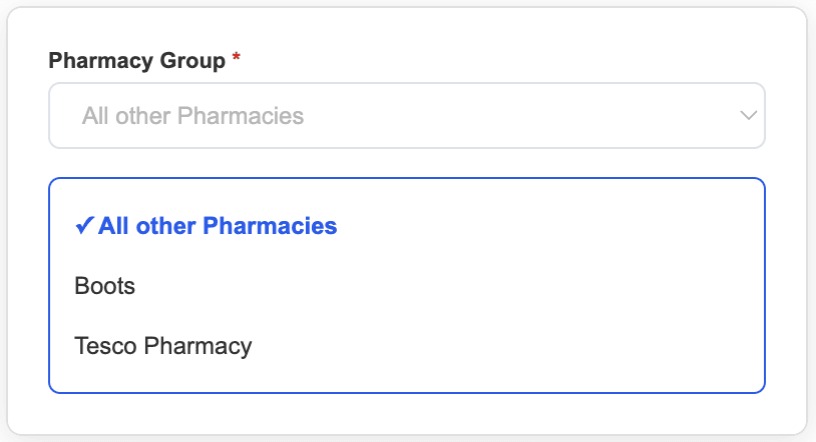
- Select your Pharmacy Group from the dropdown NEW
- Enter your Pharmacy name, address and postcode NEW
- Click Search for prescription
If you are unable to open the prescription, please ensure the details entered are correct. If you are still unable to access the prescription, please contact the prescriber or clinic to follow up.
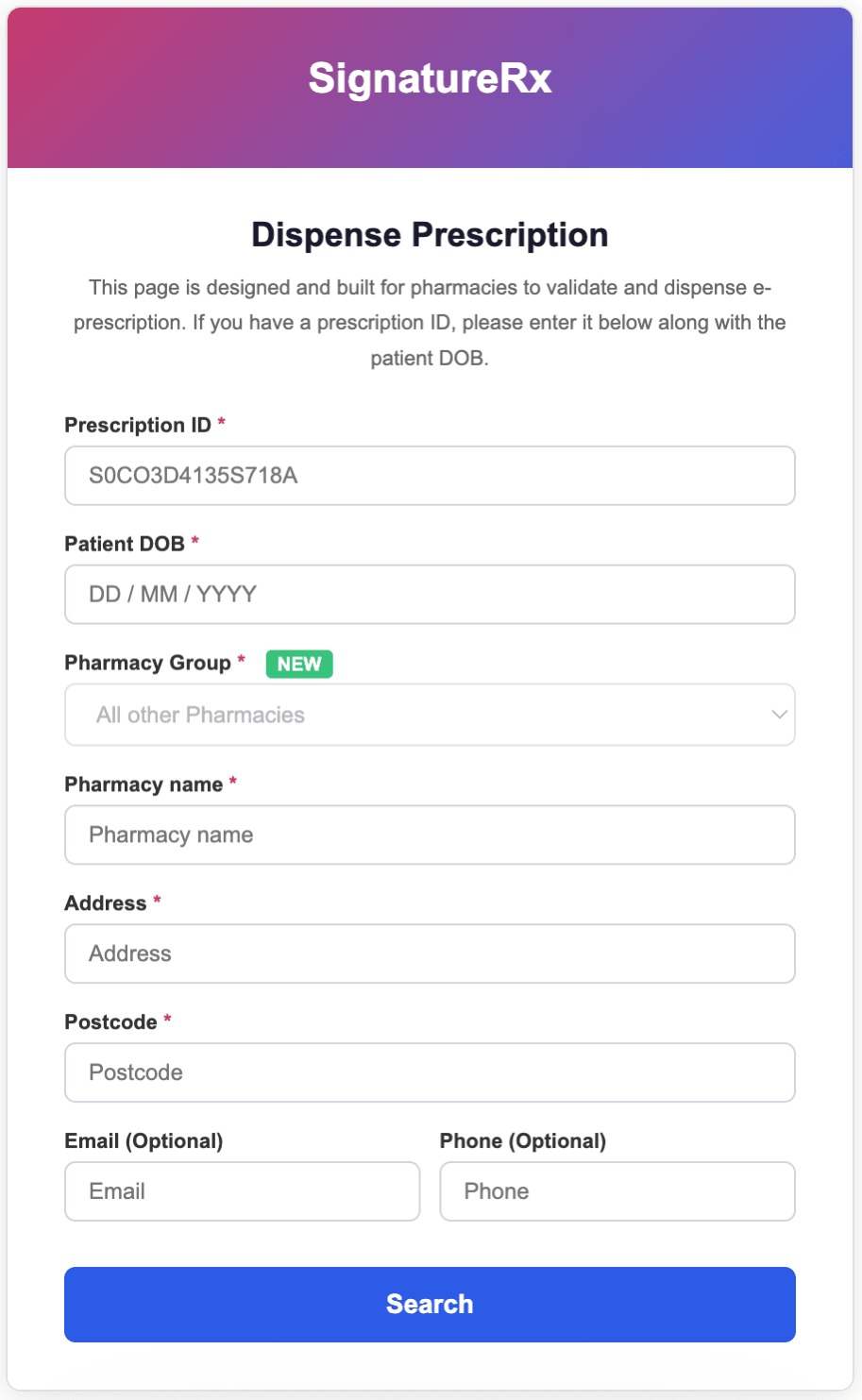
Pharmacy Group Selection
The updated dispensing portal now includes a Pharmacy Group selection. This allows SignatureRx to track which pharmacy has dispensed a prescription and enables better communication between prescribers and pharmacies.
When accessing a prescription, you will now be required to:
- Select your Pharmacy Group from the dropdown (e.g. "All other Pharmacies", "Boots", "Tesco" etc.)
- Enter your Pharmacy name
- Enter your pharmacy Address and Postcode
- Optionally enter your pharmacy Email and Phone number
Note: For Boots pharmacies, your pharmacy details may be pre-filled automatically when you select "Boots" from the Pharmacy Group dropdown. Please verify the pre-filled details are correct before proceeding.
We ask for the pharmacy details to ensure the clinic is aware that the prescription has been dispensed and can efficiently speak to the pharmacy if required.
By marking the prescription as dispensed, you are ensuring that the prescription cannot be disp
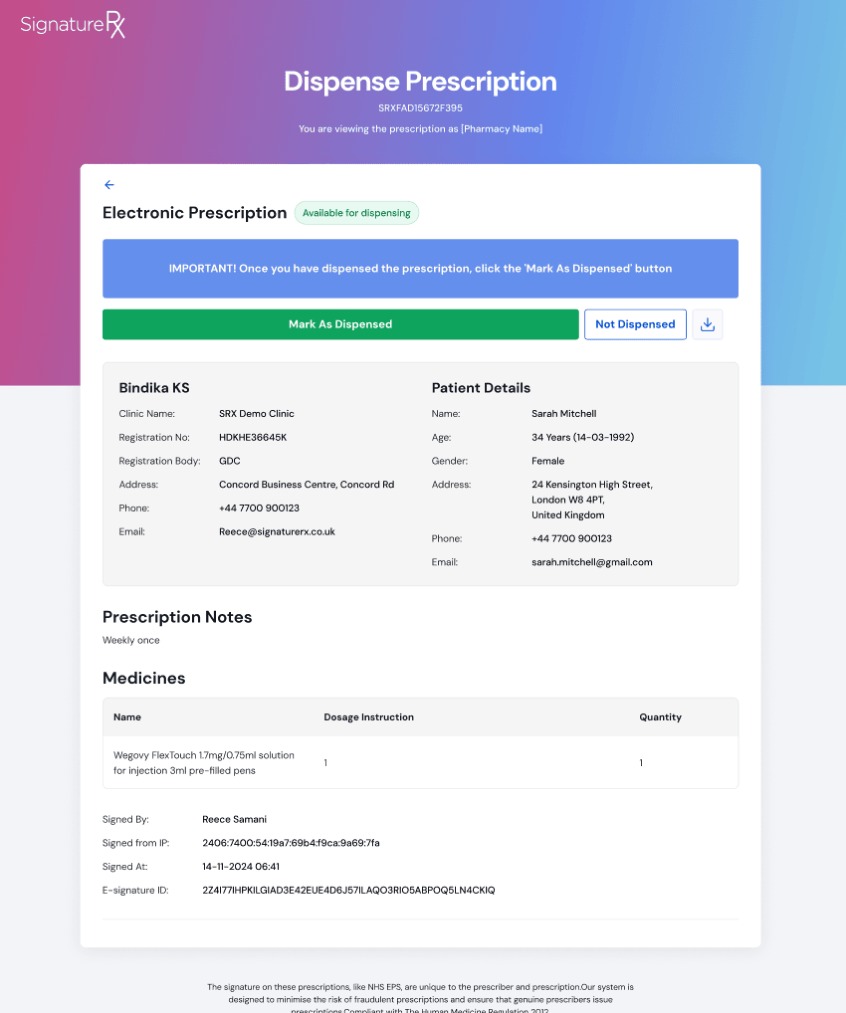
Prescription Check
Once you enter the details, you would be able to see the prescription details. This would include:
- Patient details
- Patient date of birth
- Clinic name and address
- Doctors details
- Time of signature
- A unique signature ID which is specific to the prescription
- Prescription status (e.g. "Prescription Confirmed" in green)
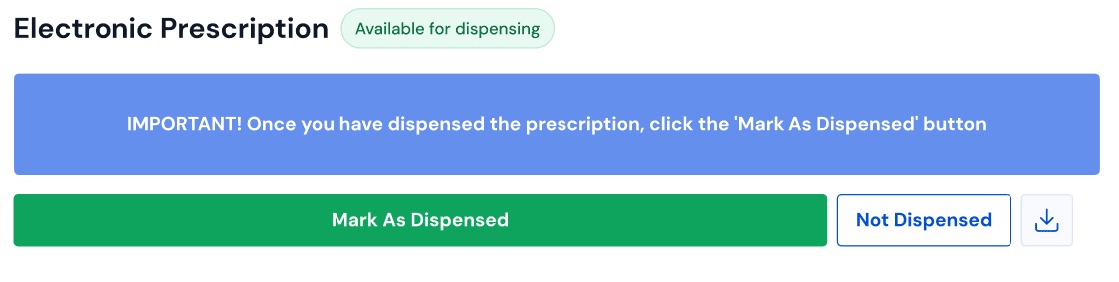
Dispense Prescription
At this stage you can clinically check the prescription, check if the medication is in stock and advise the patient of the medication cost. These would be done in line with the relevant SOPs.
Clicking the printer icon will allow you to print the dispensing token.
Mark as Dispensed:
Once you have dispensed the medication to the patient, please ensure you mark the prescription as dispensed by clicking MARK AS DISPENSED.
You will be asked to confirm the details of the pharmacist along with the pharmacy name, address, pharmacy email (optional) and pharmacy phone number (optional). These fields may be pre-filled if you entered them when first accessing the prescription.
We ask for the pharmacy details to ensure the clinic is aware that the prescription has been dispensed and can efficiently speak to the pharmacy if required.
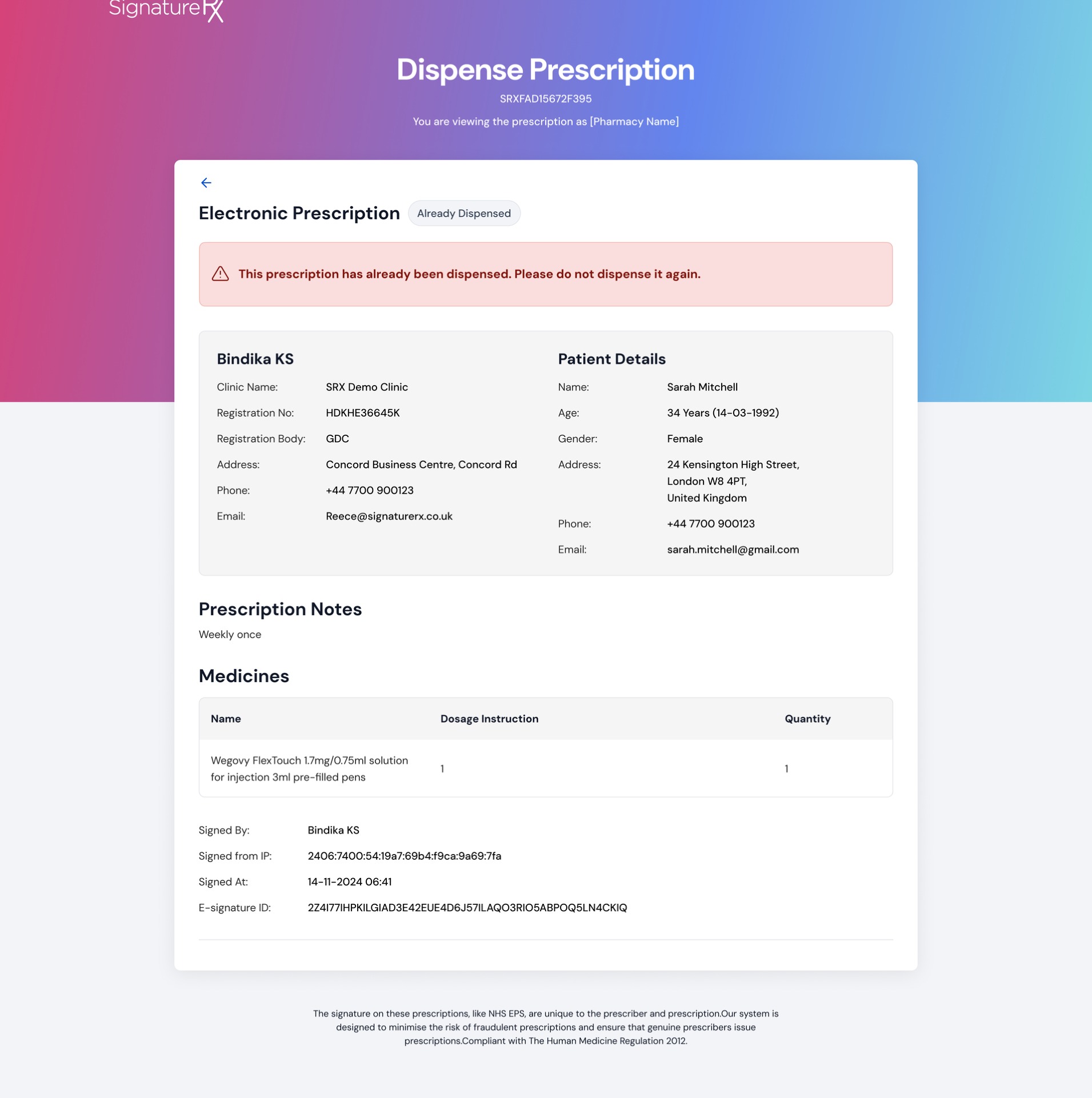
What if the prescription is already dispensed?
If the prescription has already been dispensed you will not be able to see the 'MARK AS DISPENSED' button and the time and date of dispensing will be shown. In this instance, please do not dispense the prescription.
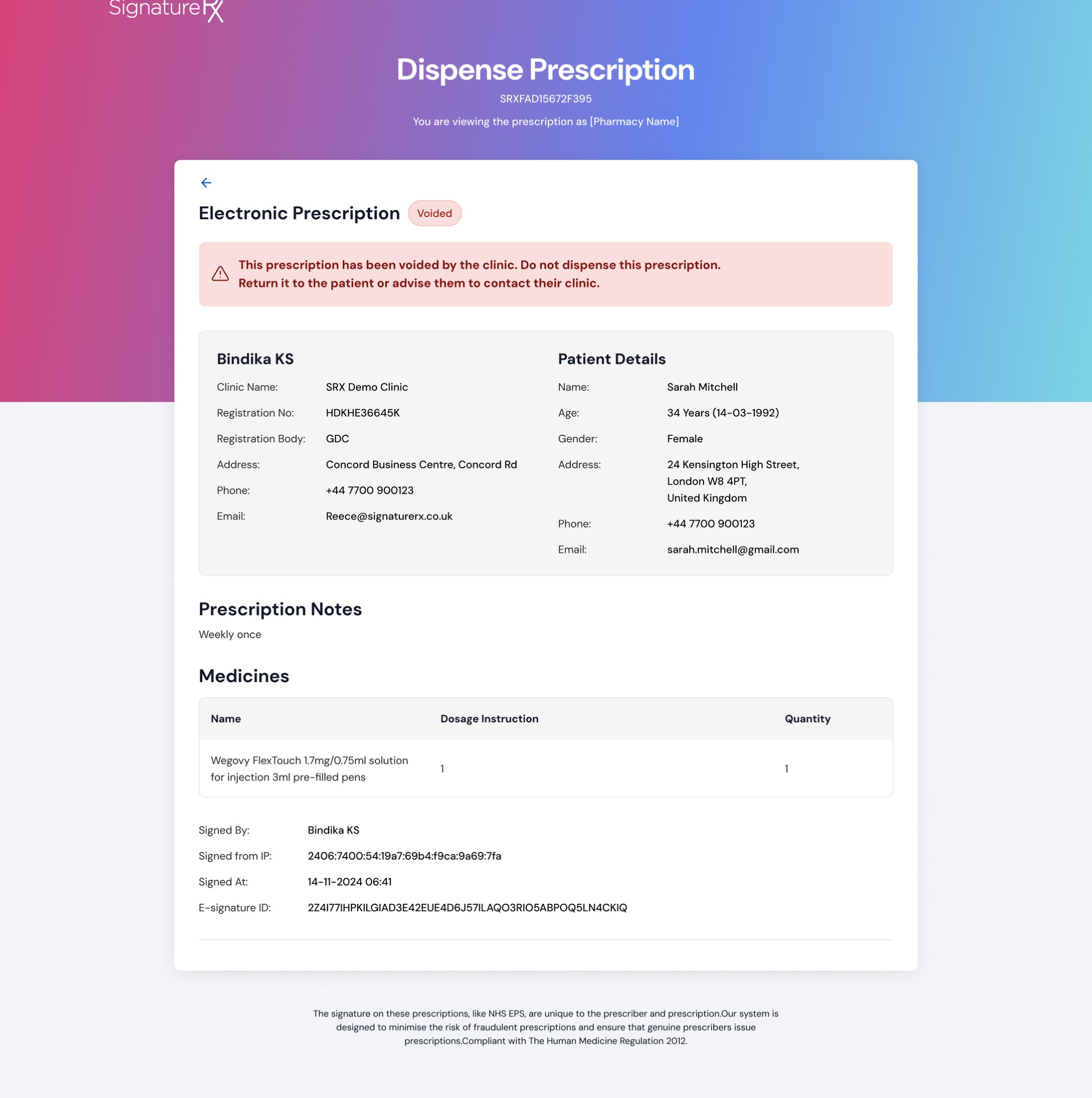
What if the prescription is voided?
If the prescription has been voided by the clinic you will not be able to see the 'MARK AS DISPENSED' button and a 'Voided' status will be shown. In this instance, please do not dispense the prescription and return it to the patient or advise them to contact their clinic.
FAQs
Who do I charge for the prescription?
You would charge the patient for the price of the prescription medication and your standard dispensing charges. We don't take a penny from pharmacies and you can charge the patient in your usual way as you would a paper private prescription.
Why don't I need a paper script in the post?
Like NHS EPS, signatureRx is compliant with The Human Medicine Regulation 2012: https://www.legislation.gov.uk/uksi/2012/1916/regulation/219/made
The regulation states that a prescription can be signed with an advanced electronic signature. In the regulation, "advanced electronic signature" means an electronic signature that is:
- Uniquely linked to the person ("P") giving the prescription;
- Capable of identifying P;
- Created using means that P can maintain under P's sole control; and
- Linked to the data to which it relates in such a manner that any subsequent change of data is det