How to Issue Controlled Drugs
How to Issue an FP10CD Prescription in SignatureRX
Learn how to generate and print an FP10CD (Controlled Drug) prescription using SignatureRx. This guide ensures you follow the correct legal requirements for controlled drug prescribing.
FP10CD prescriptions are used for Controlled Drugs and must meet additional legal requirements.
Important:
- FP10CD prescriptions must be printed
- The original paper prescription is required for dispensing
- Digital-only prescriptions are not valid for Controlled Drugs
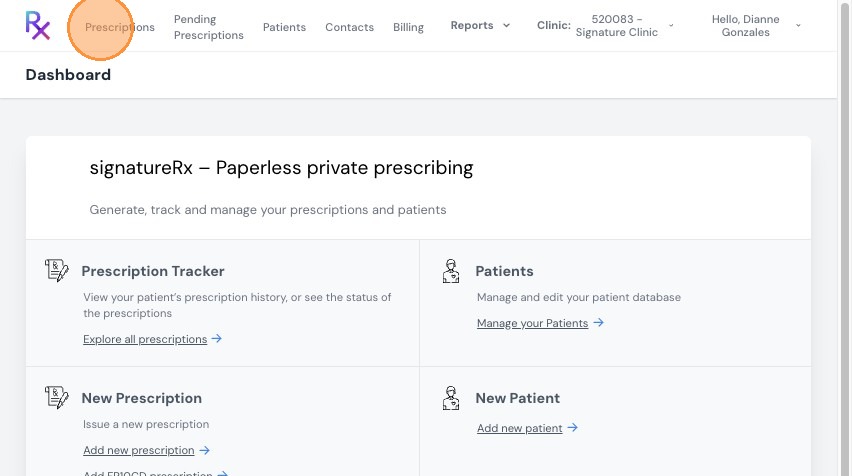
1. Navigate to your SignatureRx portal and log in using your prescriber account.
Click "Prescriptions"
2. Click "Add FP10CD Prescription"
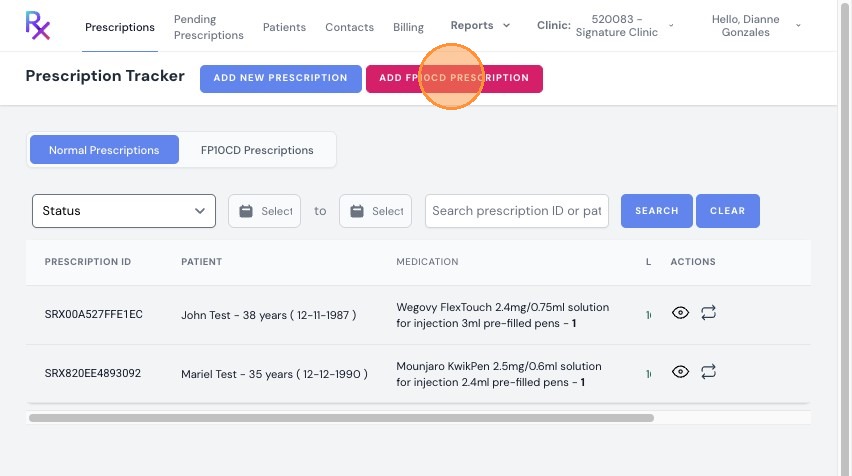
Tip: The FP10CD button will only be available once you have completed all required fields in the FP10CD form: https://zfrmz.eu/JdPOrHfB4uwepjNAvytK
3. Input the patient’s information accurately.
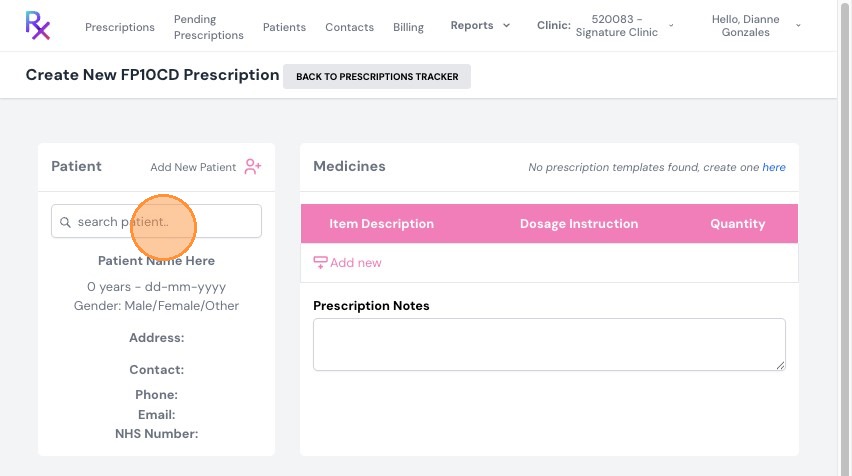
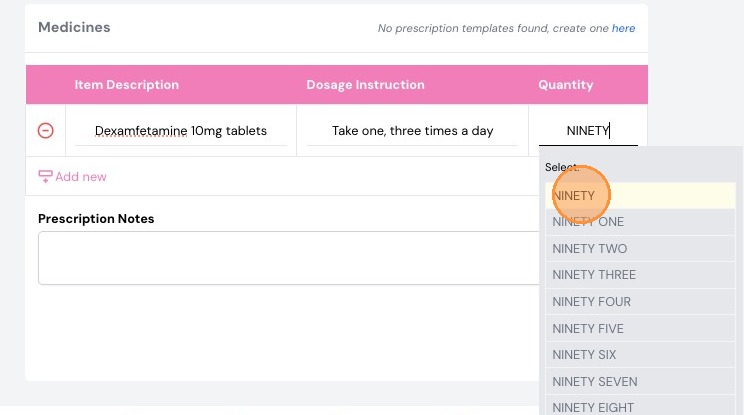
4. Enter the Medication Details
- Add medication name
- Enter dosage instructions
- Enter quantity
Important:
For FP10CD prescriptions, the dosage and quantity must be written in both words and numbers (e.g. “90 (ninety)”).
Choose the correct option (e.g. “NINETY”) from the dropdown to ensure compliance.
5. Choose How to Issue the Prescription
Select one of the following:
Option 1: Print FP10CD for the Patient
- A paper FP10CD prescription is printed
- The patient takes it to a pharmacy of their choice
Option 2: Print + Send to Pharmacy for Delivery
-
The prescription is sent to Signature Pharmacy
The pharmacy will:
- Contact the patient with a payment link
- Arrange delivery
The original printed FP10CD must still be provided to the pharmacy before dispensing.
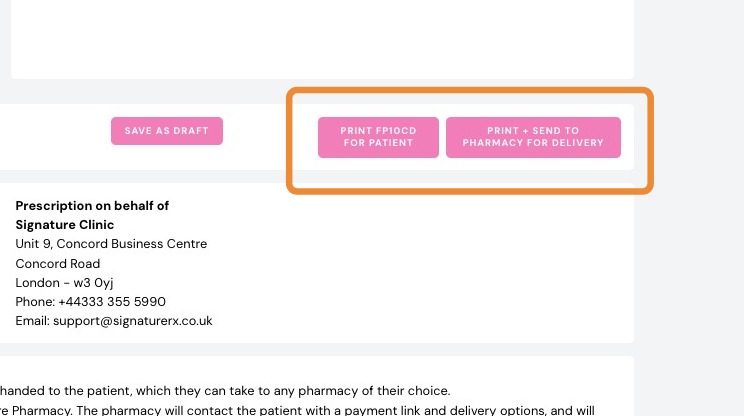
6. Sign and Issue the Prescription
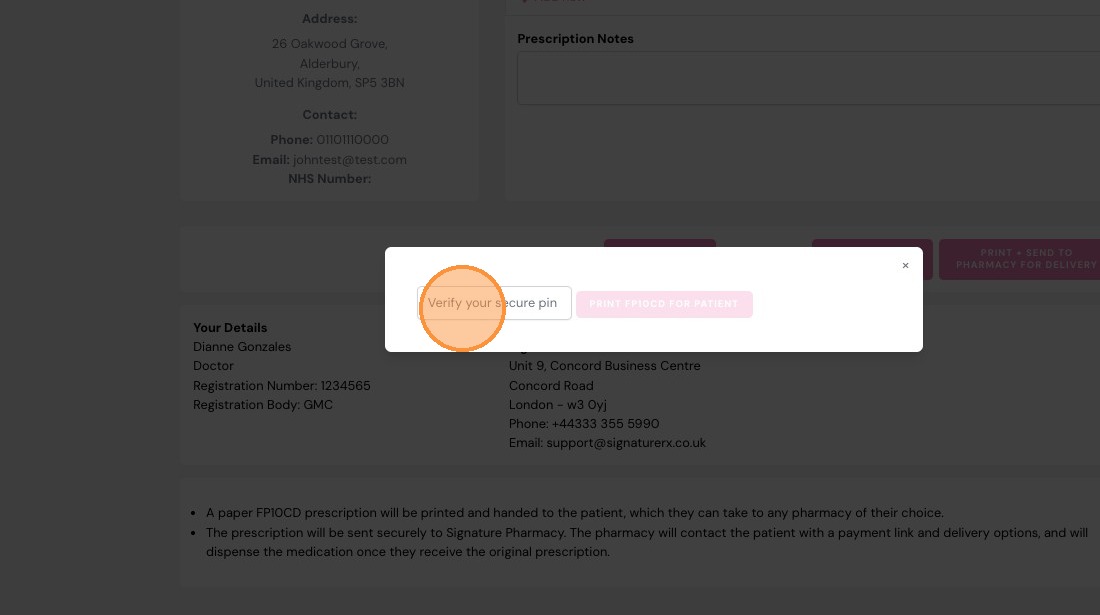
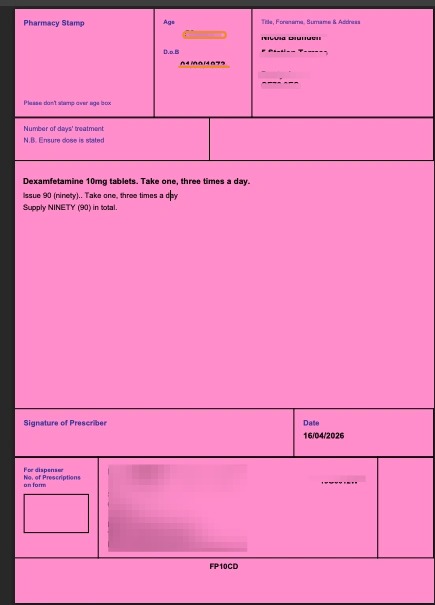
7. Print the prescription onto an FP10CD pink prescription pad.
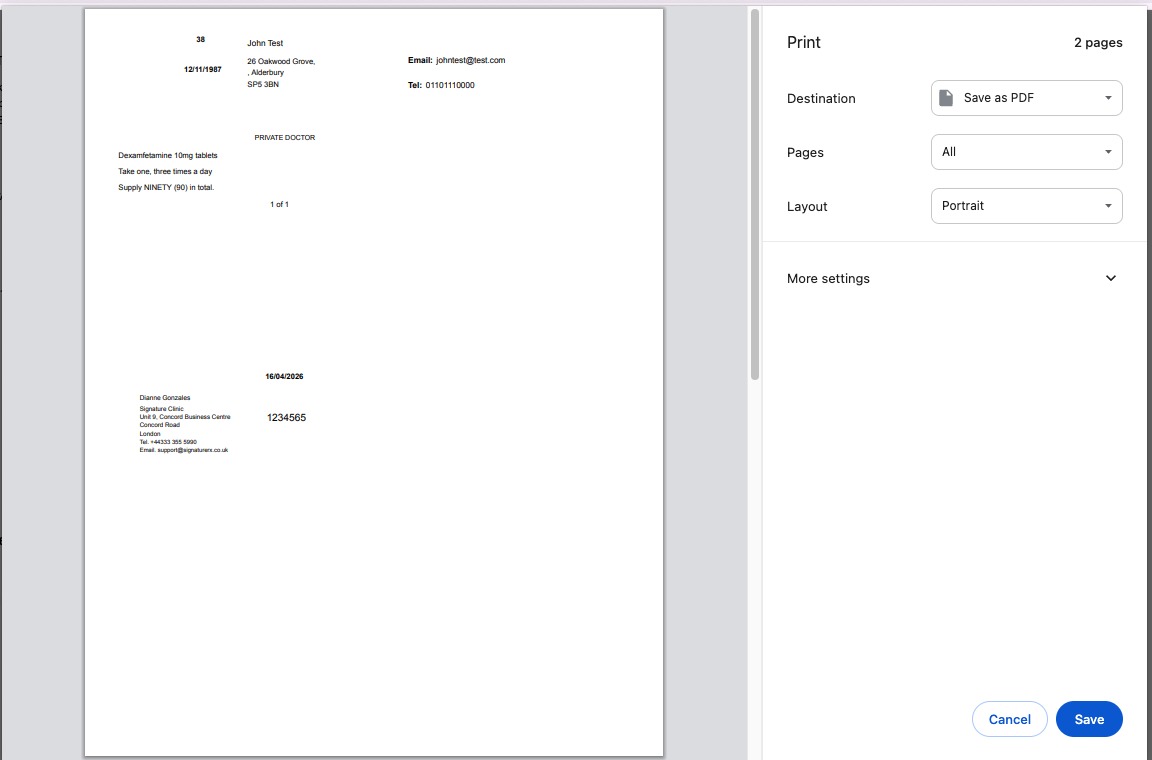
8. Once the FP10CD forms have been printed:
- Check that all prescription details are correct (patient details, medication, quantity, and date).
- Using a pen, apply a wet signature (handwritten signature) in the appropriate signature section on each FP10CD form.
- Place the signed FP10CD forms into the return envelope/package ready for posting.
Notes:
- One tracking label can be used for multiple prescriptions in the same package
- This ensures safe and trackable returns of FP10CD forms
Related Articles
Signature Controlled Drugs – FP10CD Process
Signature Controlled Drugs – FP10CD Process Made by Dianne Micah Gonzales with Scribe This guide explains how Controlled Drug prescribing works using the FP10CD process in SignatureRx, including how prescriptions are issued, handled, and delivered. ...Welcome to SignatureRx
Welcome to SignatureRx Learn how to get started with SignatureRx, an advanced electronic private prescription platform designed for clinicians and telemedicine providers. SignatureRx allows prescribers to issue secure, paperless private prescriptions ...Updates for Controlled Drug Prescribing via SignatureRx
Updates for Controlled Drug Prescribing via SignatureRx Made by Dianne Micah Gonzales with Scribe This guide covers the new FP10CD prescription management features released in May 2026. It explains what has changed, why, and step-by-step how to use ...Updates for Controlled Drug Prescribing via SignatureRx
Updates for Controlled Drug Prescribing via SignatureRx Made by Dianne Micah Gonzales with Scribe This guide covers the new FP10CD prescription management features released in May 2026. It explains what has changed, why, and step-by-step how to use ...How to Issue a Prescription for Collection or Delivery
<br> How to Issue a Prescription for Collection or Delivery Learn how to create and issue a new prescription for a patient. This guide covers adding new patients, applying templates, and managing prescription items for ...