Registering as a Prescriber & Understanding ID Verification – What to Expect?
Registering as a Prescriber & Understanding ID Verification – What to Expect?
This guide explains how to register as a prescriber on SignatureRx and what to expect during the ID verification process.
Before you can start issuing prescriptions, you must:
- Create a SignatureRx account
- Complete identity and professional verification
This ensures that all prescriptions are issued by appropriately qualified and authorised clinicians.
Sign up via the SignatureRx platform and click "REGISTER AS A PRESCRIBER"
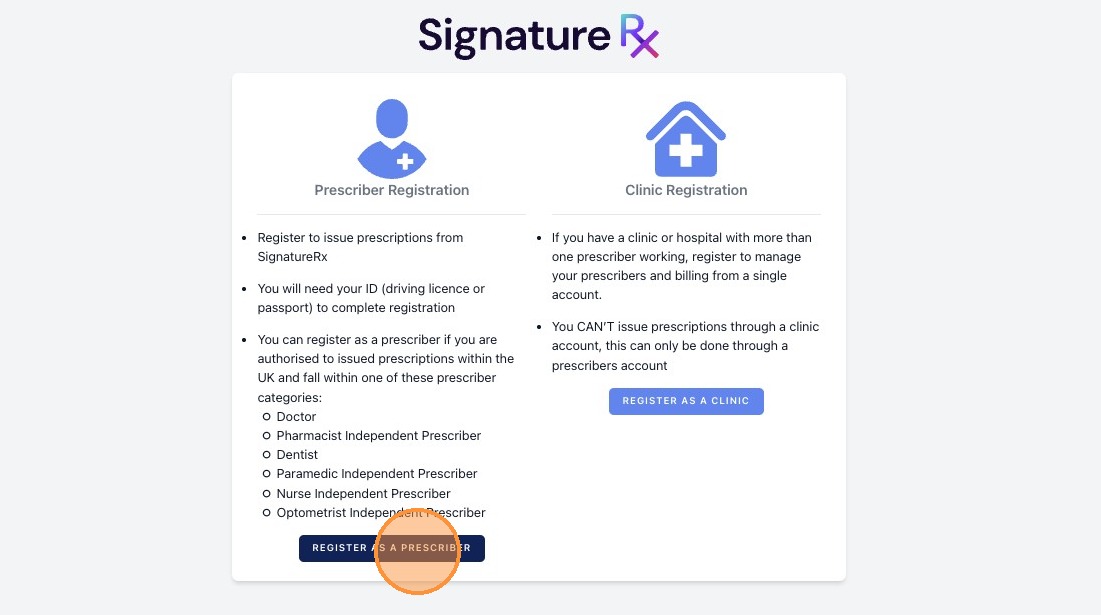
All fields marked with an asterisk (*) are required.
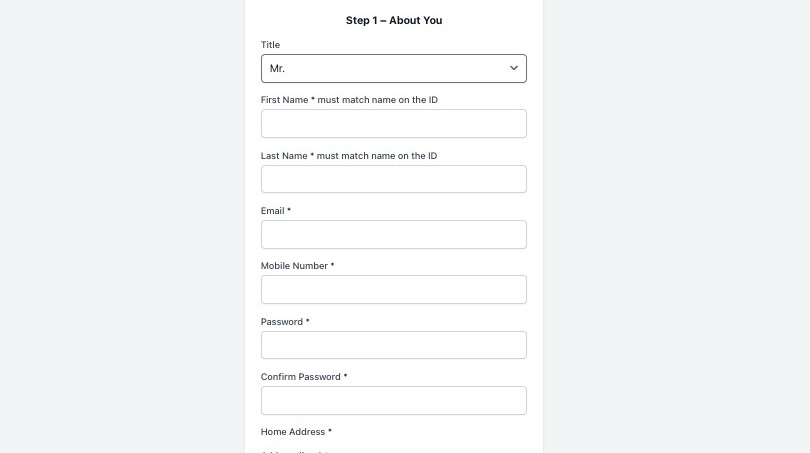
Step 1: Complete your personal details and click "next"
Important: Your name must match your ID exactly
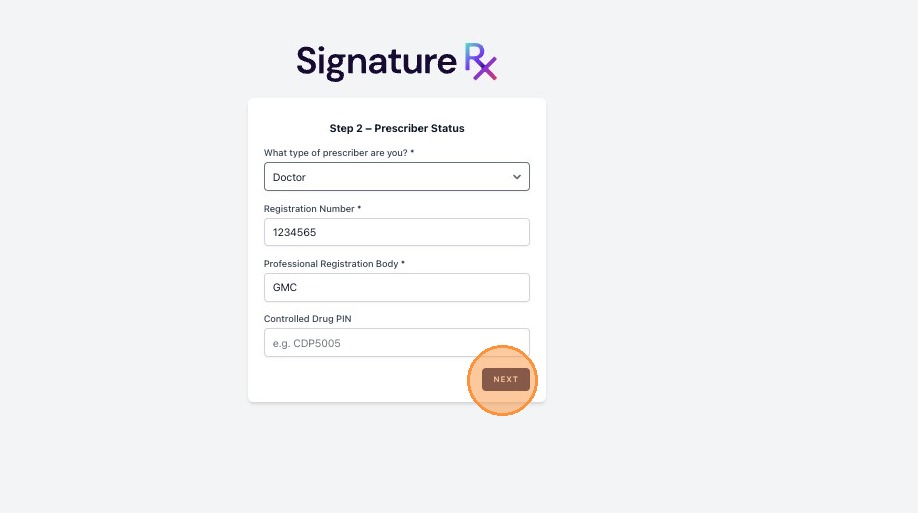
Step 2 is all about your Prescriber Status
Enter your:
- Select what type of prescriber are you?
- Registration number
- Regulatory body (e.g. GMC, GPhC, NMC)
This confirms your eligibility to prescribe.
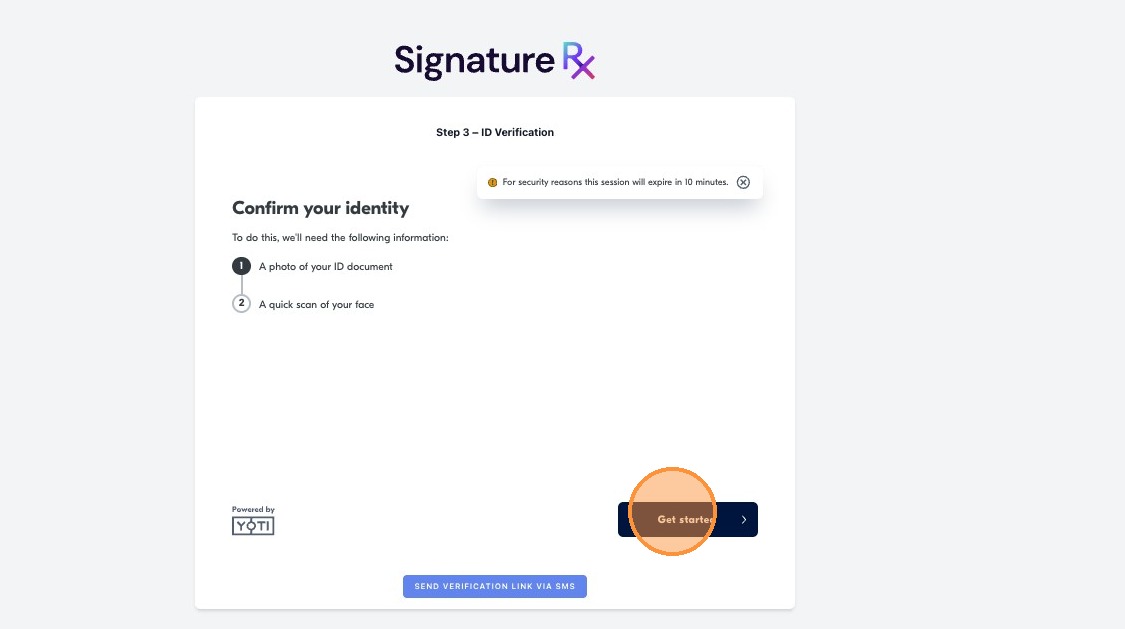
Step 3: ID Verification (Vouched ID Check)
You will need to complete an identity check using:
- Passport, or
- Driving licence
This step securely verifies your identity. Click "Get started"
You can complete the process using either a computer or a smartphone.
For the best experience, click “Use smartphone” to continue the verification on your mobile device.
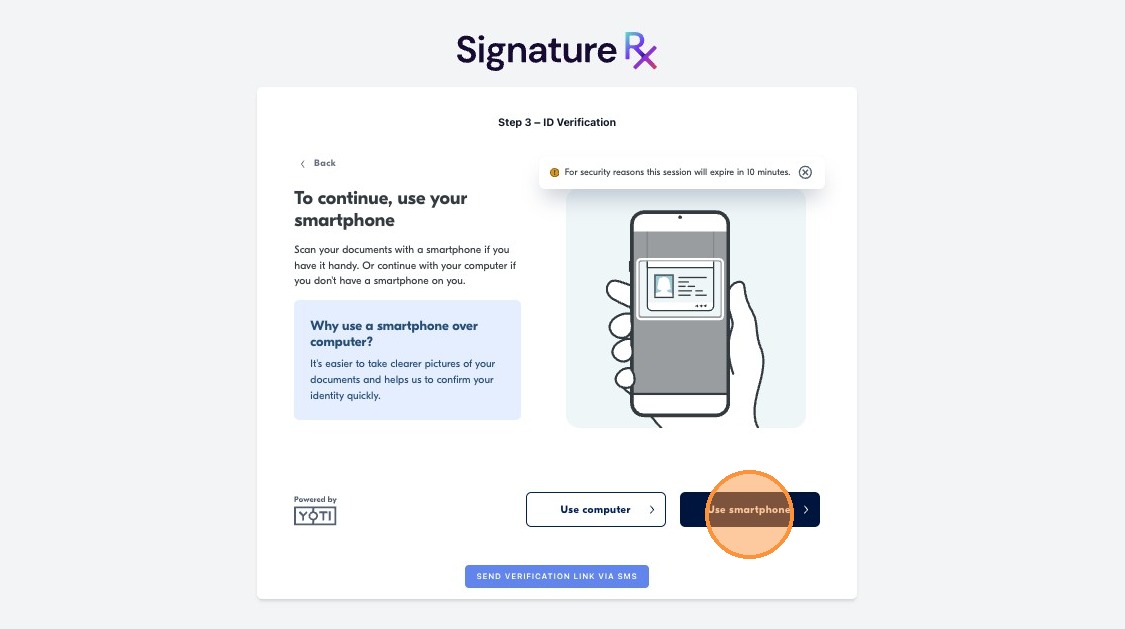
Using a smartphone is recommended for easier photo capture during ID verification.
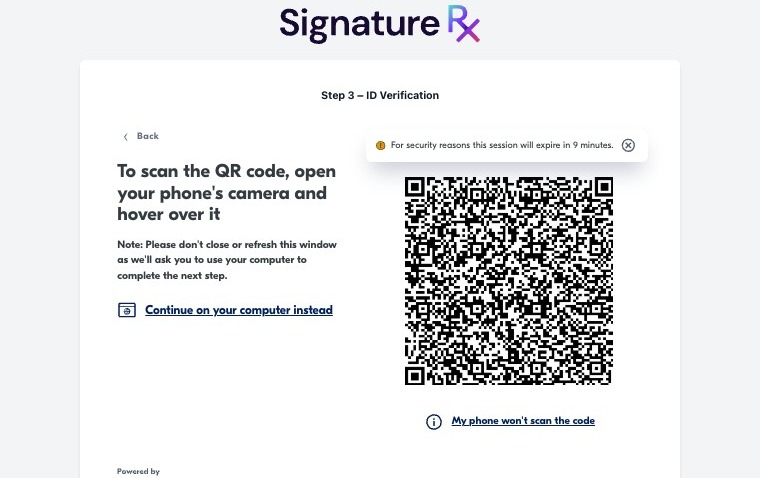
Scan the QR code, using your phone's camera.
ID Verification Problems
If you cannot complete the ID check (for example):
- You are using a maiden name/nickname
- Your ID shows a different surname
- Your details do not match automated checks
You can email your ID to:
support@signaturerx.co.uk
Include:
- A copy of your passport or driving licence
- A brief explanation
Your account can then be manually verified.
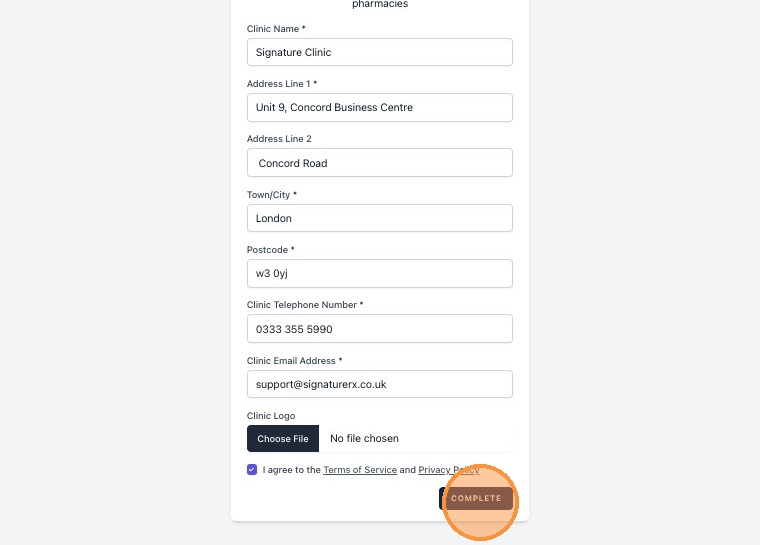
Step 4: Set-up your clinic details and don't forget to tick "I agree to the TOS and privacy poly" before you click complete.
What Happens After Registration?
- Your account will be reviewed by the SignatureRx team
- You will not be able to issue prescriptions until verification is complete
- You will be notified once your account is approved
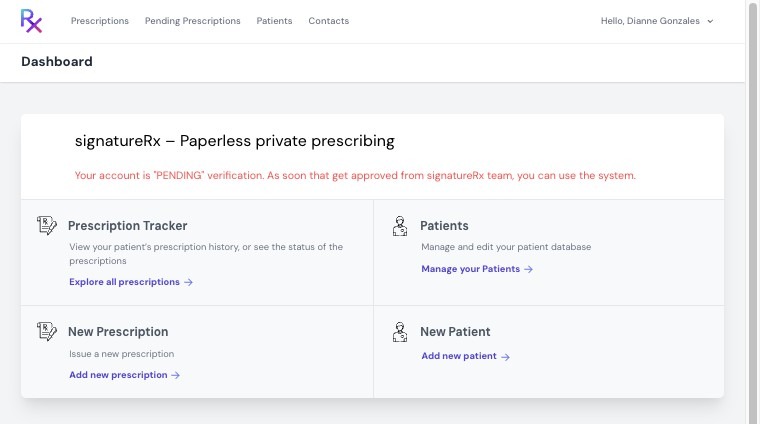
You may need to wait for the verification step to take place. This could take a number of days but generally happens within one working day. Should this process be delayed, please contact support@signaturerx.co.uk
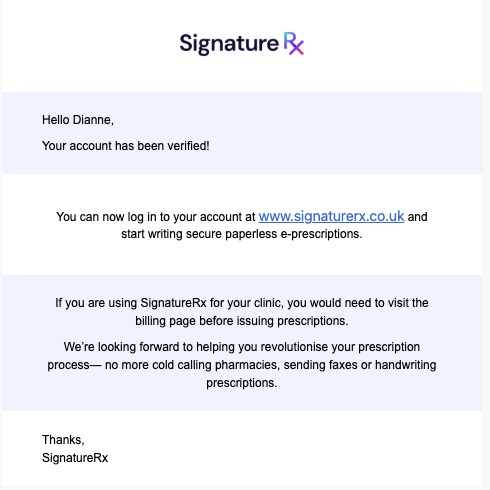
You will receive a confirmation email once your account has been verified and is ready to use.
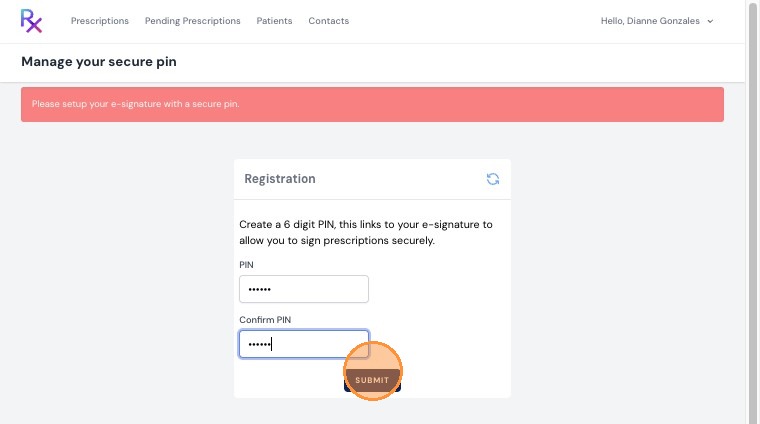
Once you open your account, you will be prompted to set up a 6-digit secure PIN.
This PIN is required every time you issue and sign a prescription.
Related Articles
How to Invite a Prescriber to SignatureRx - Clinic User
<br> Invite a Prescriber to SignatureRx Learn how to invite a prescriber to join SignatureRx. This guide will walk you through the simple steps to send an invitation and get them set up. 1. Log into your portal using ...How to Invite a Prescriber under your Clinic
Invite a Prescriber to SignatureRx 1. Log into your portal using your Clinic page. 2. Click "Prescribers" 3. Click "Invite Prescriber". Here you can see all prescribers: Active or Pending. You can also remove or edit Prescriber's details. 4. Enter ...Understanding Clinic Pay vs Patient Pay
Understanding Clinic Pay vs Patient Pay This guide explains the key differences between Clinic Pay and Patient Pay in SignatureRx, specifically for prescriptions fulfilled via Signature Pharmacy delivery. Signature offers two payment models for ...What If the Prescription ID Is Invalid or Not Found?
What If the Prescription ID Is Invalid or Not Found? If a Prescription ID is not found, it is usually due to a detail mismatch or the code being entered incorrectly. 1. Check the Prescription Details Confirm with the patient: Prescription ID is ...How to Use Your SignatureRx Prescription ID
How to Use Your SignatureRx Prescription ID Learn what a prescription ID is and how to use it to collect your medication from a pharmacy or request delivery. What Is a Prescription ID? A prescription ID is a unique code generated when your prescriber ...