Verifying the Prescriber’s Identity and Credentials
Verifying the Prescriber’s Identity and Credentials
This guide explains how SignatureRx verifies clinicians, and what pharmacists should check when validating an electronic private prescription.
1. How SignatureRx Verifies Clinicians
SignatureRx is an advanced electronic private prescription system that ensures all prescribers are:
- Registered with a recognised UK professional body
(e.g. GMC, GPhC, NMC) - Authorised to prescribe within their scope of practice
- Verified before being able to issue prescriptions through the platform
This provides an additional layer of security and compliance for pharmacies.
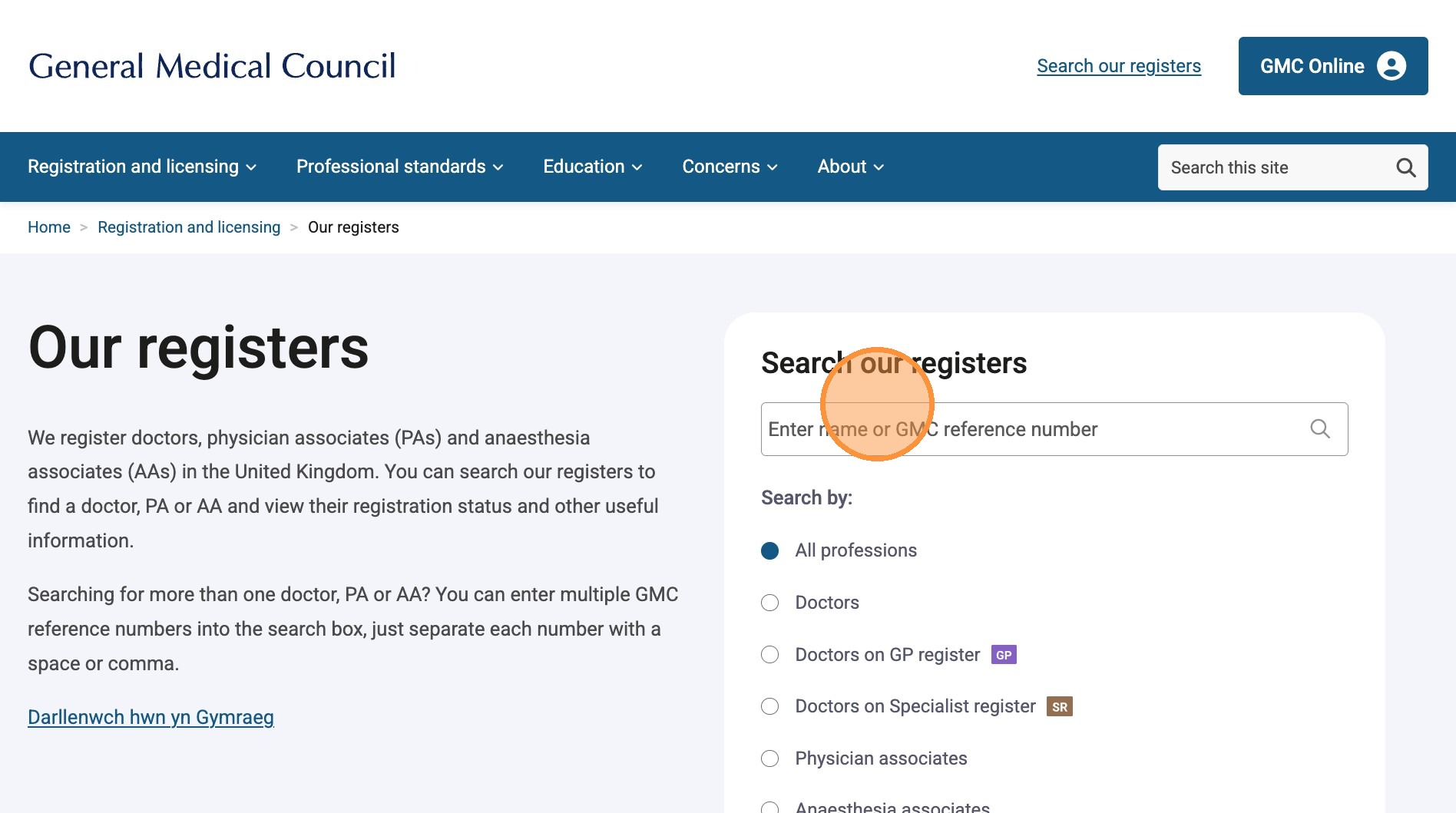
2. What Pharmacists Should Check
Even with system-level verification, pharmacists must still perform their own checks before dispensing.
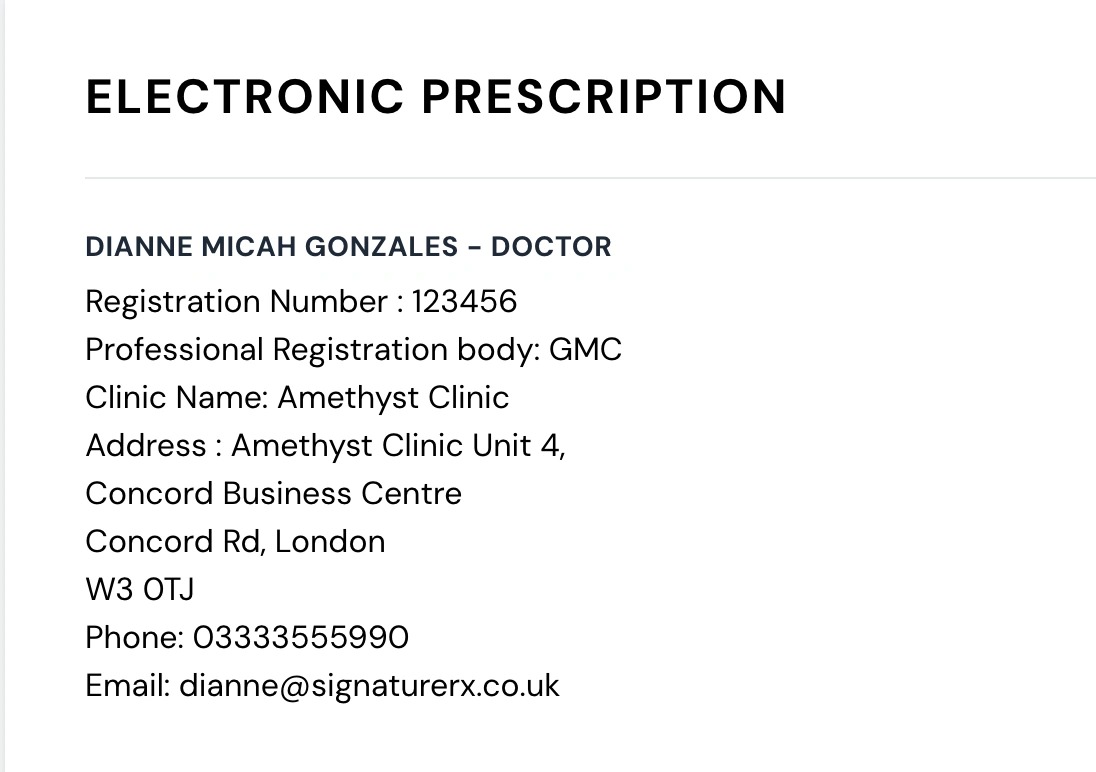
1. Prescriber Details
Confirm:
- Prescriber name
- Registration number
- Professional registration body
2. Registration Validity
Ensure:
- The registration number is valid and active
- The prescriber is authorised to prescribe the medication issued
3. Prescription Authenticity
Check that:
- The prescription is retrieved via SignatureRx
- The status is “Available for dispensing”
- All required fields are complete
Verifying prescriber credentials helps to:
- Ensure the prescription is legitimate
- Protect patient safety
- Maintain legal and regulatory compliance
- Prevent fraud or misuse
When to Take Action
Do not dispense and escalate if:
- Prescriber details are missing or unclear
- Registration cannot be verified
- The prescription appears inconsistent or inappropriate
Contact your prescriber or SignatureRx support team for clarification.
Reassurance for Pharmacists
SignatureRx provides:
- Secure clinician onboarding and verification
- A controlled prescribing environment
- A digital audit trail for all prescriptions
However, pharmacists remain responsible for final validation before dispensing.
If you are unsure about a prescriber or prescription, please contact the SignatureRx support team before proceeding.
Related Articles
How to Remove a Prescriber from Your Clinic
How to Remove a Prescriber from Your Clinic Learn the necessary steps to manage your clinic's staff by removing a prescriber from your account. This guide provides a clear walkthrough to ensure you can efficiently update your clinic's authorised ...How to Invite a Prescriber to SignatureRx - Clinic User
<br> Invite a Prescriber to SignatureRx Learn how to invite a prescriber to join SignatureRx. This guide will walk you through the simple steps to send an invitation and get them set up. 1. Log into your portal using your Clinic ...How to Invite a Prescriber under your Clinic
Invite a Prescriber to SignatureRx 1. Log into your portal using your Clinic page. 2. Click "Prescribers" 3. Click "Invite Prescriber". Here you can see all prescribers: Active or Pending. You can also remove or edit Prescriber's details. 4. Enter ...Registering as a Prescriber & Understanding ID Verification – What to Expect?
Registering as a Prescriber & Understanding ID Verification – What to Expect? Made by Dianne Micah Gonzales with Scribe This guide explains how to register as a prescriber on SignatureRx and what to expect during the ID verification process. Before ...Viewing All Prescriptions Under Your Clinic – Filtering by Prescriber, Date, and Status
Viewing all prescriptions issued under your clinic- Filtering by prescriber, date, status (issued / dispensed / voided) Made by Dianne Micah Gonzales with Scribe Learn how to view and filter prescriptions within your SignatureRx clinic dashboard. ...