Viewing All Prescriptions Under Your Clinic – Filtering by Prescriber, Date, and Status
Viewing all prescriptions issued under your clinic- Filtering by prescriber, date, status (issued / dispensed / voided)
Learn how to view and filter prescriptions within your SignatureRx clinic dashboard. This guide shows you how to use filters to quickly find prescriptions by prescriber, date, and status.
1. Log in to your portal via your clinic page.
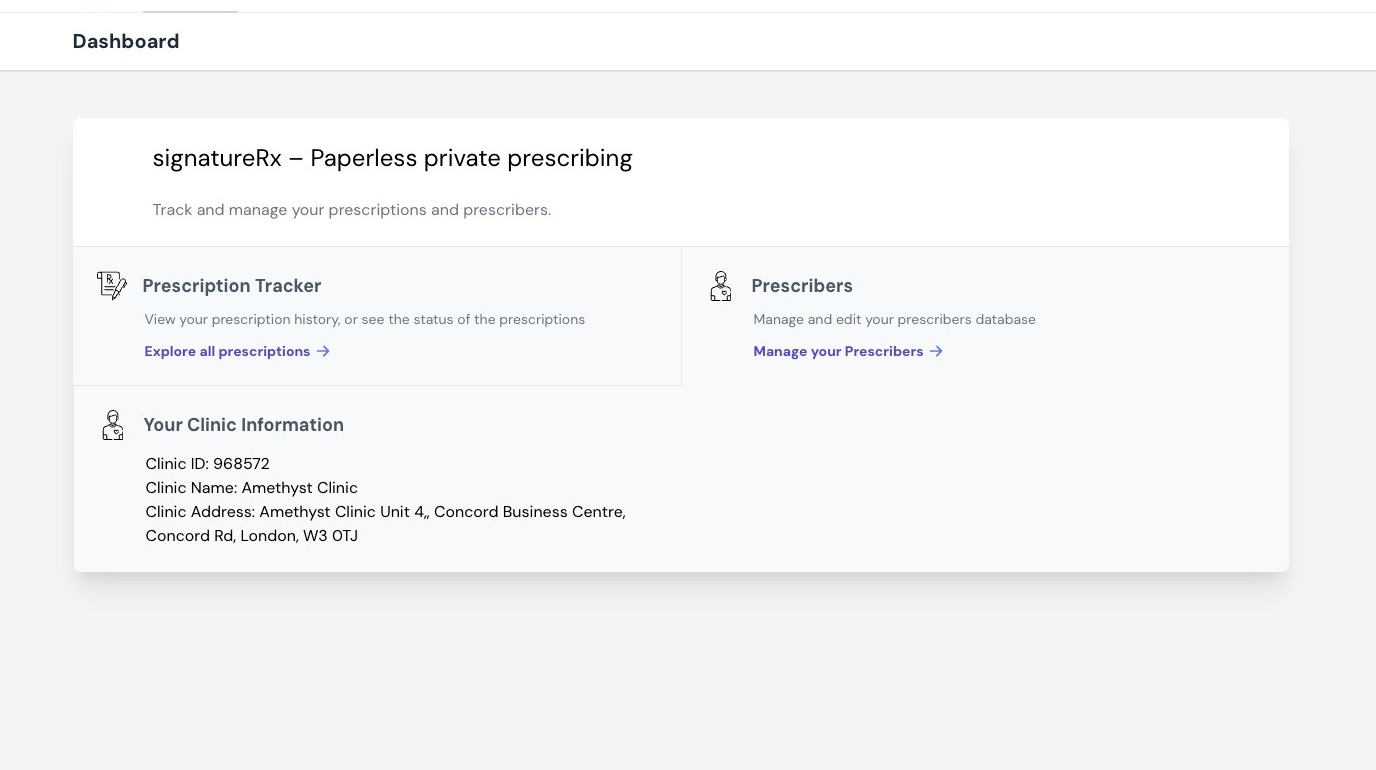
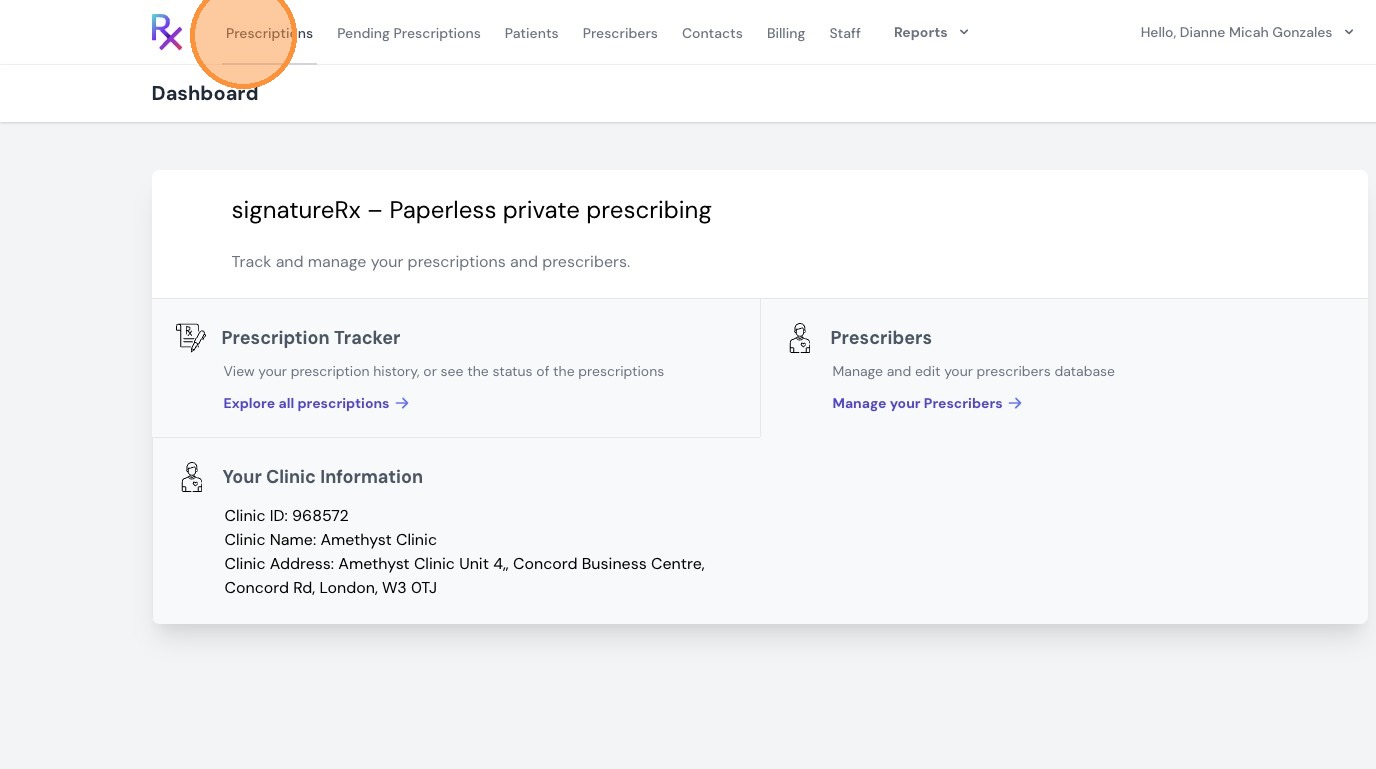
2. Click "Prescriptions"
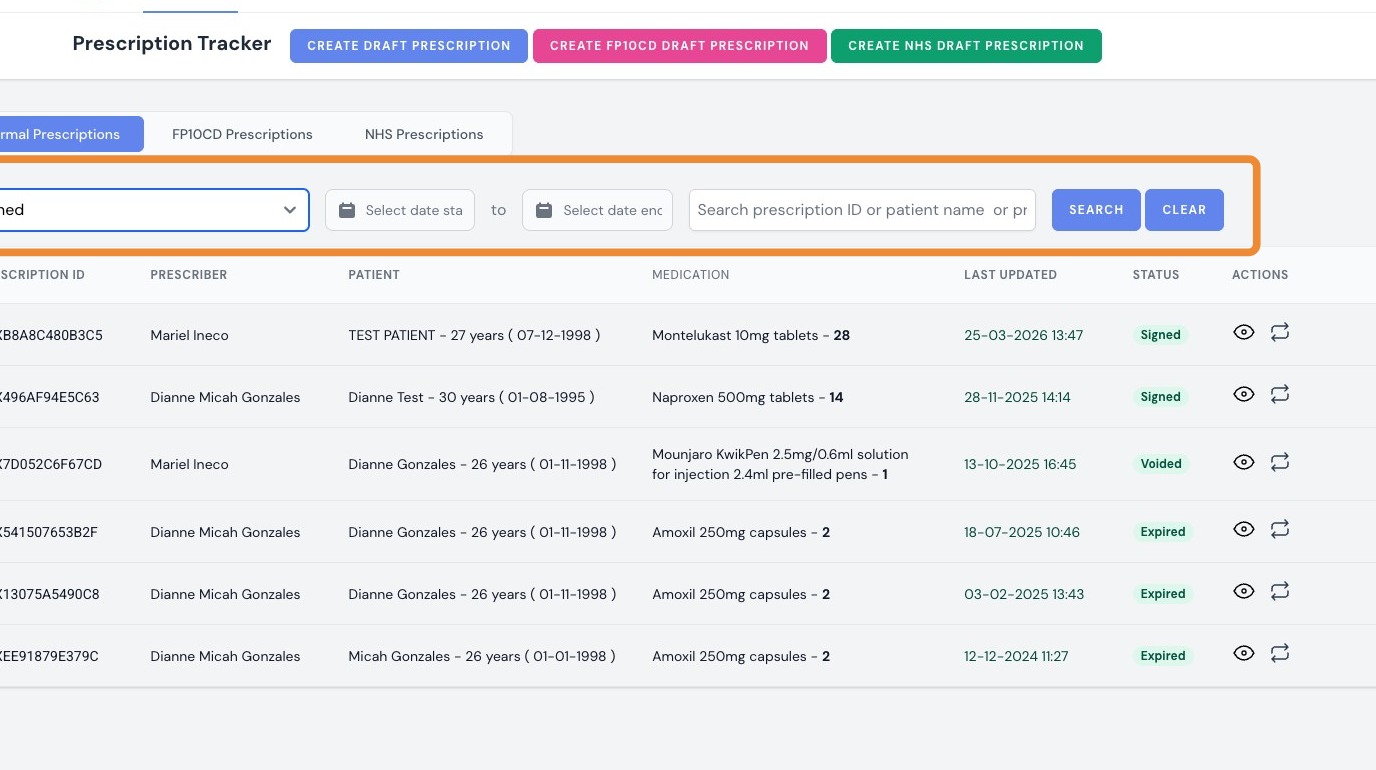
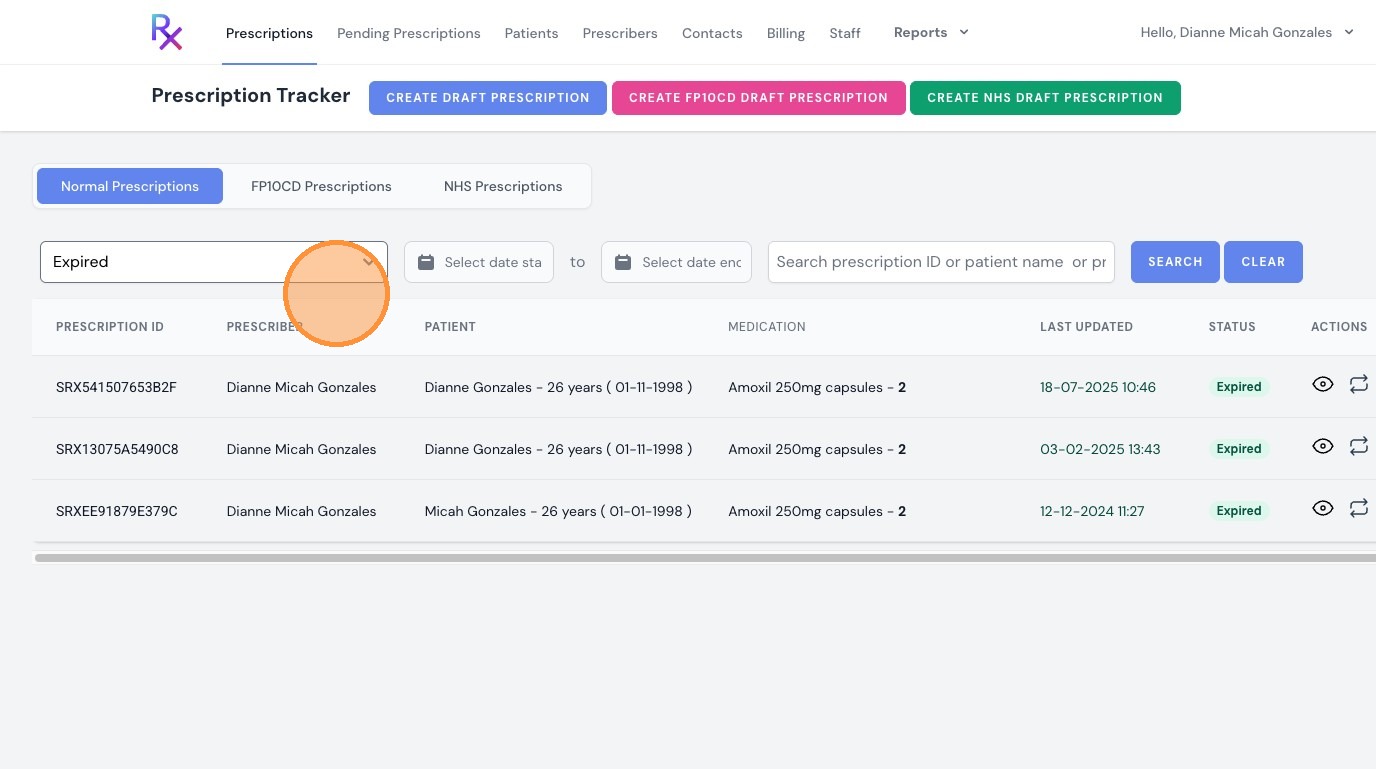
3. Use the available filters to refine your results:
- Status: filter prescriptions by their current status
- Date: choose a date range to filter prescriptions within a specific period
- Prescriber: Select a specific prescriber to view their issued prescriptions
4. Select the relevant status options:
- Signed (Issued)
- Dispensed
- Voided
- Expired
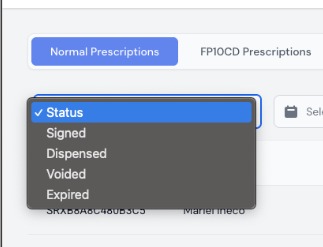
5. The list will automatically update to display prescriptions matching your selected filters.
Additional information
- Use filters together to narrow down results more efficiently
- This is useful for tracking prescription activity, auditing, and reporting
Viewing All Prescriptions Under Your Clinic – Filtering by Prescriber, Date, and Status
Overview
This article explains how to view and filter prescriptions within your clinic dashboard by prescriber, date, and status.
Who does this apply to?
Clinic users tracking prescription activity across their clinic.
Key points
- Prescriptions can be filtered by status, date range, and prescriber.
- Status options include Signed (Issued), Dispensed, Voided, and Expired.
- Useful for tracking activity, auditing, and reporting.
1. How do I filter prescriptions?
Answer: Using the filters on the Prescriptions tab.
Log in via your clinic page; click "Prescriptions"; use the filters for status, date range, and prescriber. The list updates automatically based on your selections.
2. What status options are available?
Answer: Signed (Issued), Dispensed, Voided, and Expired.
Filters can be combined for more precise results, which is useful for tracking prescription activity, auditing, and reporting.
Related Articles
Checking Prescription Status
Checking Prescription Status Made by Dianne Micah Gonzales with Scribe Learn how to check the status of your prescriptions in SignatureRx and view completed or signed records. 1. Navigate to your SignatureRx dashboard and log in using your prescriber ...Managing Prescribers Under Your Clinic
Managing Prescribers Under Your Clinic This guide explains how to view all prescribers linked to your clinic account and understand their account statuses. 1. Log in to your portal via your clinic page. 2. Click "Prescribers". 3. In the “Prescribers” ...How to Remove a Prescriber from Your Clinic
How to Remove a Prescriber from Your Clinic Learn the necessary steps to manage your clinic's staff by removing a prescriber from your account. This guide provides a clear walkthrough to ensure you can efficiently update your clinic's authorised ...My Date of Birth Is Incorrect on My Prescription
My Date of Birth Is Incorrect on the Prescription This guide explains why an incorrect birthdate prevents pharmacies from finding or dispensing your medication and what to do next. It tells you to promptly contact your prescriber or clinic and ...Navigating The SignatureRX Clinic Dashboard (Overview)
Navigating The SignatureRX Clinic Dashboard (Overview) This guide provides an overview of the SignatureRx clinic dashboard. It covers the key areas available to help you manage prescriptions, prescribers, patients, billing, and clinic settings ...