Managing Prescribers Under Your Clinic
Managing Prescribers Under Your Clinic
This guide explains how to view all prescribers linked to your clinic account and understand their account statuses.
1. Log in to your portal via your clinic page.
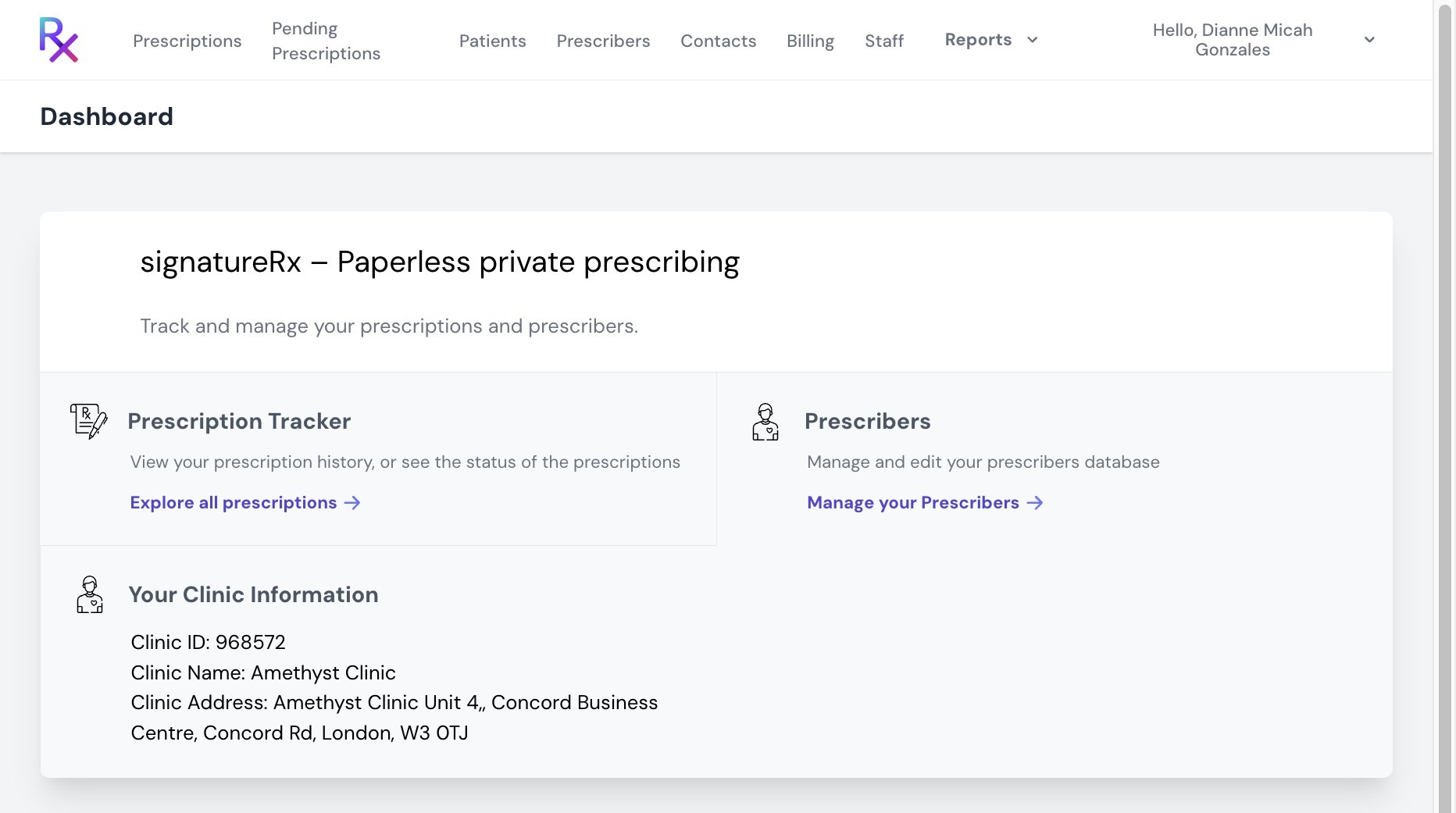
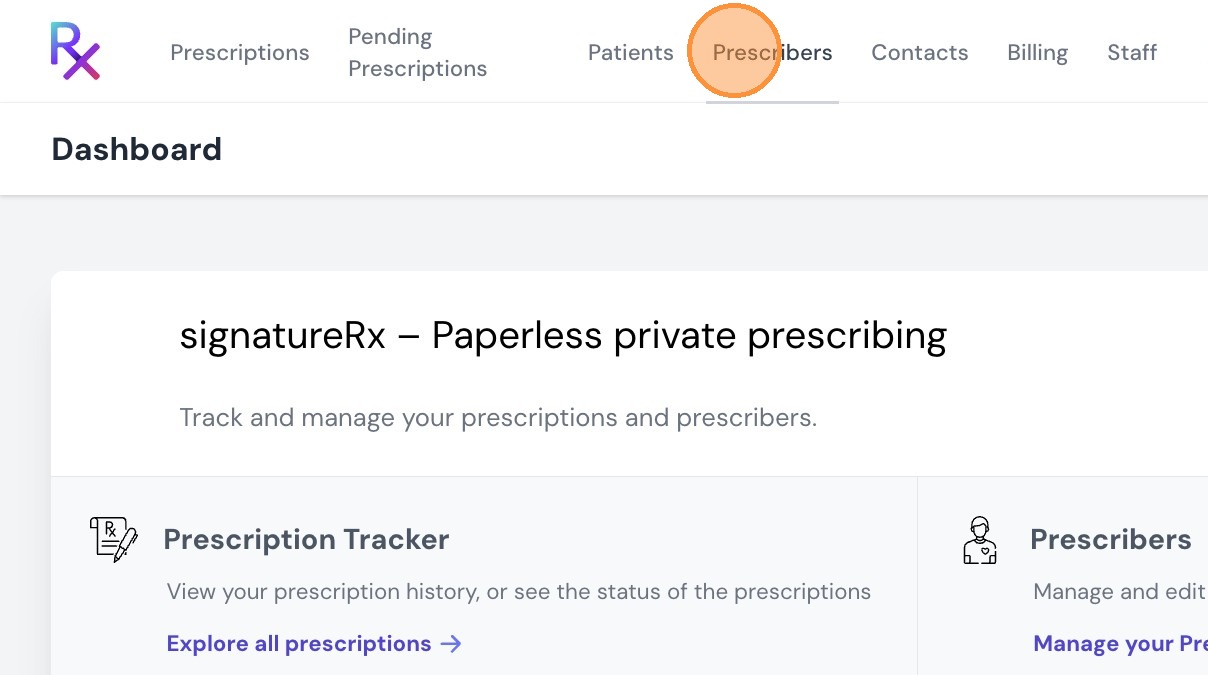
2. Click "Prescribers".
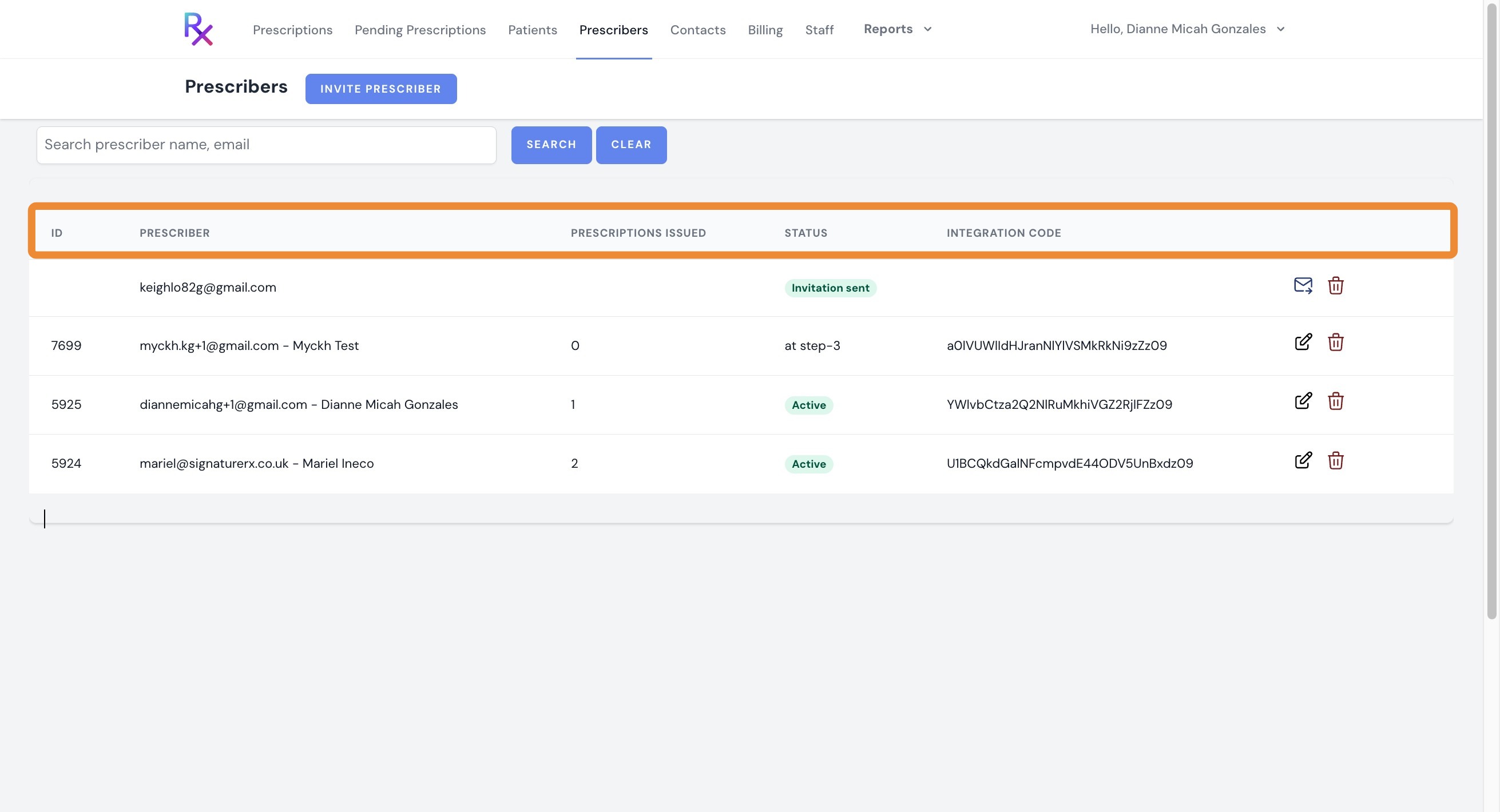
3. In the “Prescribers” tab, you will see a list of all prescribers linked to your clinic.
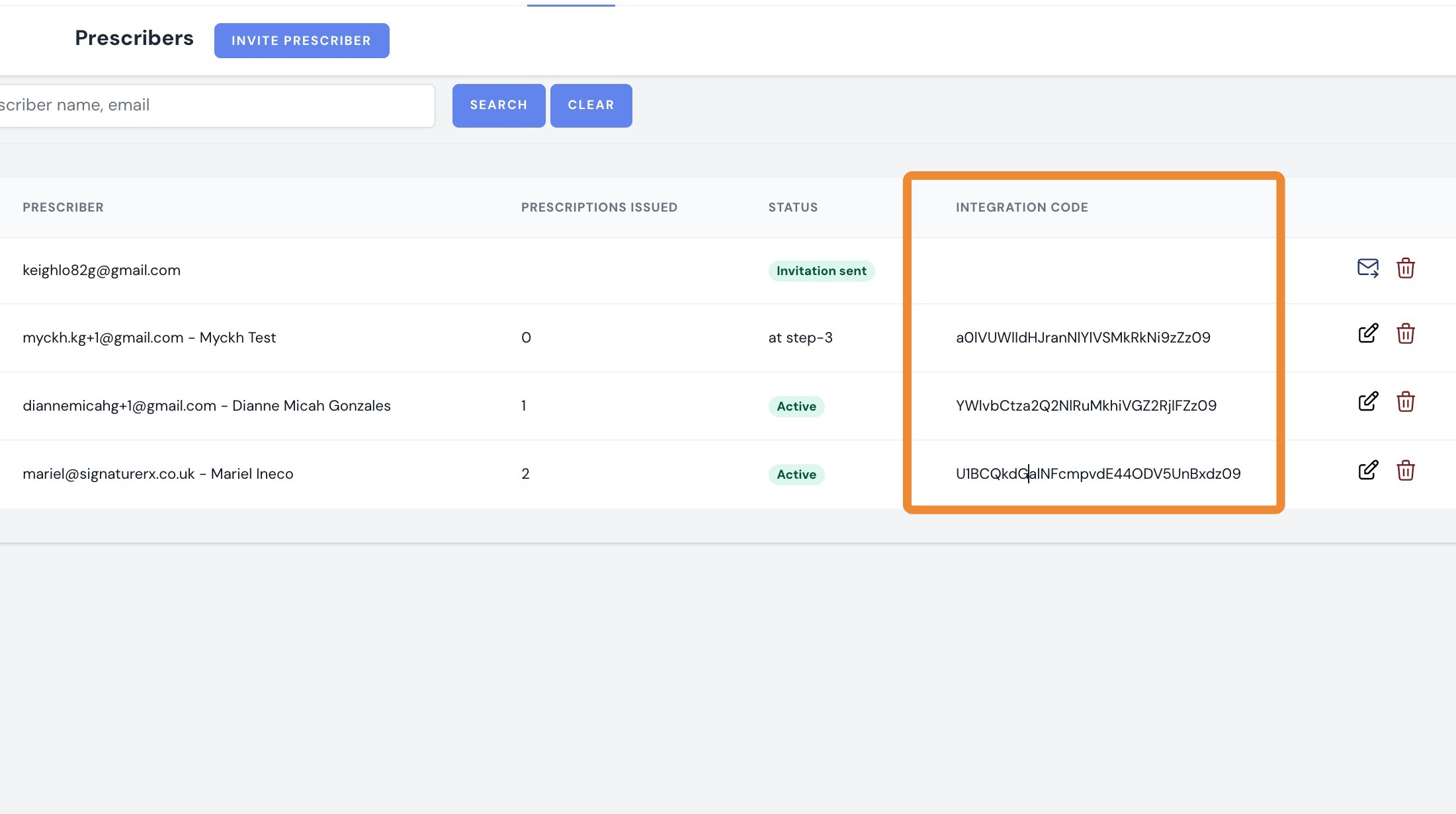
The list will display key details for each prescriber, including their name, email address, total prescription issued, status, and integration code.
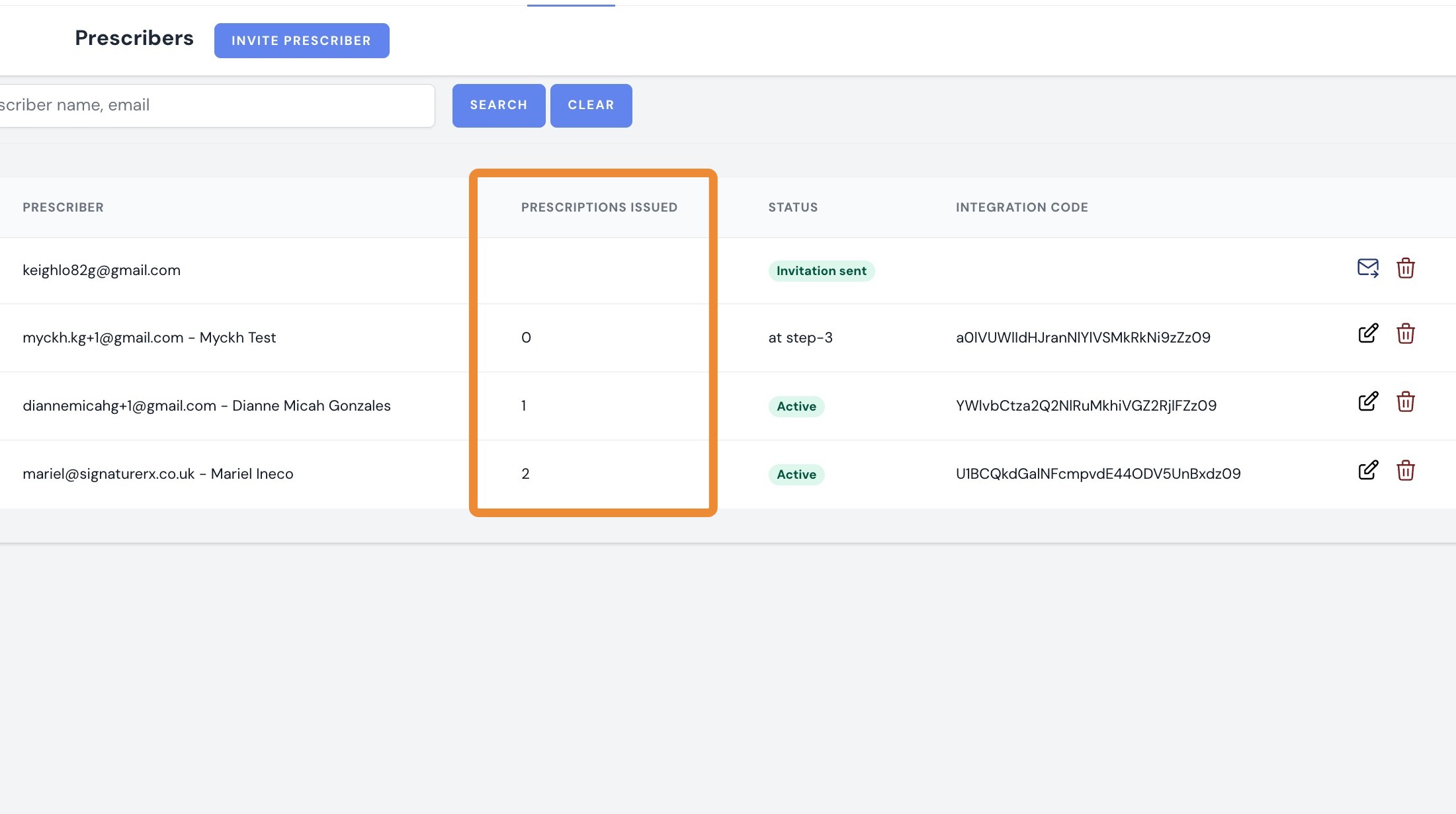
4. You can also find the total number of prescriptions issued by each prescriber.
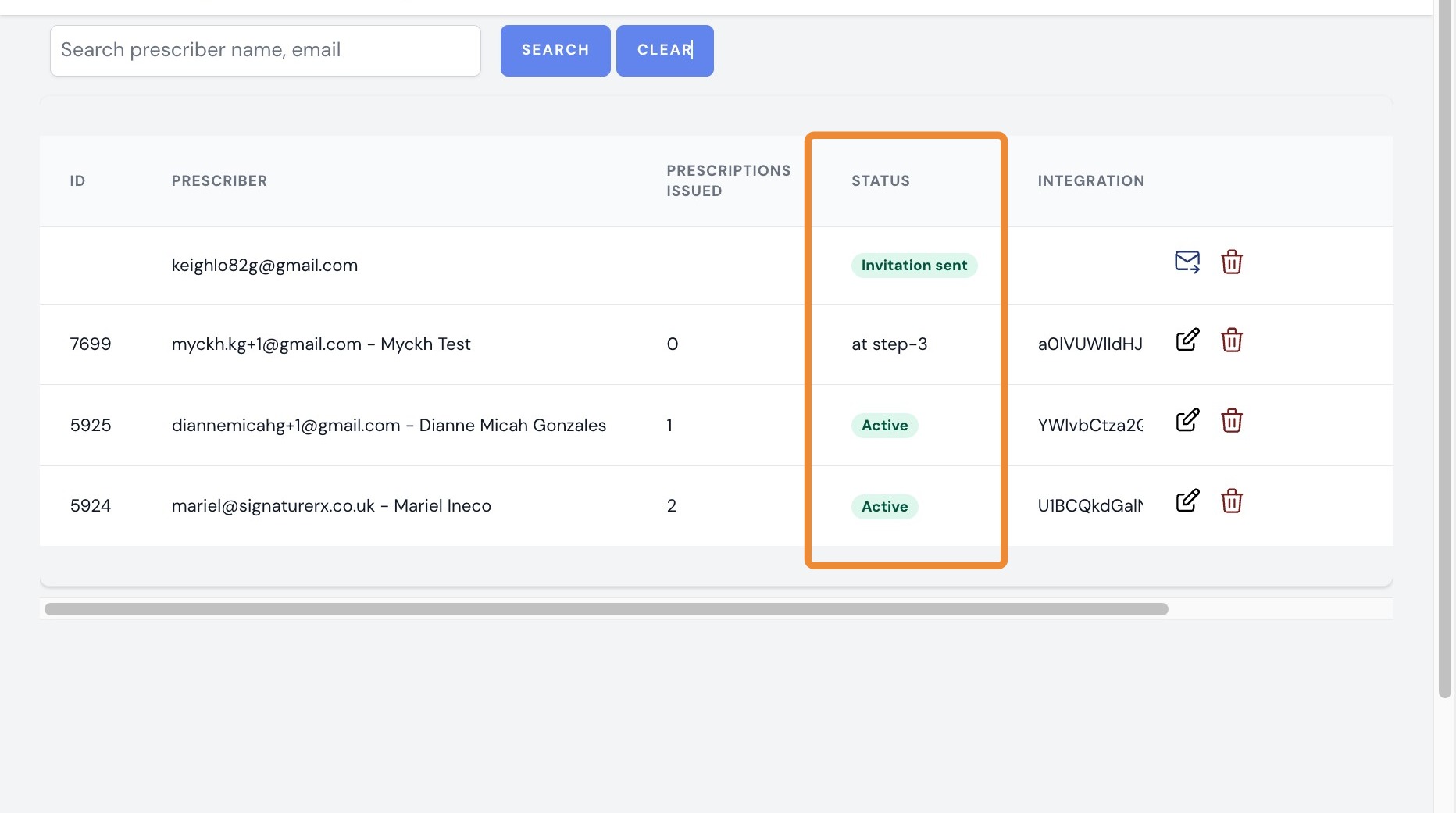
5. You can also view the clinic status for each prescriber:
- Invitation Sent: the invite has been sent to the prescriber.
- Current Step: shows where the prescriber is in the registration or verification process.
- Active: the prescriber can issue prescriptions.
- Inactive: the prescriber cannot issue prescriptions.
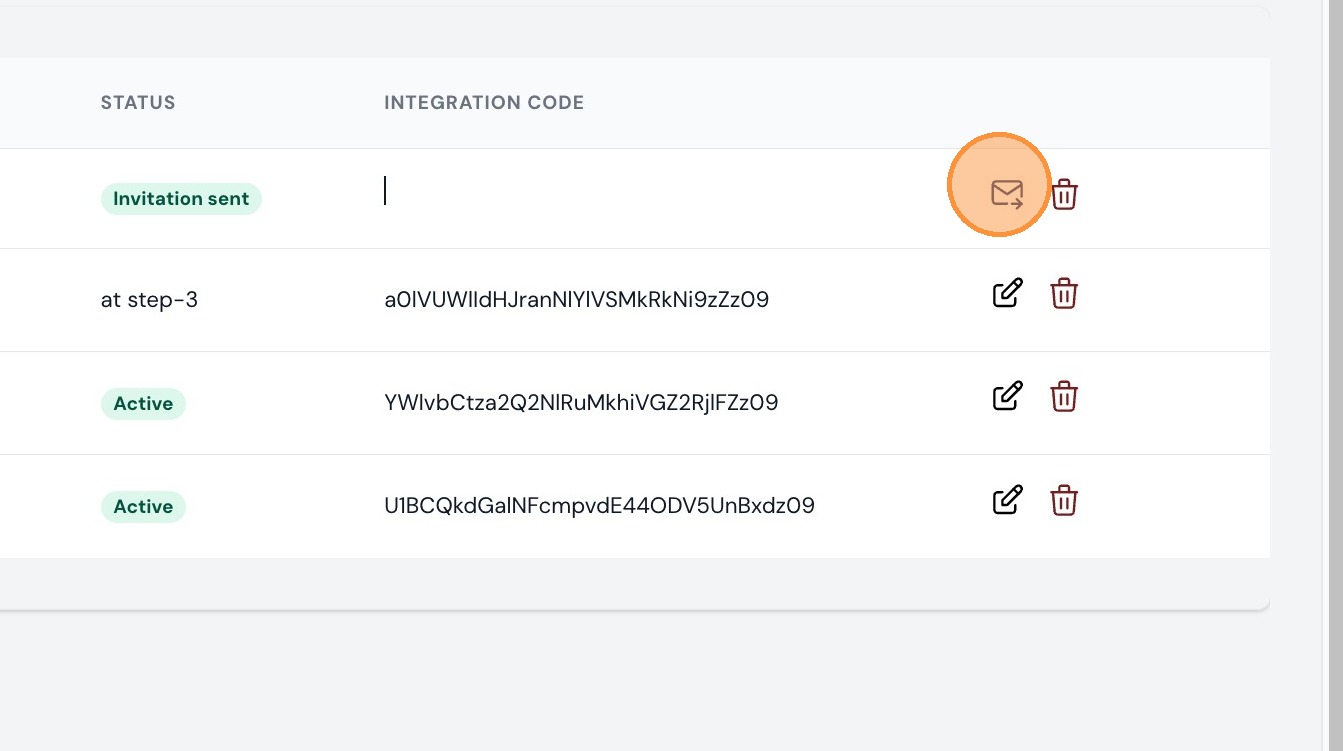
6. You can also resend the clinic invite to a prescriber if they have accidentally deleted it. Click the resend icon.
7. You will also find the integration ID here, which can be used for your clinicians’ integrations. Each prescriber has their own unique integration code.
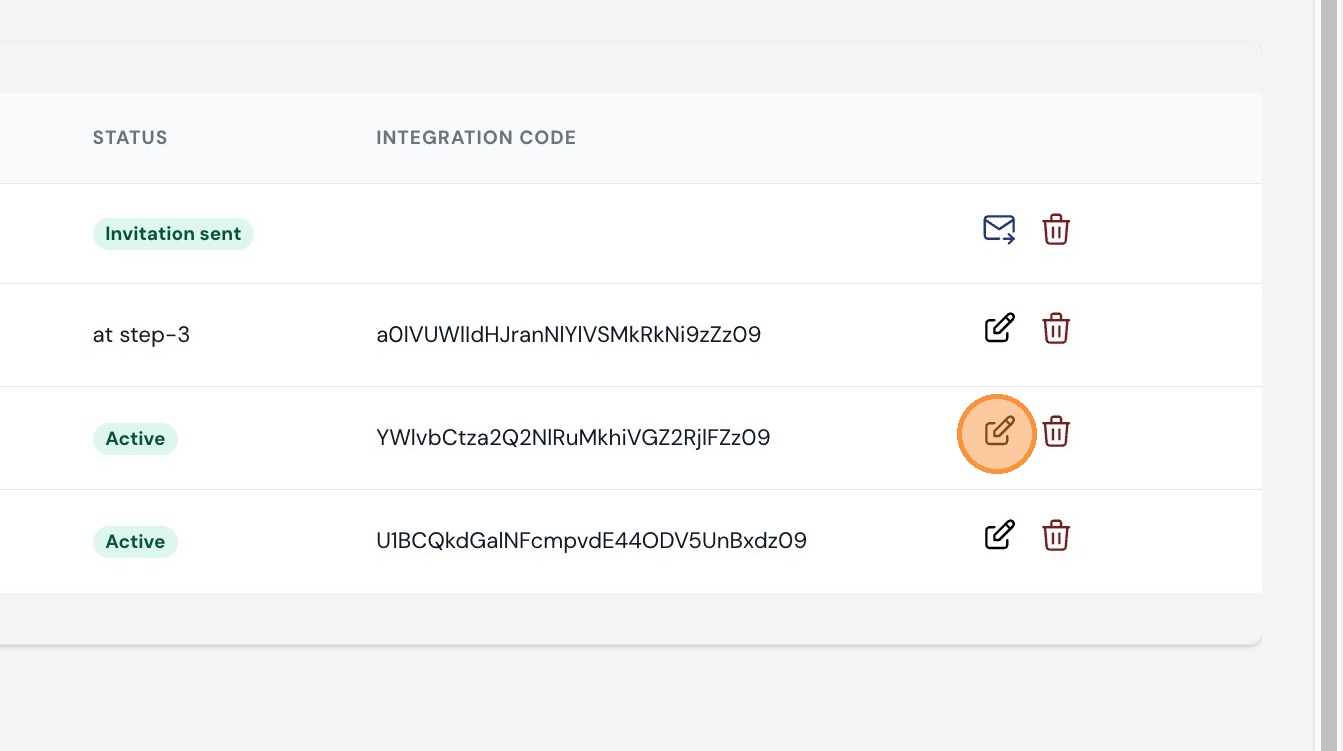
8. You can also edit the prescriber’s status by clicking this icon.
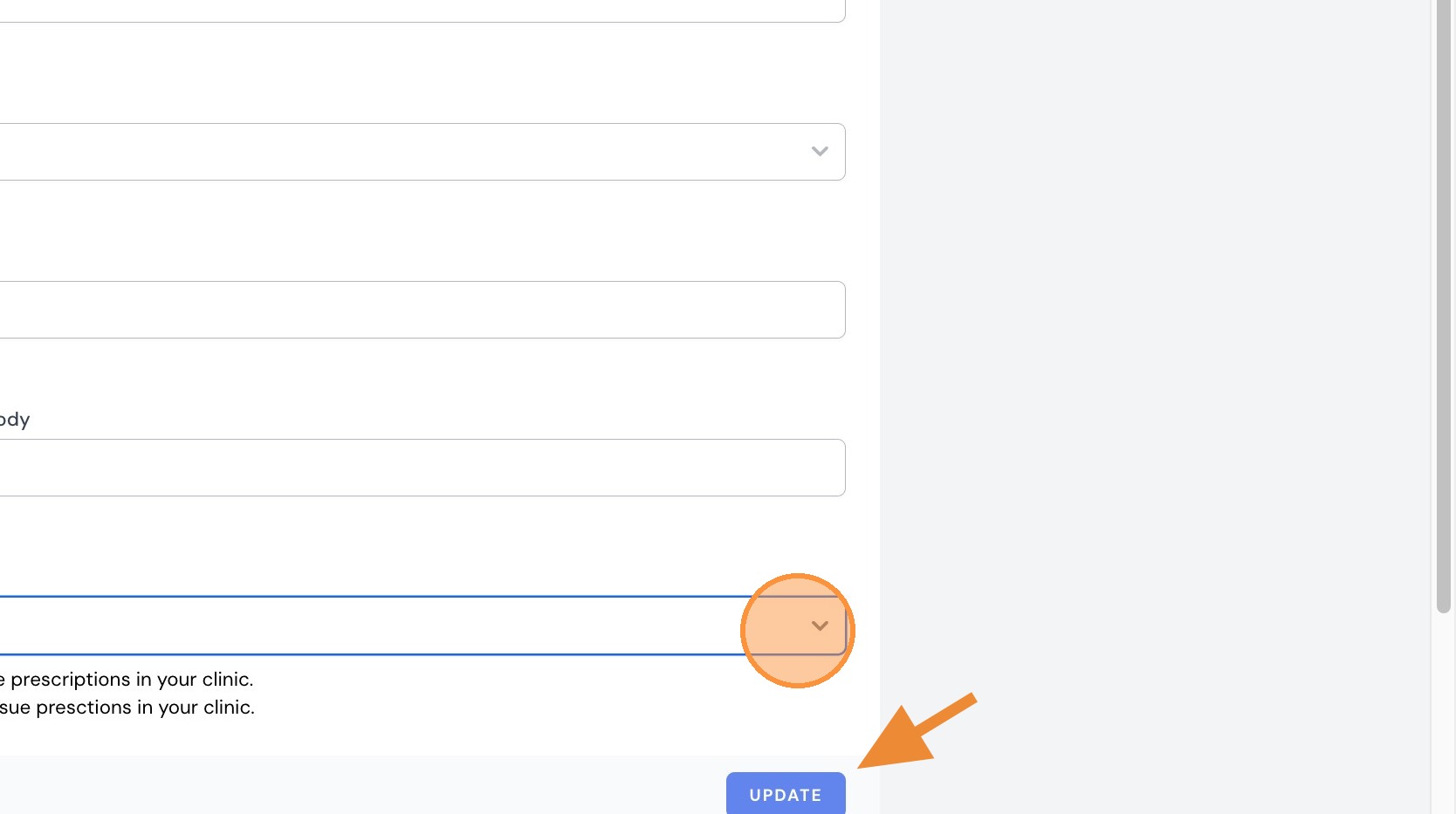
9. Select either Active or Inactive.
Active: the prescriber can issue prescriptions within your clinic.
Inactive: the prescriber cannot issue prescriptions within your clinic.
Then click “Update”.
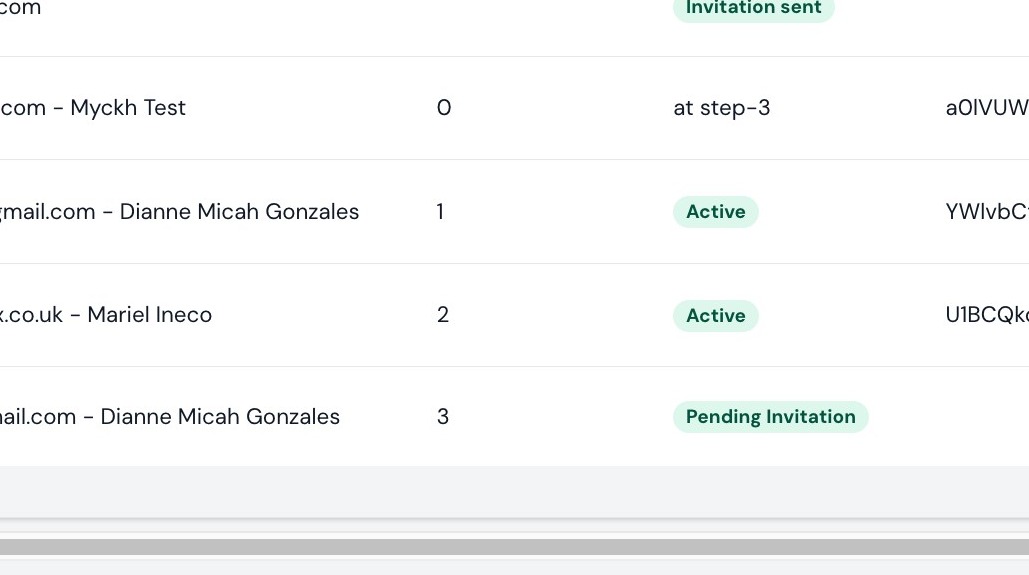
10. You can also remove a prescriber from your clinic by clicking the trash icon.
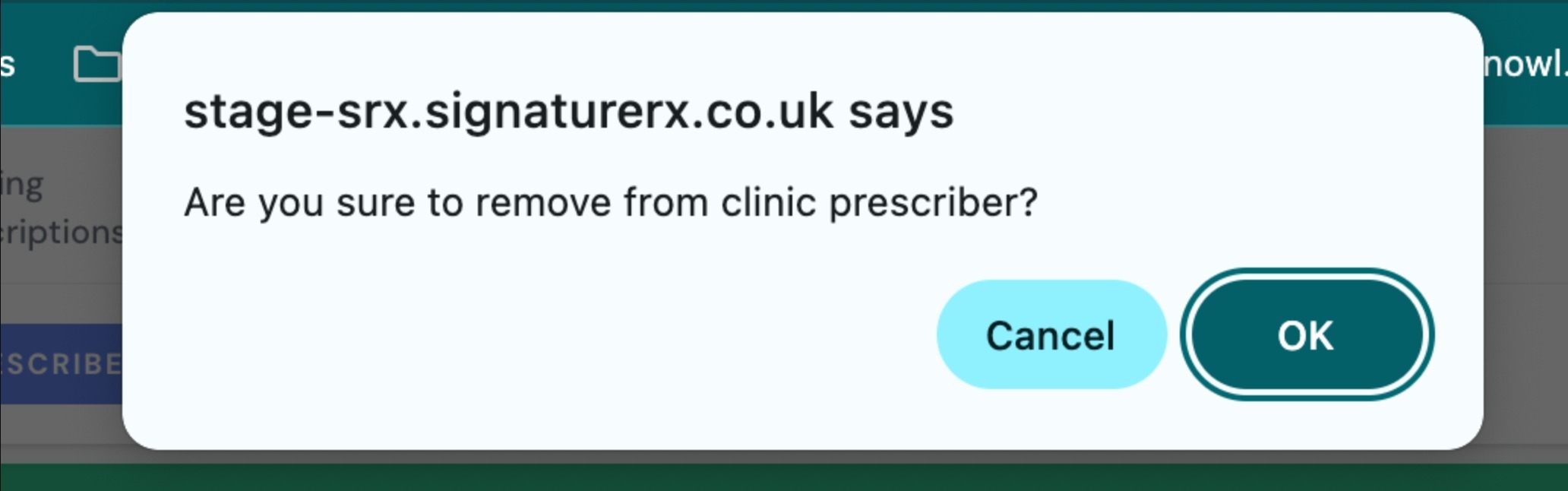
11. A prompt will appear asking you to confirm the removal.
Click "OK" to continue.
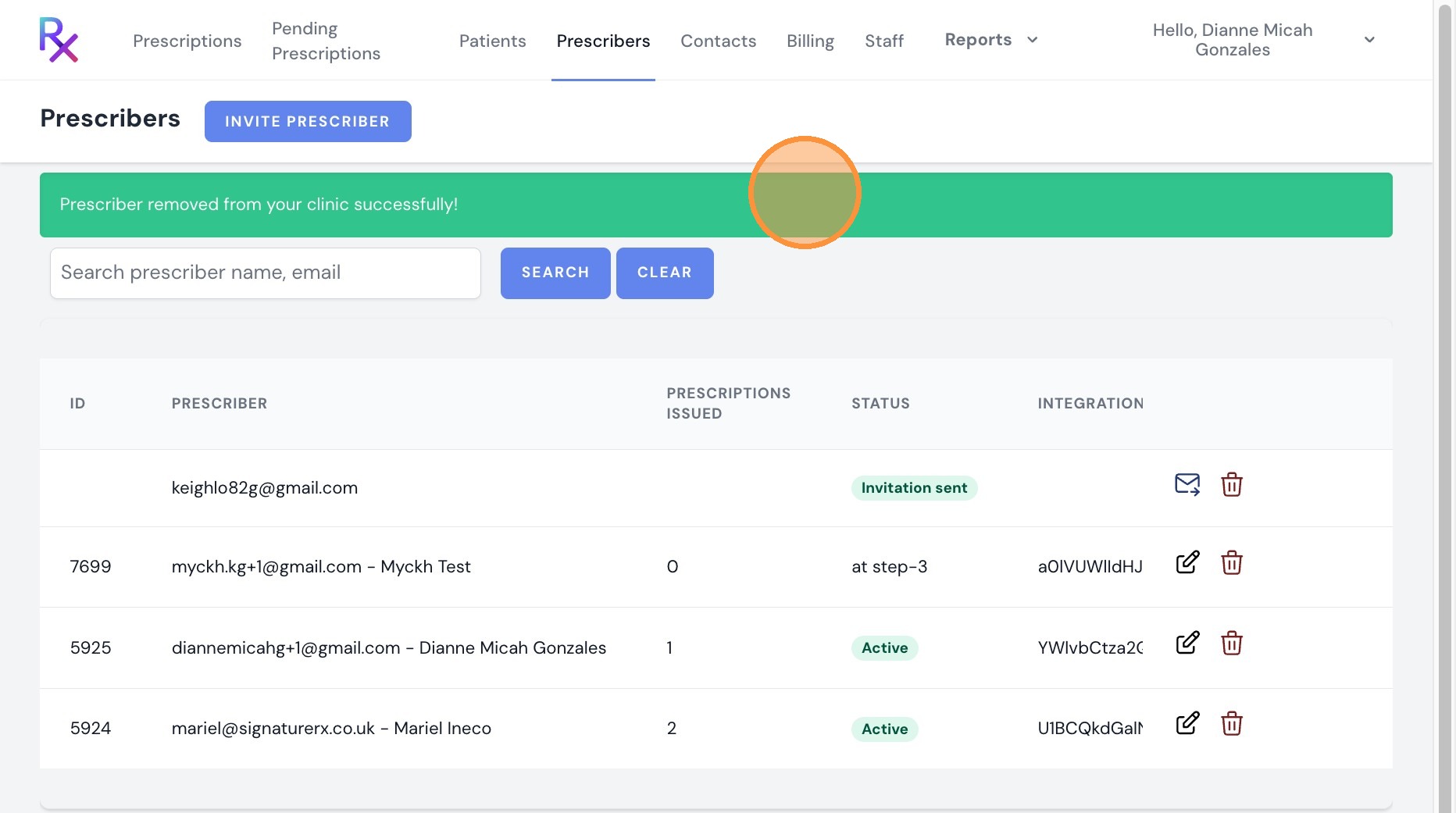
12. A green confirmation message will appear: “Prescriber removed from your clinic successfully.”
Managing prescribers under your clinic
Overview
This article explains how to view all prescribers linked to your clinic, understand their account status, and remove a prescriber if needed.
Who does this apply to?
Clinic users managing prescriber accounts.
Key points
- The Prescribers tab lists all linked prescribers along with key details and status.
- Prescriber status can be Invitation Sent, a registration step, Active, or Inactive.
- Prescribers can be resent invites, have their status edited, or be removed from this tab.
1. What information is shown for each prescriber?
Answer: Name, email, prescriptions issued, status, and integration code.
The list displays each prescriber's name, email address, total prescriptions issued, status, and a unique integration code, which can be used for clinician integrations.
2. How do I change a prescriber's status?
Answer: Using the edit icon in the Prescribers tab.
Click the edit icon next to a prescriber, select either "Active" (can issue prescriptions) or "Inactive" (cannot issue prescriptions), then click "Update". You can also resend an invite using the resend icon if it was accidentally deleted.
3. How do I remove a prescriber from my clinic?
Answer: Click the trash icon next to their name and confirm.
In the Prescribers tab, locate the prescriber's name and click the trash icon. A prompt will ask you to confirm the removal — click "OK" to continue. A green confirmation message will appear once the prescriber has been removed.
Source links:
https://help.signaturerx.co.uk/portal/en/kb/articles/viewing-all-prescribers-under-your-clinic
https://help.signaturerx.co.uk/portal/en/kb/articles/how-to-remove-a-prescriber-from-your-clinic
Related Articles
Switching Between Clinic Pay and Patient Pay
Switching Between Clinic Pay and Patient Pay This guide explains how to switch between Clinic Pay and Patient Pay in SignatureRx, and what to check before issuing a prescription. When creating a prescription, prescribers can choose between two ...Navigating The SignatureRX Clinic Dashboard (Overview)
Navigating The SignatureRX Clinic Dashboard (Overview) This guide provides an overview of the SignatureRx clinic dashboard. It covers the key areas available to help you manage prescriptions, prescribers, patients, billing, and clinic settings ...How to Remove a Prescriber from Your Clinic
How to Remove a Prescriber from Your Clinic Learn the necessary steps to manage your clinic's staff by removing a prescriber from your account. This guide provides a clear walkthrough to ensure you can efficiently update your clinic's authorised ...What is a clinic user and what can they do?
What is a Clinic user and What can they do? A clinic account is ideal for practices where multiple doctors or prescribers work within the same clinic. It provides a shared workspace, allowing teams to manage prescription operations efficiently and ...How to Invite a Prescriber under your Clinic
Invite a Prescriber to SignatureRx 1. Log into your portal using your Clinic page. 2. Click "Prescribers" 3. Click "Invite Prescriber". Here you can see all prescribers: Active or Pending. You can also remove or edit Prescriber's details. 4. Enter ...