Navigating The SignatureRX Clinic Dashboard (Overview)
Navigating The SignatureRX Clinic Dashboard (Overview)
This guide provides an overview of the SignatureRx clinic dashboard. It covers the key areas available to help you manage prescriptions, prescribers, patients, billing, and clinic settings efficiently.
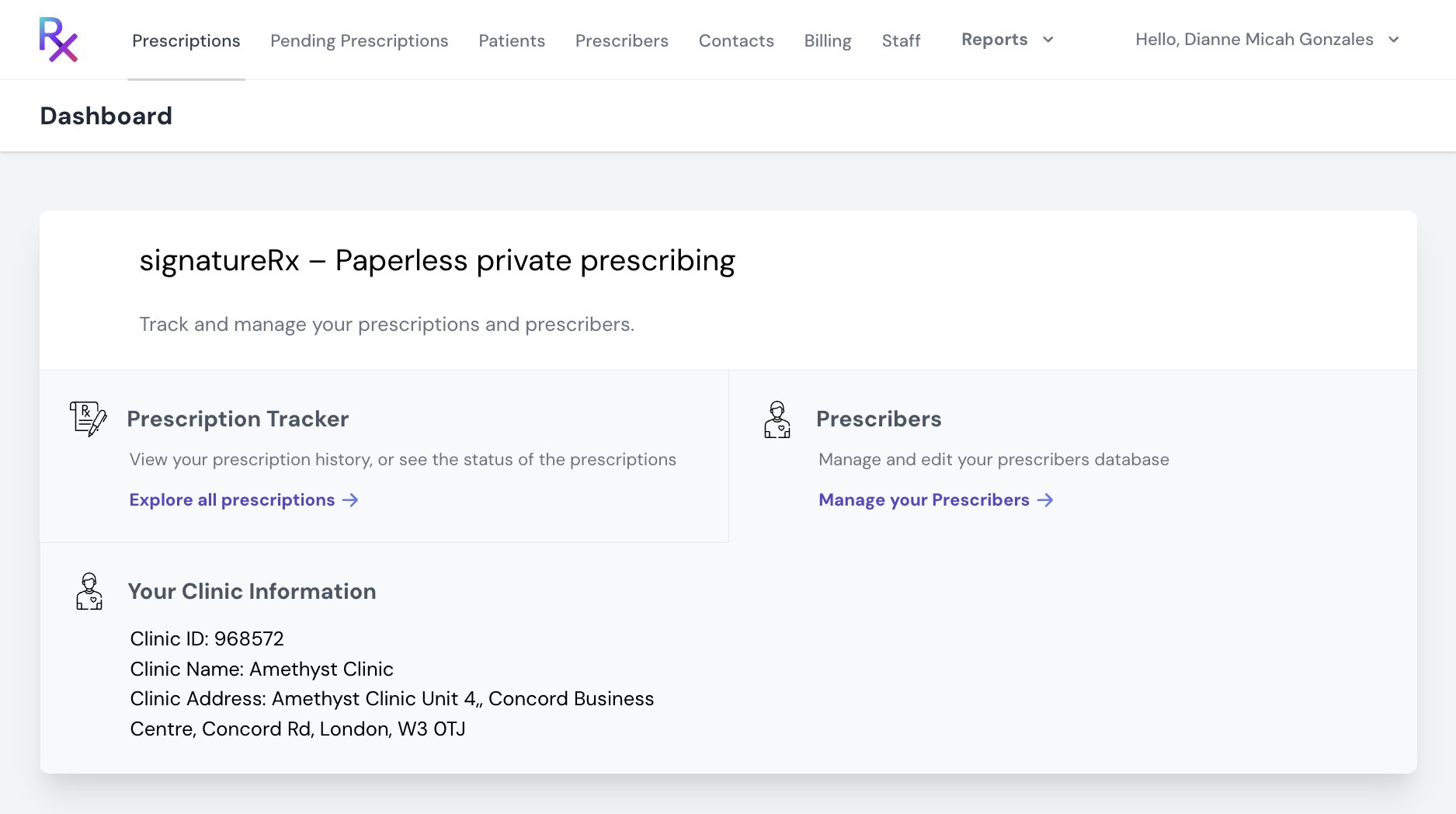
Once you have logged in to your Clinic User account, you will be taken to the dashboard, where you can view your clinic information.
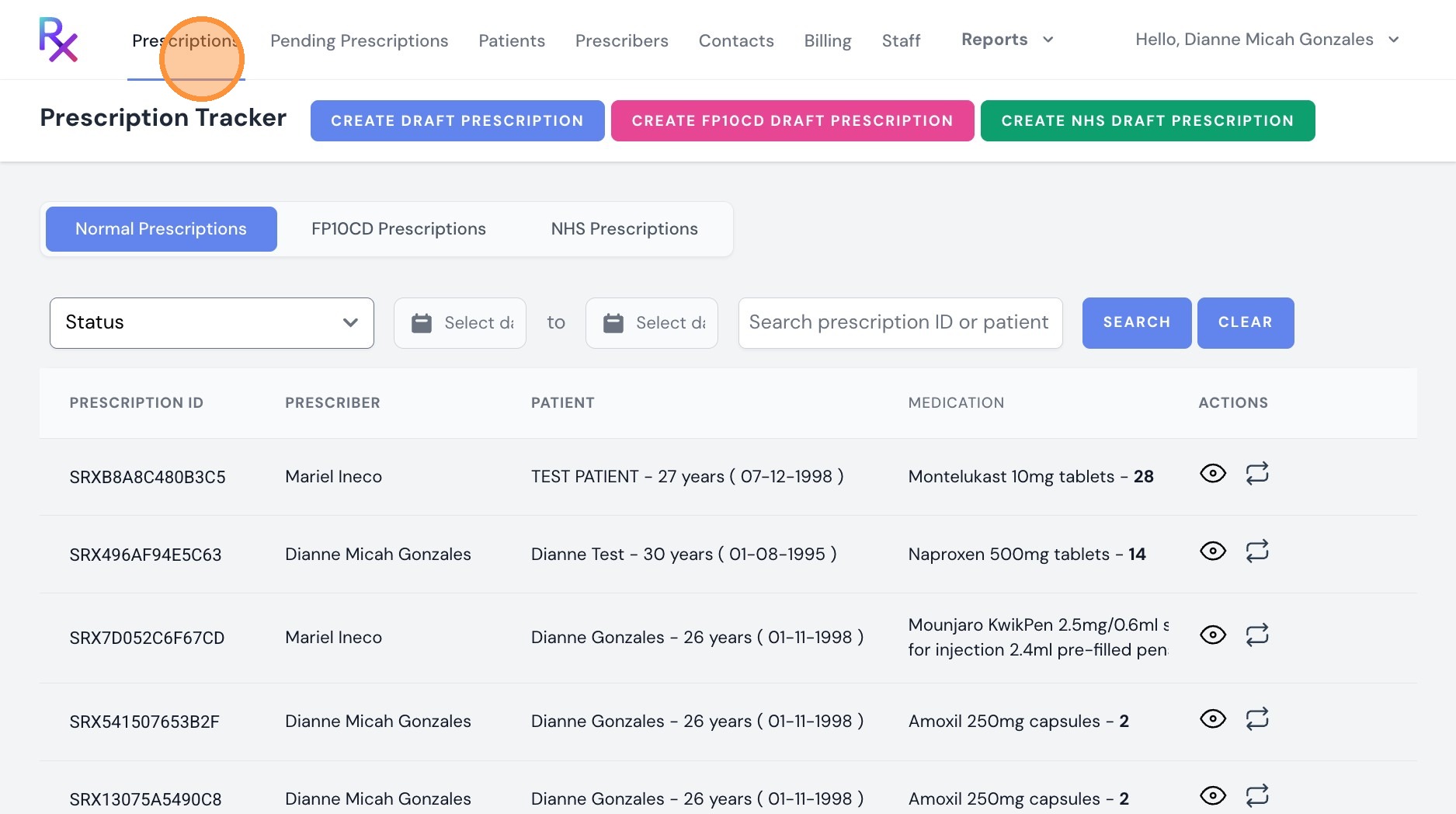
"Prescriptions"
You can create draft prescriptions, track their status, and manage different prescription types including Normal, FP10CD, and NHS.
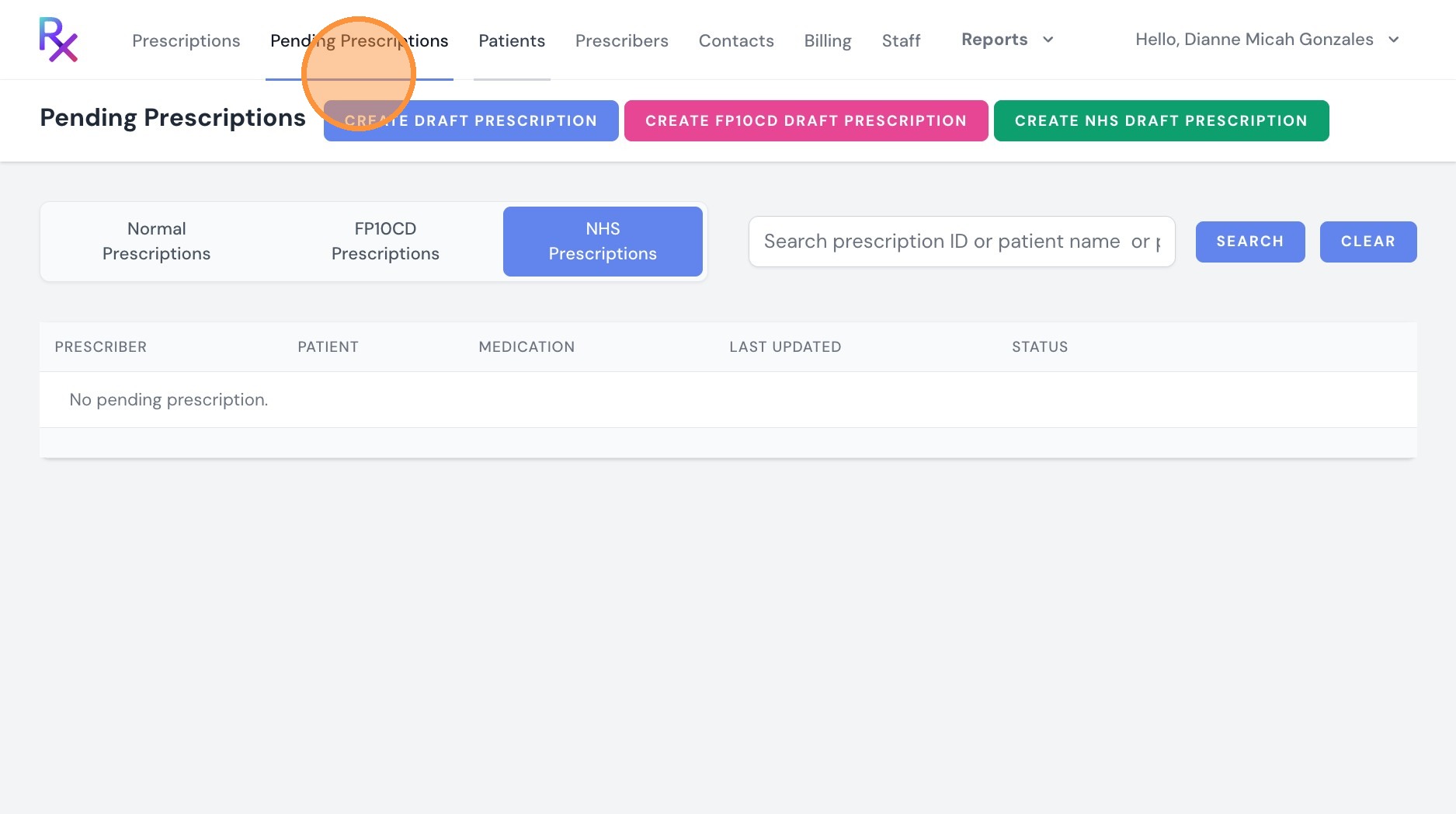
“Pending Prescriptions”
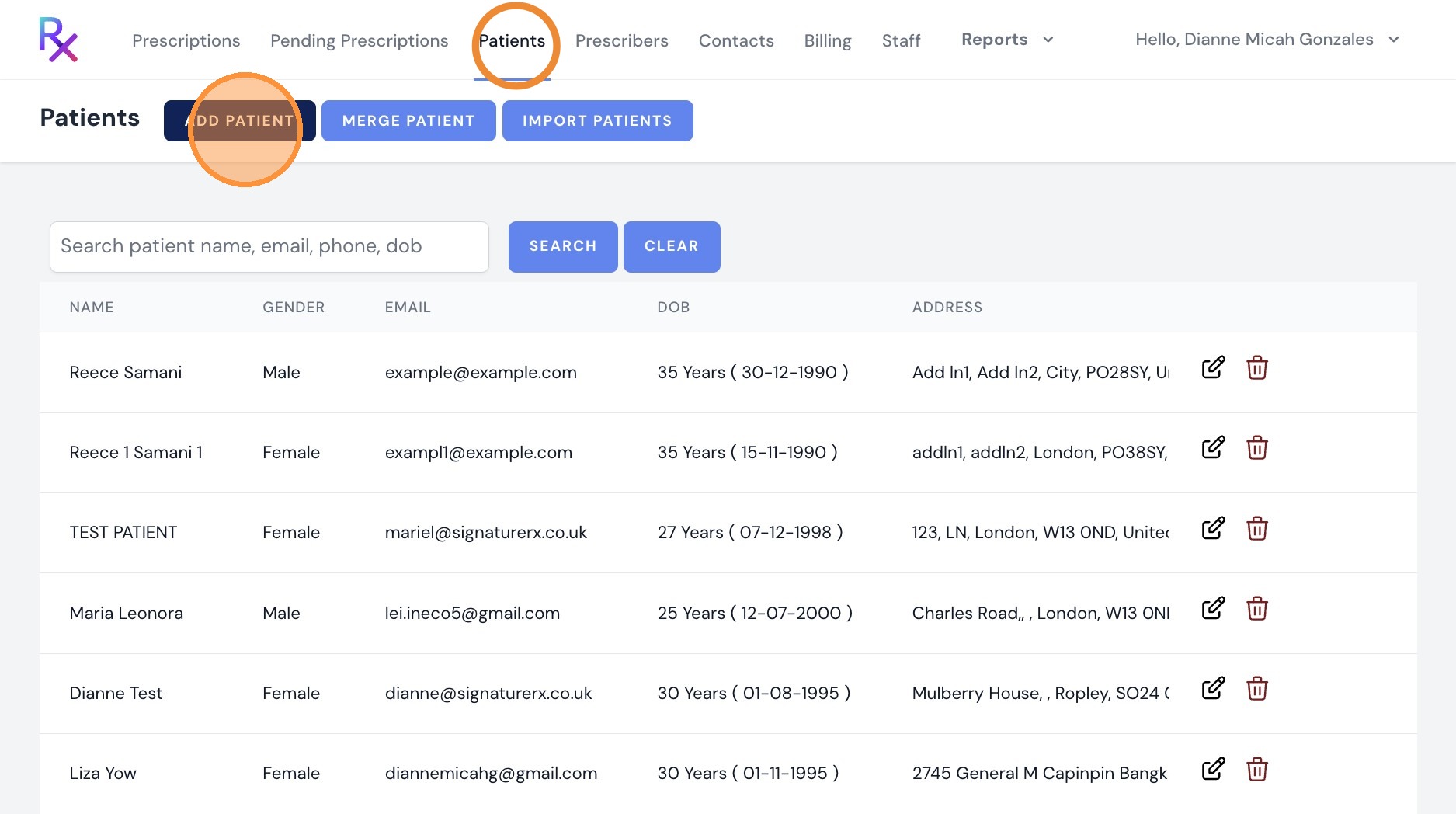
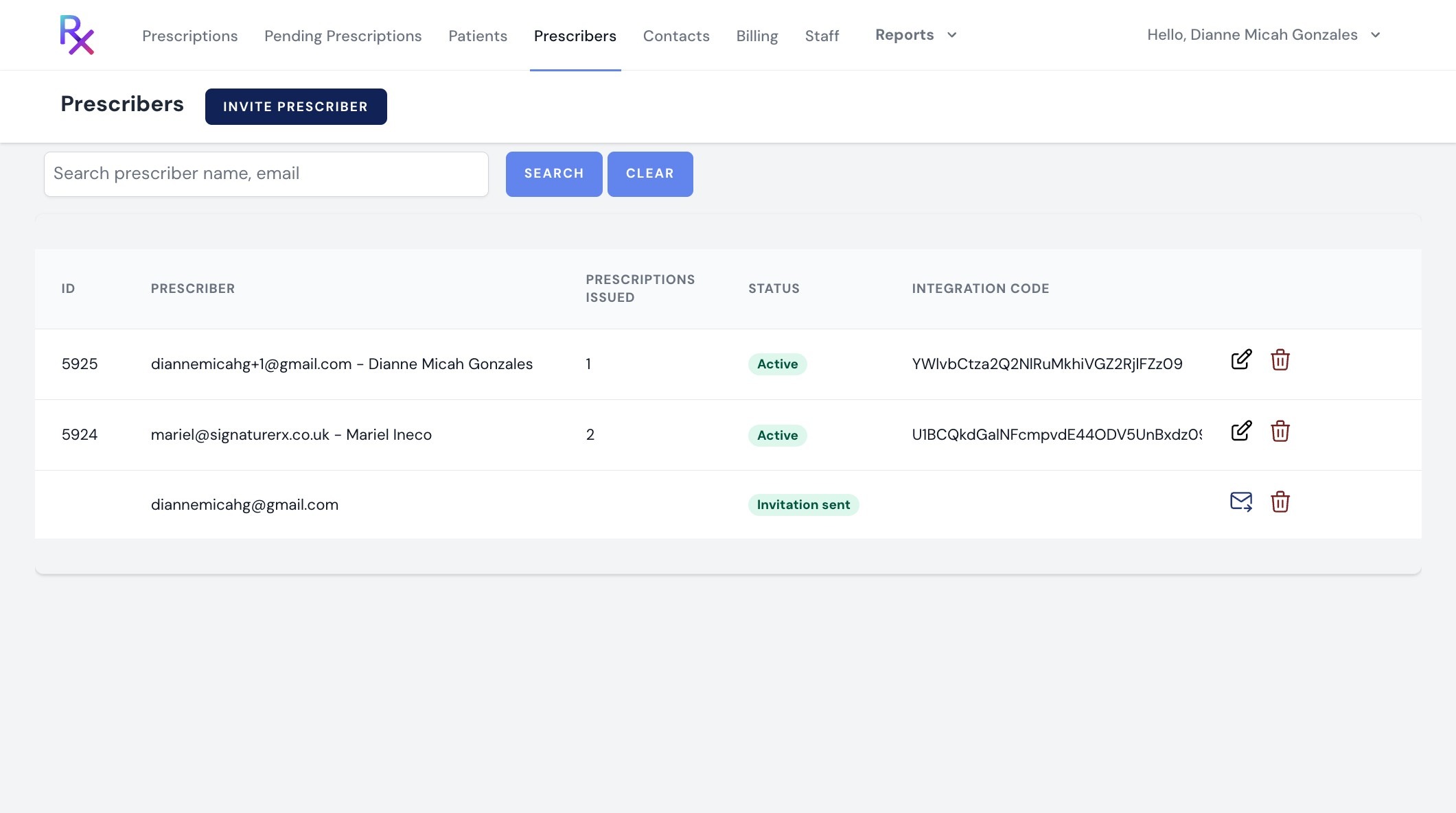
Here you will see a list of your contacts, such as pharmacies, where prescriptions can be sent directly without being issued to the patient first.
An email containing the prescription ID will be sent to the selected contact.
We recommend adding pharmacies as contacts so you can quickly send prescriptions to your preferred pharmacy.
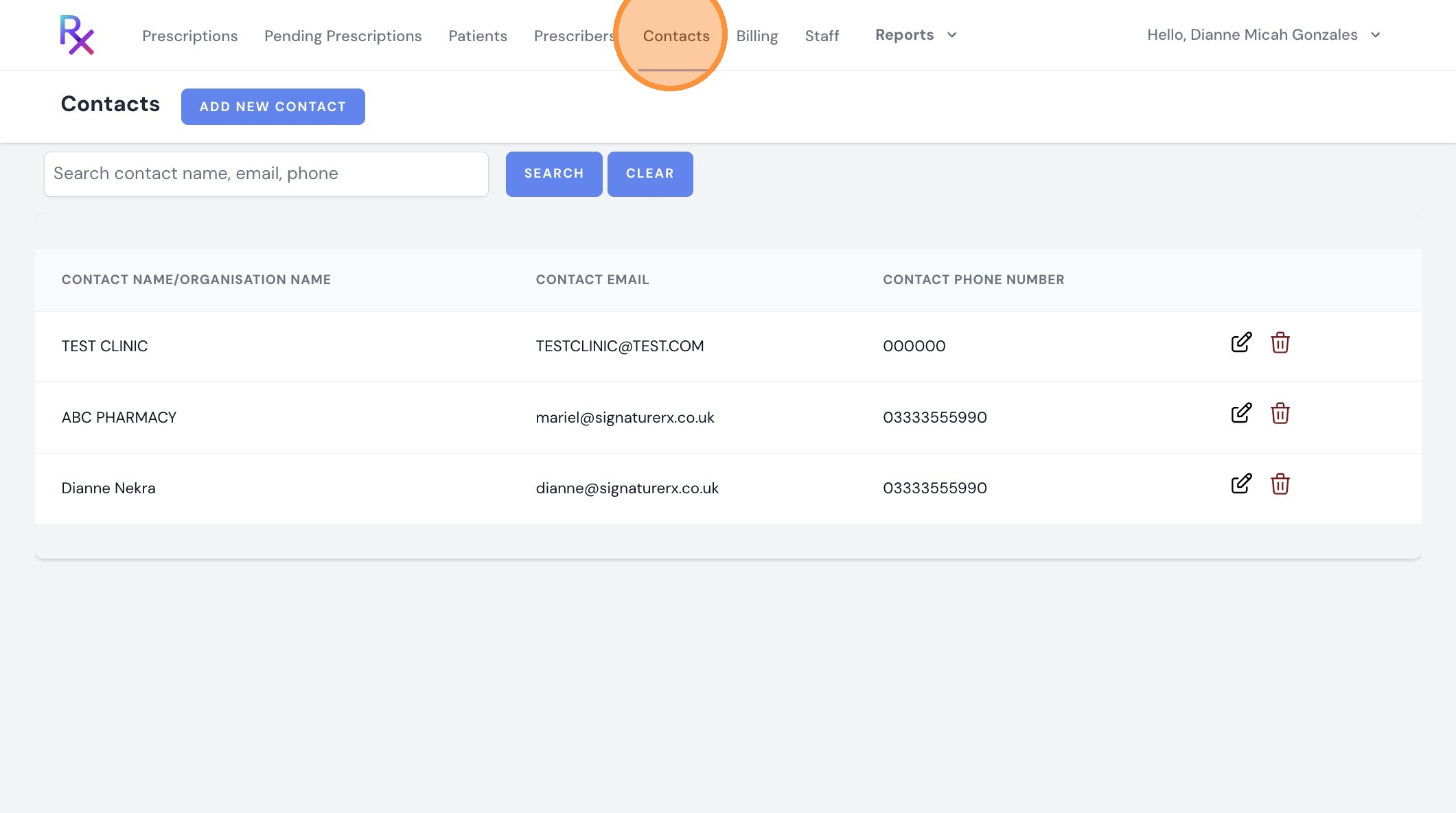
The minimum purchase is 5 tokens, at £1 per token plus VAT . You can adjust the number of tokens by entering the quantity you would like to purchase.
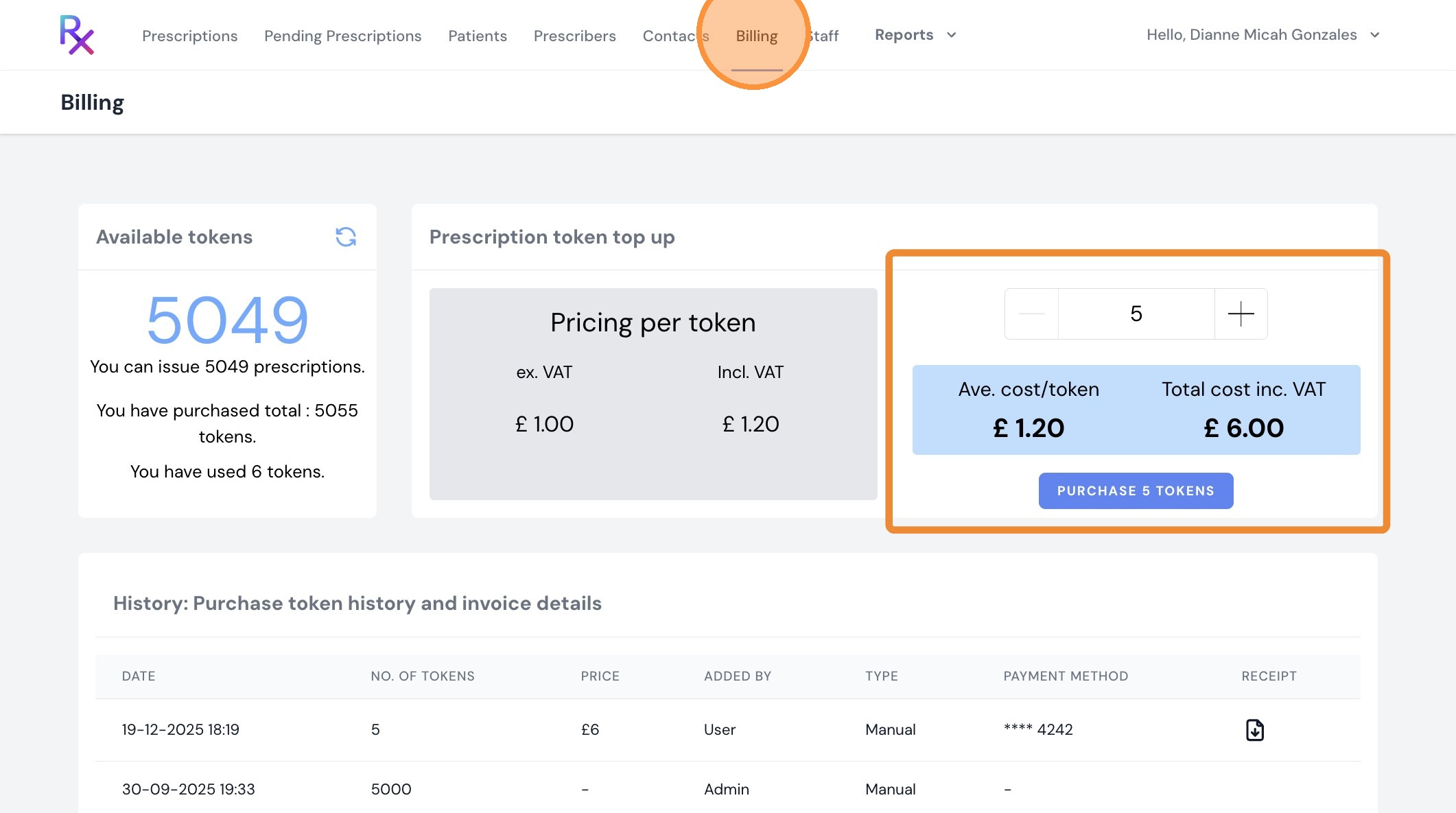
You can also edit staff user details, deactivate users, and delete users.
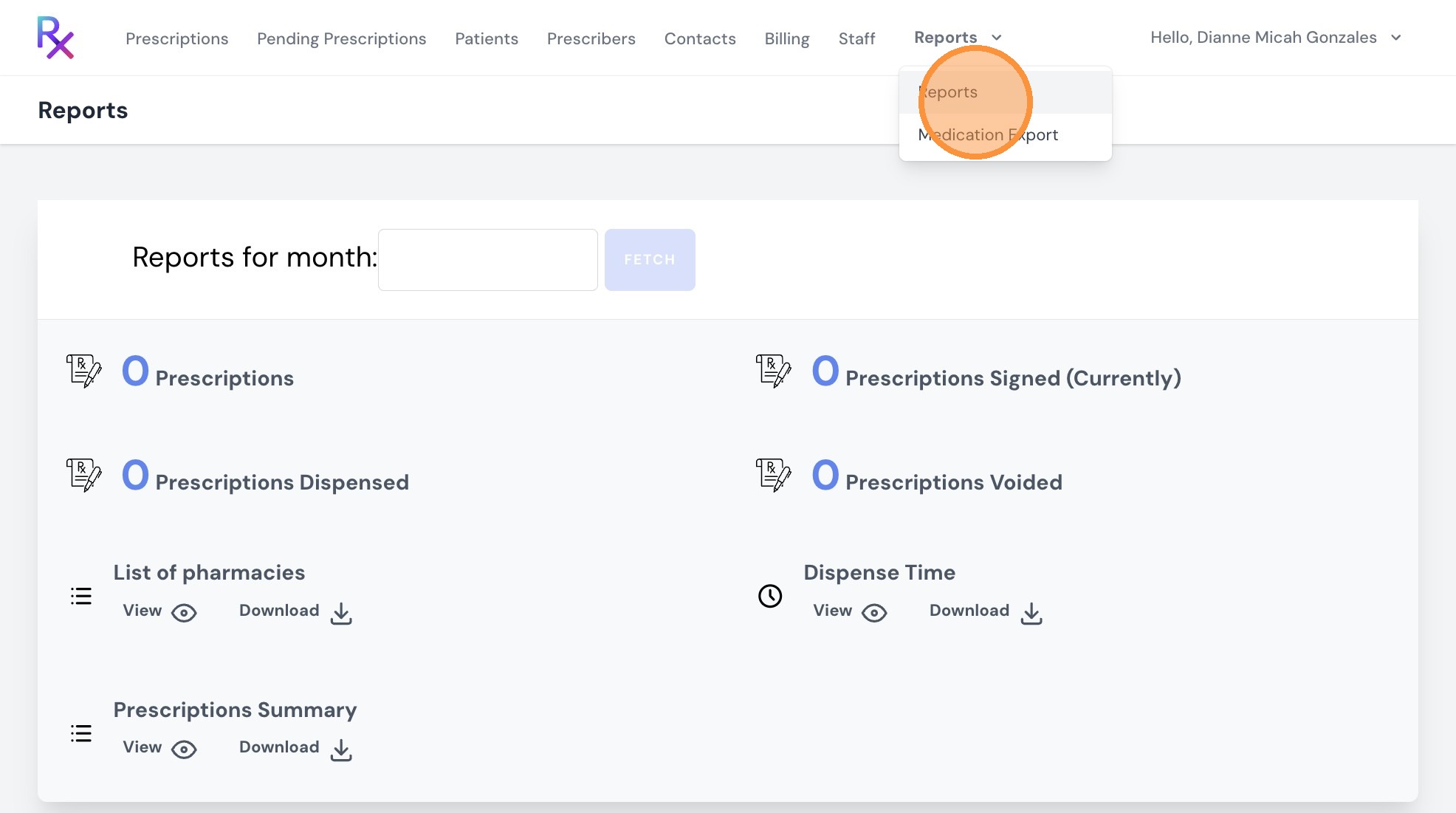
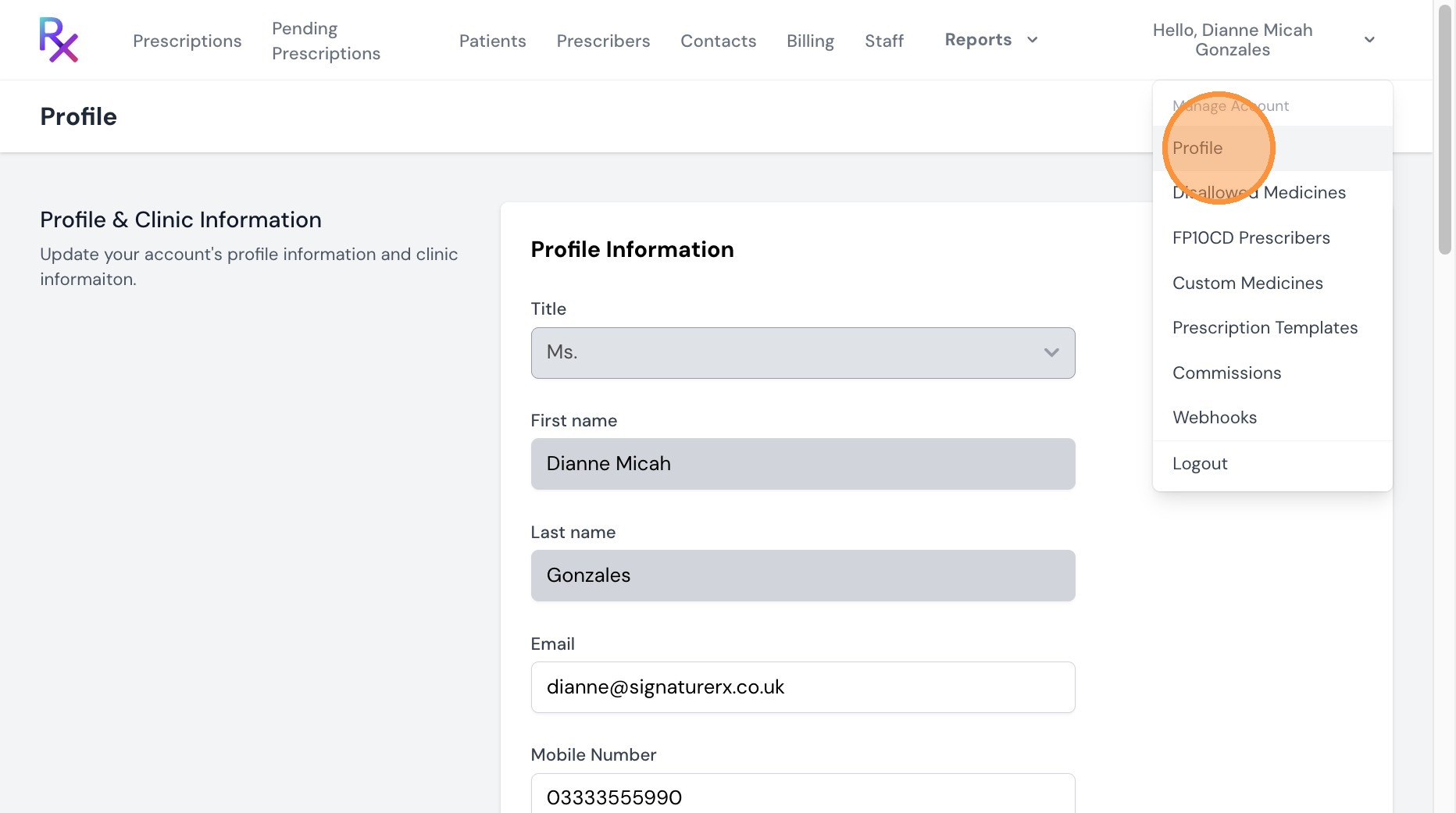
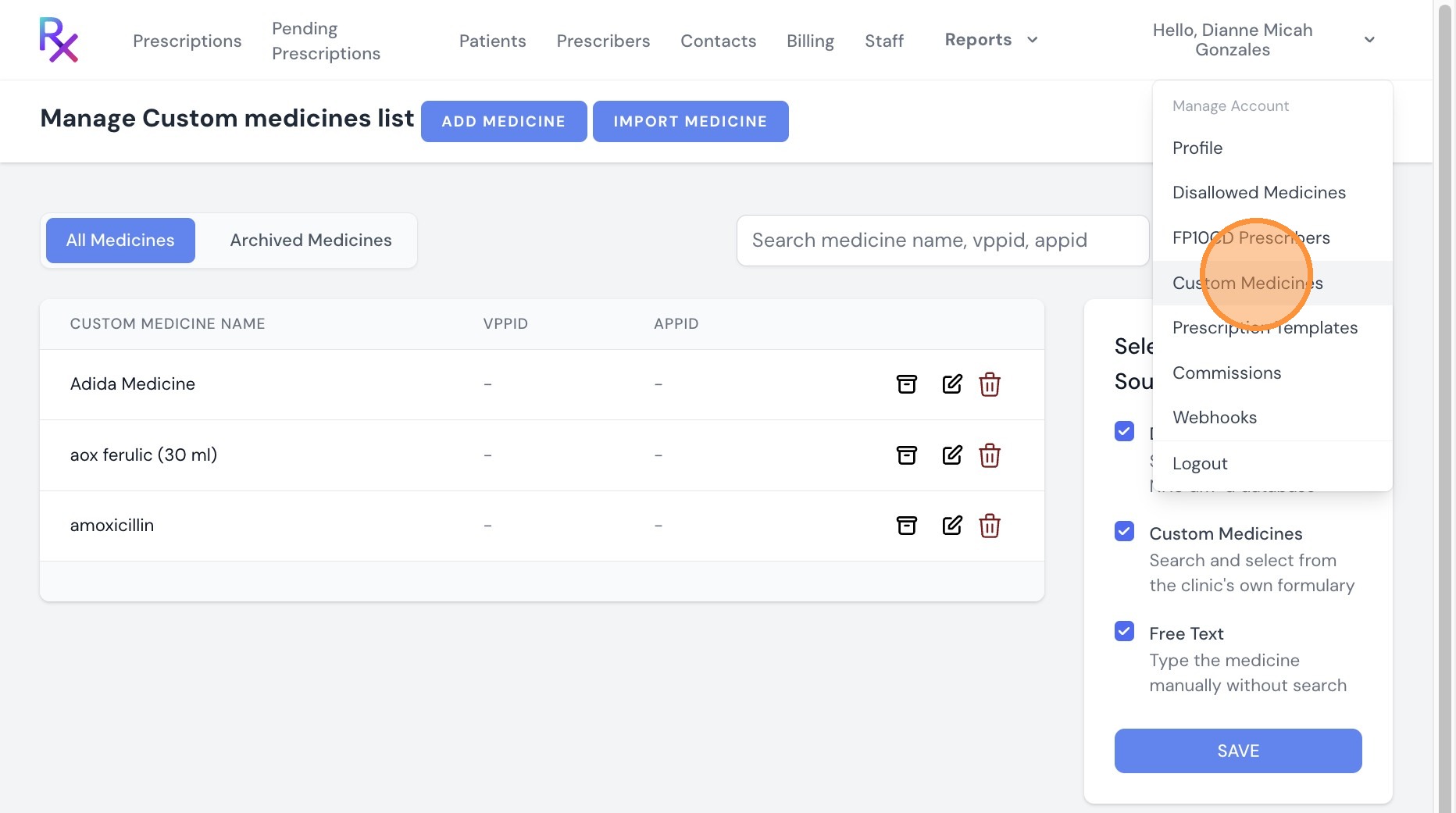
You can update your clinic information, manage security settings such as your password and two-factor authentication, and configure system preferences.
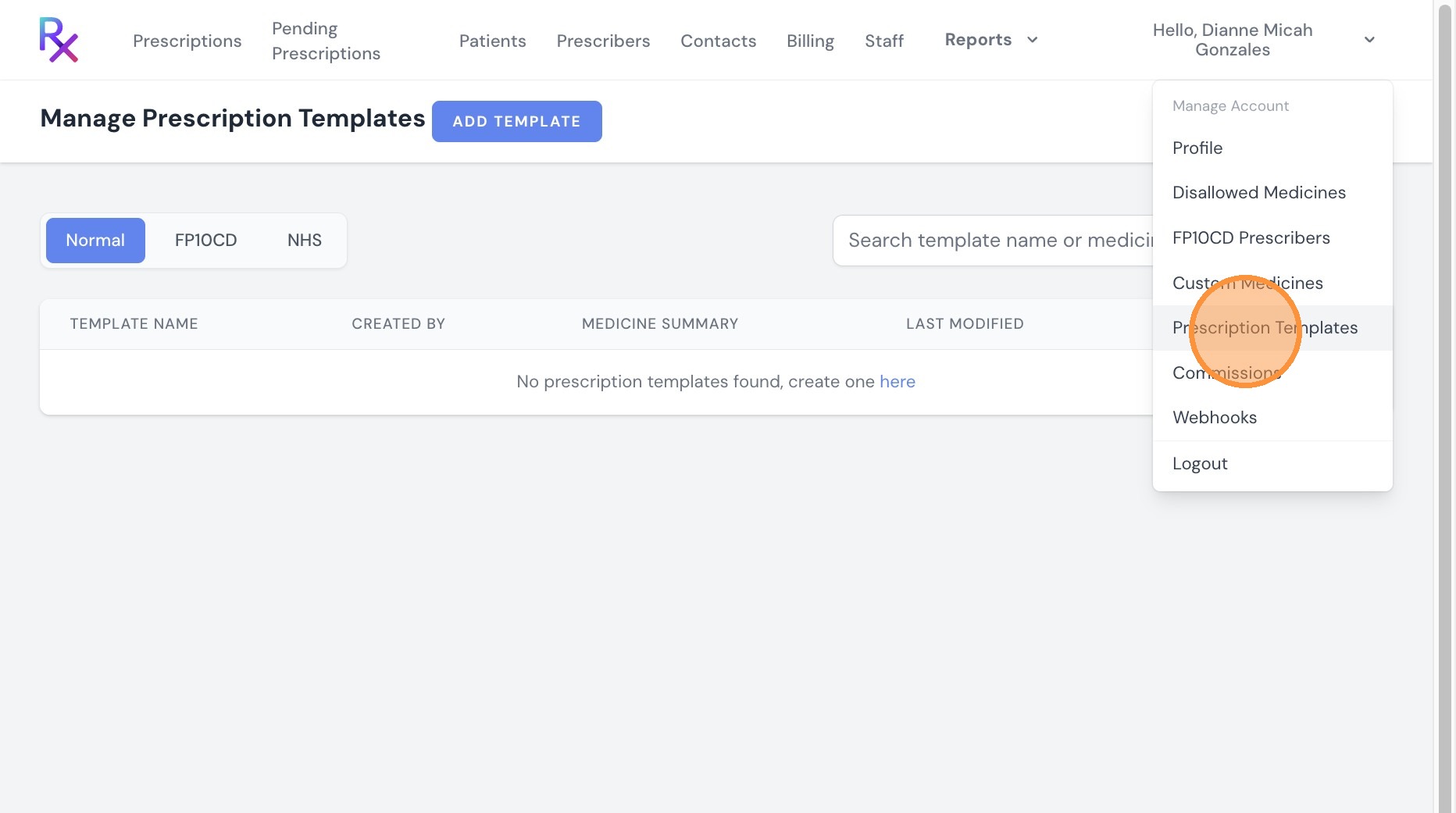
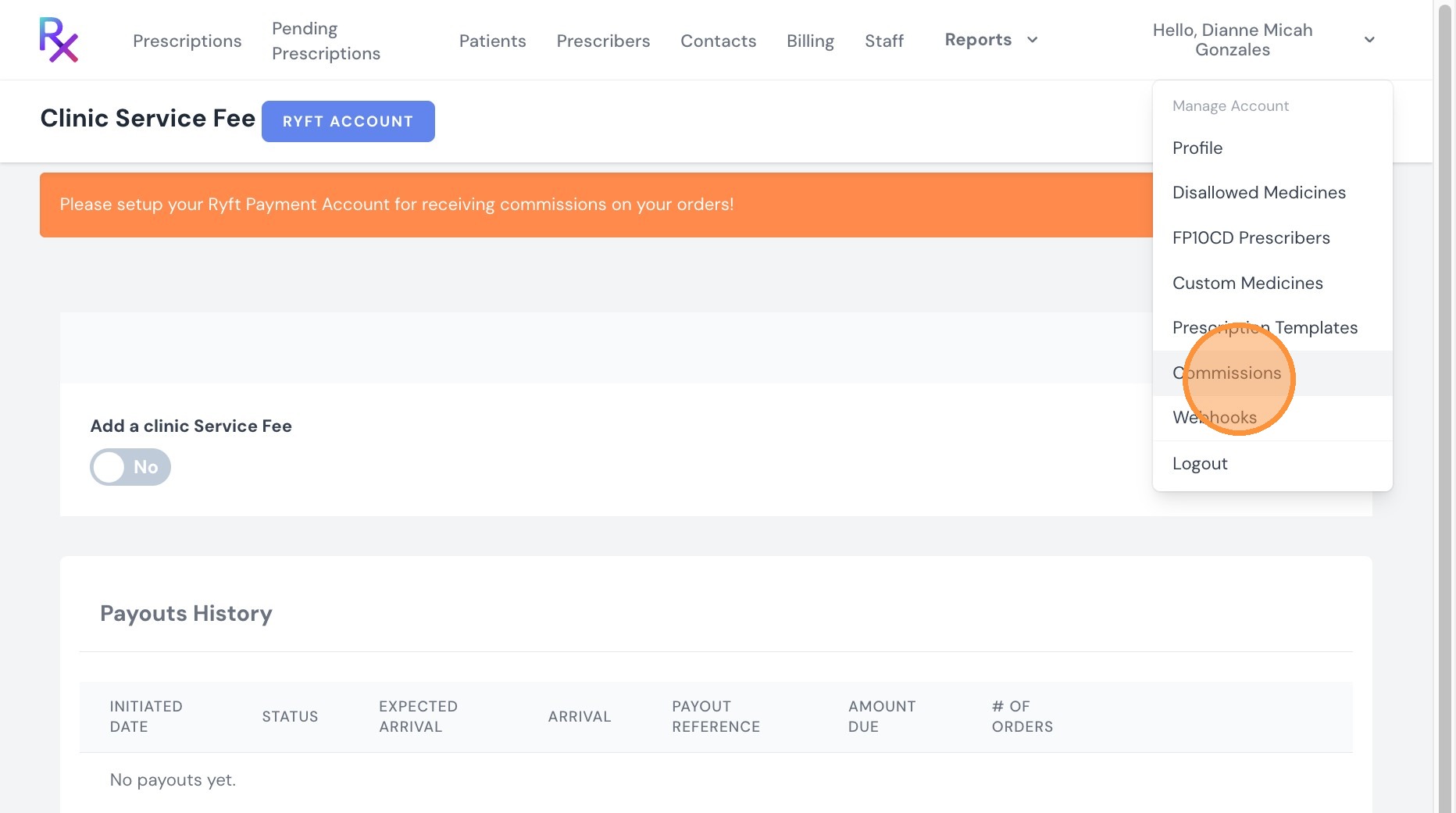
Once configured, commissions are automatically calculated when prescriptions are issued for delivery via Signature Pharmacy.
You can connect your Ryft account to receive commission payouts securely.
Related Articles
SignatureRx Reports Overview – Available Data and How to Access It
SignatureRx Reports Overview – Available Data and How to Access It Made by Dianne Micah Gonzales with Scribe Learn how to access the SignatureRx reporting dashboard to generate performance summaries. This guide demonstrates how to filter dispensed ...New: Dashboard Warning Banner
New: Dashboard Warning Banner Made by Dianne Micah Gonzales with Scribe When you log in, SignatureRx now shows an orange banner at the top of your dashboard if there are prescriptions still awaiting their original paper CD prescription. This makes it ...New: Dashboard Warning Banner
New: Dashboard Warning Banner Made by Dianne Micah Gonzales with Scribe When you log in, SignatureRx now shows an orange banner at the top of your dashboard if there are prescriptions still awaiting their original paper CD prescription. This makes it ...How to Invite a Prescriber to SignatureRx - Clinic User
<br> Invite a Prescriber to SignatureRx Learn how to invite a prescriber to join SignatureRx. This guide will walk you through the simple steps to send an invitation and get them set up. 1. Log into your portal using ...How to Purchase Tokens in SignatureRx
How to Purchase Tokens in SignatureRx Learn how to quickly navigate your dashboard to purchase additional tokens for your account. This guide provides a straightforward walkthrough of the billing process to ensure you can continue using your services ...