New: Bulk Prescription Management
New: Bulk Prescription Management
You can now select multiple prescriptions from the list and perform bulk actions. This is particularly useful when using the pre-paid envelope process, as you can select all prescriptions being sent together in the same envelope.
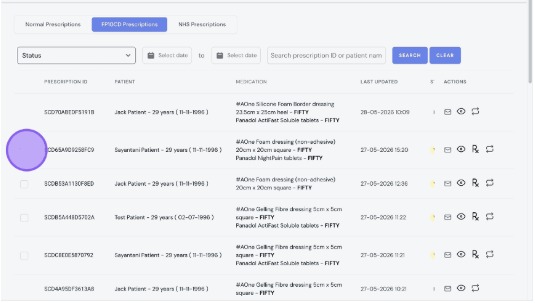
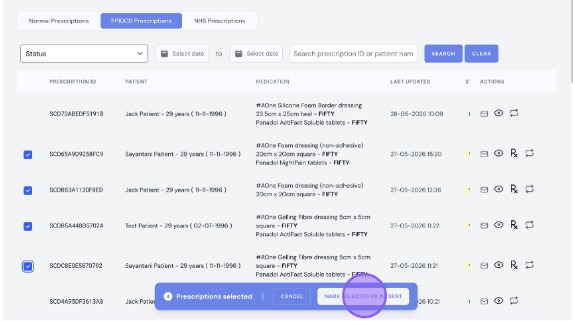
When you have selected the prescriptions, Click "Mark Selected RX as Sent"
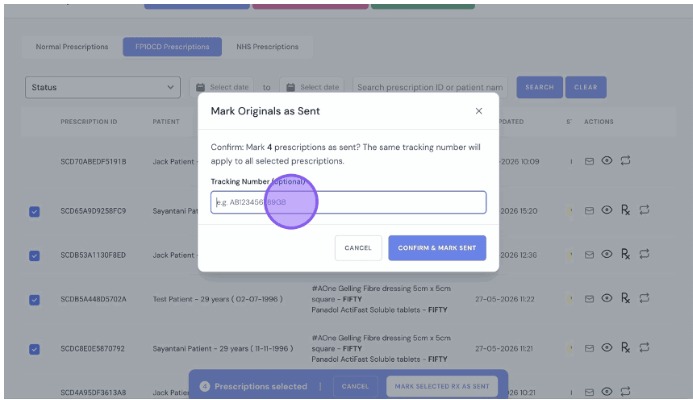
Enter a tracking number and click "Confirm & Mark Sent" to complete the bulk update.
Bulk Paper Prescription Management for FP10CDs
Overview
This article explains how to select multiple prescriptions at once and perform bulk actions, which is especially useful when sending several FP10CD prescriptions together.
Who does this apply to?
Clinic users managing FP10CD prescriptions sent via the pre-paid envelope process.
Key points
- Multiple prescriptions can be selected from the list at the same time.
- Useful for the pre-paid envelope process when sending several prescriptions together.
- Bulk actions include marking prescriptions as sent with a tracking number.
1. How do I mark multiple prescriptions as sent?
Answer: Select them, then click "Mark Selected RX as Sent".
After selecting the prescriptions being sent together in the same envelope, click "Mark Selected RX as Sent", enter a tracking number, then click "Confirm & Mark Sent" to complete the bulk update.
Source link:
https://help.signaturerx.co.uk/portal/en/kb/articles/new-bulk-prescription-management-29-5-2026
Related Articles
New: Bulk Prescription Management
New: Bulk Prescription Management Made by Dianne Micah Gonzales with Scribe You can now select multiple prescriptions from the list and perform bulk actions. This is particularly useful when using the pre-paid envelope process, as you can select all ...New: Paper Prescription Settings
New: Paper Prescription Settings Made by Dianne Micah Gonzales with Scribe These settings control whether prescriber and clinic details are automatically printed onto paper prescription forms generated through SignatureRx. 1. Print Prescriber Details ...New: Dashboard Warning Banner
New: Dashboard Warning Banner Made by Dianne Micah Gonzales with Scribe When you log in, SignatureRx now shows an orange banner at the top of your dashboard if there are prescriptions still awaiting their original paper CD prescription. This makes it ...New: Dashboard Warning Banner
New: Dashboard Warning Banner Made by Dianne Micah Gonzales with Scribe When you log in, SignatureRx now shows an orange banner at the top of your dashboard if there are prescriptions still awaiting their original paper CD prescription. This makes it ...How to Add a New Patient in SignatureRx
How To Add A New Patient In SignatureRx 1. Log in to your SignatureRx portal using your prescriber account. 2. Click “Patients” from the main menu. 3. Click "Add Patient" 4. Fill in all required patient information, then click “Create.” 5. You will ...