How to Add a New Patient in SignatureRx
How To Add A New Patient In SignatureRx
1. Log in to your SignatureRx portal using your prescriber account.
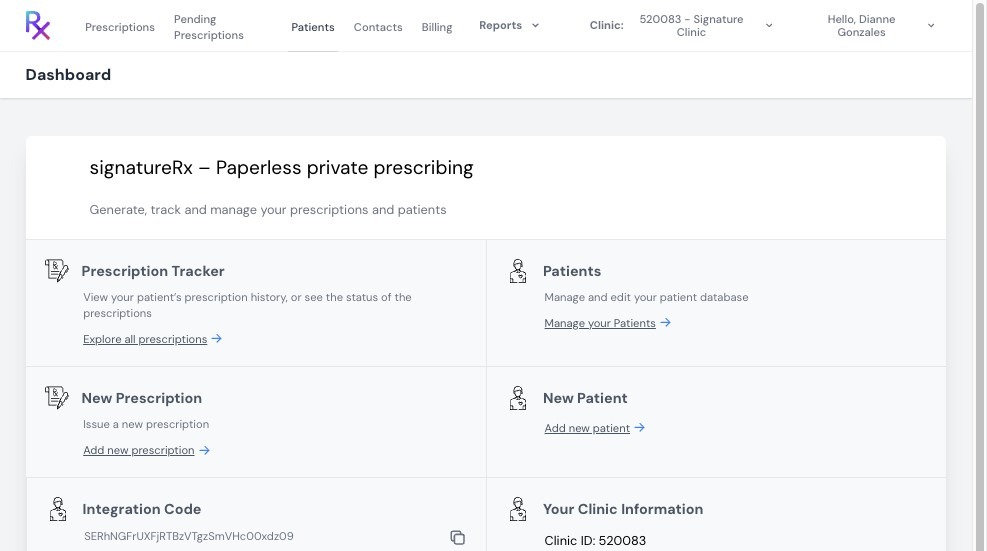
2. Click “Patients” from the main menu.
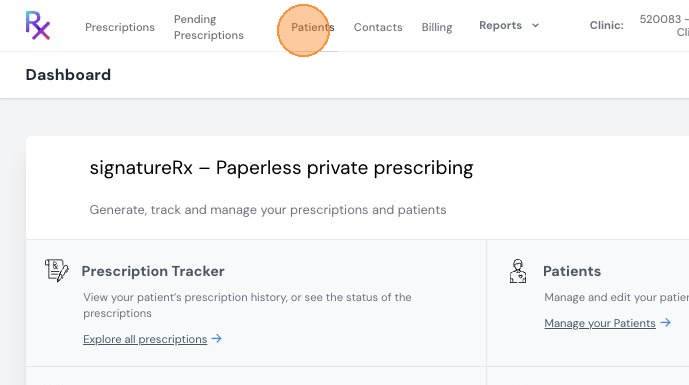
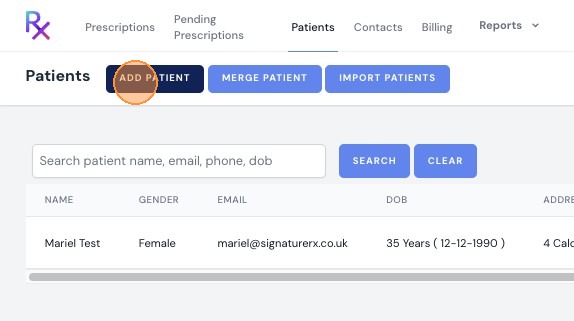
3. Click "Add Patient"
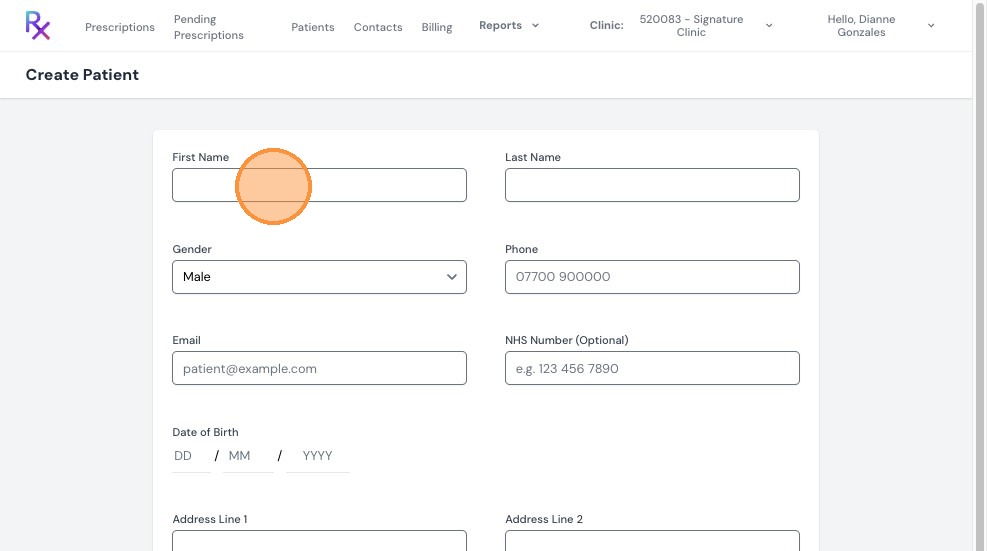
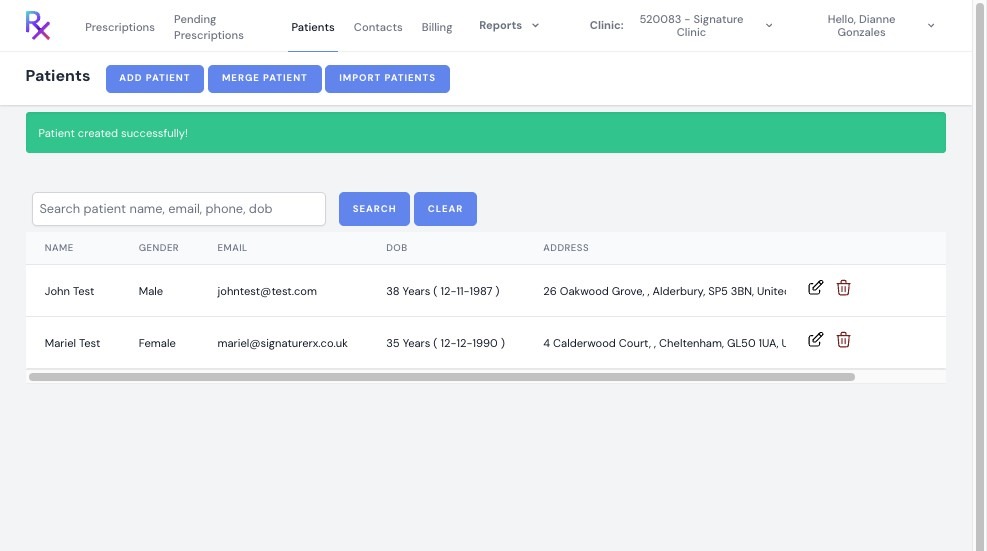
4. Fill in all required patient information, then click “Create.”
5. You will see a confirmation message:
“Patient created successfully.”
Important Notes
- Ensure all patient details are accurate and complete
- Incorrect details may affect prescription processing
How to Add a New Patient in SignatureRx
Overview
This article explains how to add a new patient record in SignatureRx before issuing them a prescription.
Who does this apply to?
Prescribers registering a new patient in the system.
Key points
- New patients are added from the Patients section of the portal.
- All required patient information must be completed accurately before the record can be created.
- Incorrect details may affect prescription processing, so information should be double-checked.
1. How do I add a new patient?
Answer: From the Patients tab, using "Add Patient".
Log in using your prescriber account; click "Patients"; click "Add Patient"; fill in all required patient information and click "Create". A confirmation message will appear: "Patient created successfully."
Source link:
https://help.signaturerx.co.uk/portal/en/kb/articles/adding-a-new-patient
Related Articles
Searching for an Existing Patient
Searching for an Existing Patient Learn how to quickly find an existing patient in SignatureRx and use their record when issuing a prescription. You can search for an existing patient either from the Patients list or while creating a new ...Integrating Carebit With SignatureRx
Integrating Carebit With SignatureRx Learn how to seamlessly connect your Carebit account with SignatureRx to streamline your clinical workflow. This guide provides step-by-step instructions for setup and configuring your account to send digital ...Integrating Cliniko With SignatureRx
Integrating Cliniko With SignatureRx Learn how to seamlessly connect your Cliniko account with SignatureRx to streamline your clinical workflow. This guide walks you through locating integration settings, generating your API key, and finalizing the ...Integrating Jelly Software With SignatureRx
Integrating Jelly Software With SignatureRx This guide provides a walkthrough for connecting Jelly Software with your SignatureRx account to streamline your prescription workflow. By following these steps, you will learn how to configure integration ...Navigating The SignatureRX Clinic Dashboard (Overview)
Navigating The SignatureRX Clinic Dashboard (Overview) This guide provides an overview of the SignatureRx clinic dashboard. It covers the key areas available to help you manage prescriptions, prescribers, patients, billing, and clinic settings ...