Checking Prescription Status
Checking Prescription Status
Learn how to check the status of your prescriptions in SignatureRx and view completed or signed records.
1. Navigate to your SignatureRx dashboard and log in using your prescriber account.
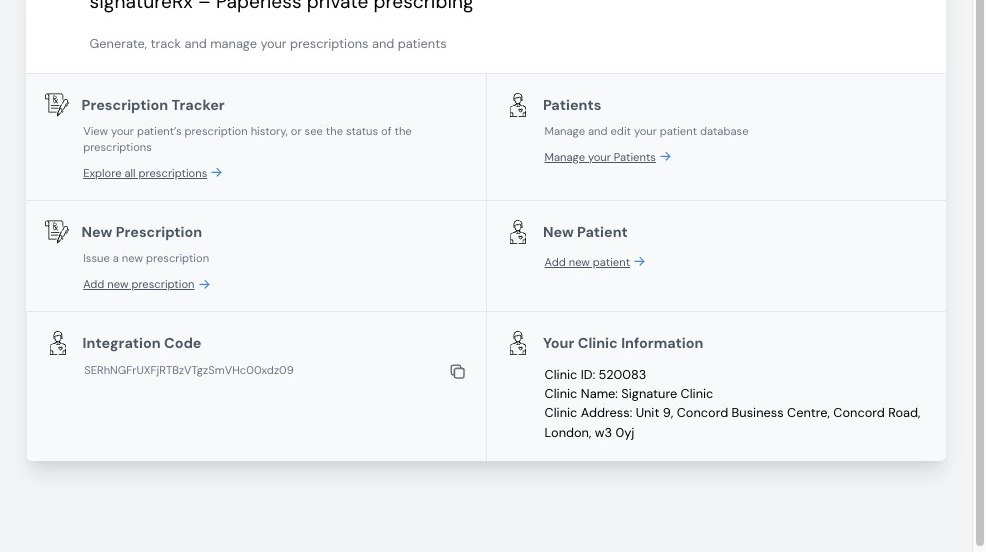
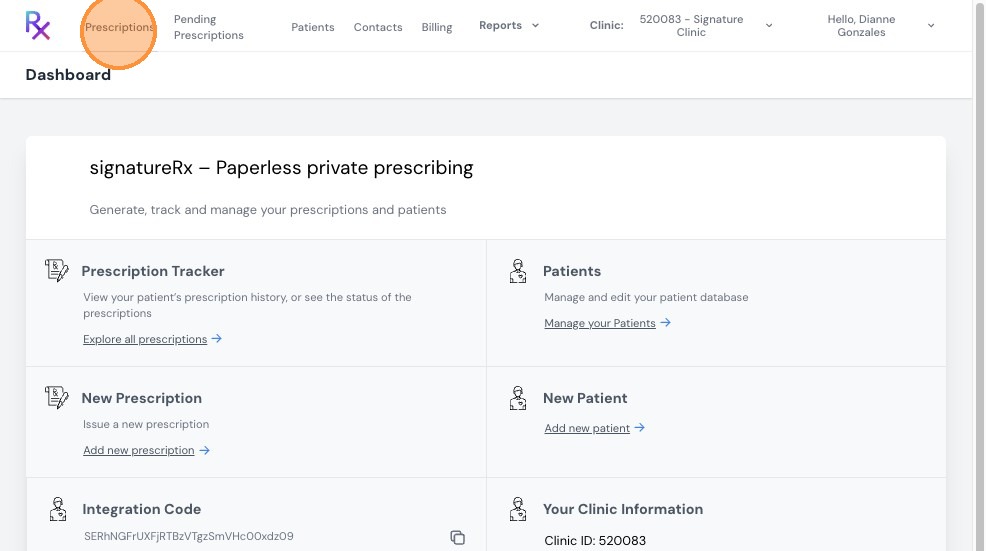
2. Click “Prescriptions” from the main menu.
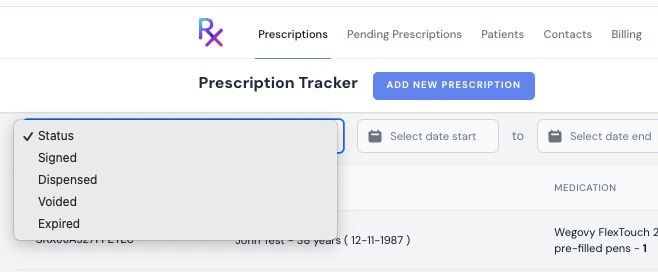
3. Select a prescription to view its status, such as:
- Issued
- Dispensed
- Dispatched
- Delivered
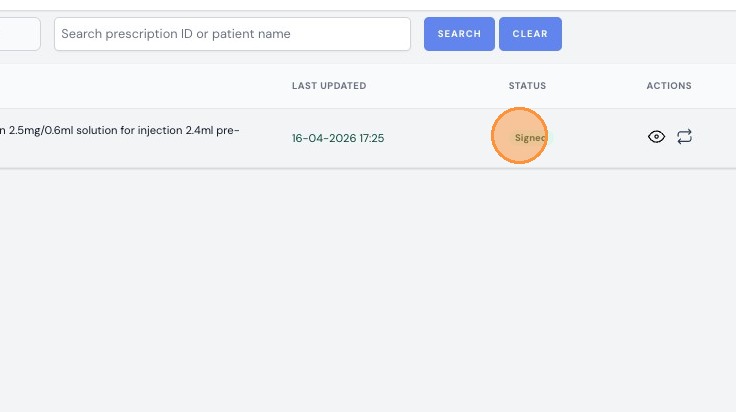
4. Click the “Signed” tab to view prescriptions that have been completed and signed.
What You Can Do
- Monitor prescription progress
- Review completed prescriptions
- Access records for audit or reference
Tip:
- Use filters or tabs to quickly locate prescriptions
- Check status regularly to track patient progress
Checking Prescription Status & History
Overview
This article explains how to check the status of prescriptions you've issued and view your full prescription history in SignatureRx.
Who does this apply to?
Prescribers who want to monitor or review prescriptions they have issued.
Key points
- Prescription status can be viewed from the Prescriptions tab, including Issued, Dispensed, Dispatched, and Delivered.
- The Signed tab shows prescriptions that have been completed and signed.
- Prescription history can be filtered by status, date, Prescription ID, or patient name.
1. How do I check a prescription's status?
Answer: From the Prescriptions tab in your dashboard.
Log in using your prescriber account; click "Prescriptions" from the main menu; select a prescription to view its status (Issued, Dispensed, Dispatched, or Delivered); click the "Signed" tab to view completed and signed prescriptions.
2. How do I view my full prescription history?
Answer: On the Prescriptions tab, using the available filters and search.
The Prescriptions tab shows all prescriptions you have issued. You can filter by status (e.g. issued, dispensed, void), filter by date, or search using the Prescription ID or patient name.
Source links:
https://help.signaturerx.co.uk/portal/en/kb/articles/checking-prescription-status-28-5-2026
https://help.signaturerx.co.uk/portal/en/kb/articles/view-prescription-history
Related Articles
The Pharmacy Has Said They Cannot Find Your Prescription
The Pharmacy Has Said They Cannot Find Your Prescription We understand this can be frustrating, but in most cases the issue can be resolved quickly. This guide will help you identify the most common reasons a pharmacy may be unable to locate a ...How to Track Your SignatureRx Delivery Status
How to Track Your SignatureRx Delivery Status Tracking Your Prescription Delivery Once your prescription has been processed and dispatched by Signature Pharmacy, you will receive: A dispatch confirmation A tracking link via SMS or email How to Track ...View Prescription History
Viewing Prescription History Made by Dianne Micah Gonzales with Scribe Learn how to view a patient’s prescription history in SignatureRx, including previously issued medications and their status. 1. Log into SignatureRx portal using your prescriber ...Viewing All Prescriptions Under Your Clinic – Filtering by Prescriber, Date, and Status
Viewing all prescriptions issued under your clinic- Filtering by prescriber, date, status (issued / dispensed / voided) Made by Dianne Micah Gonzales with Scribe Learn how to view and filter prescriptions within your SignatureRx clinic dashboard. ...How to Dispense a Prescription
How to Dispense a Prescription Learn how to quickly locate and process patient prescriptions using the SignatureRX portal. This guide provides a simple walkthrough to help pharmacy staff efficiently input prescription details and search for patient ...