How to Dispense a Prescription
How to Dispense a Prescription
Learn how to quickly locate and process patient prescriptions using the SignatureRX portal. This guide provides a simple walkthrough to help pharmacy staff efficiently input prescription details and search for patient records.
1. Navigate to https://signaturerx.co.uk/

2. Click "Dispense Prescription"

3. Enter the "Prescription ID" and "Patient DOB".
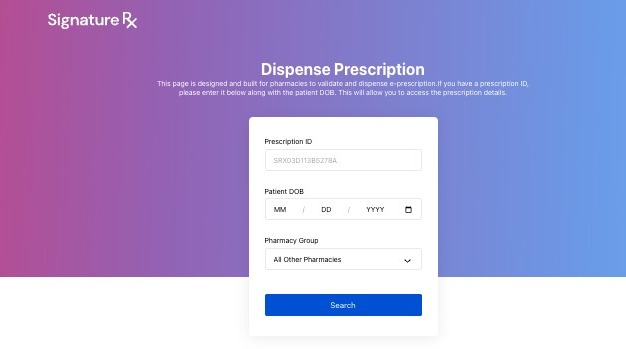
4. Select Your Pharmacy Group
In the Pharmacy Group dropdown:
- If you are from Boots, select Boots
- If you are not from Boots, select All Other Pharmacies
Important:
Selecting the correct pharmacy group ensures you can access prescriptions correctly within the system.
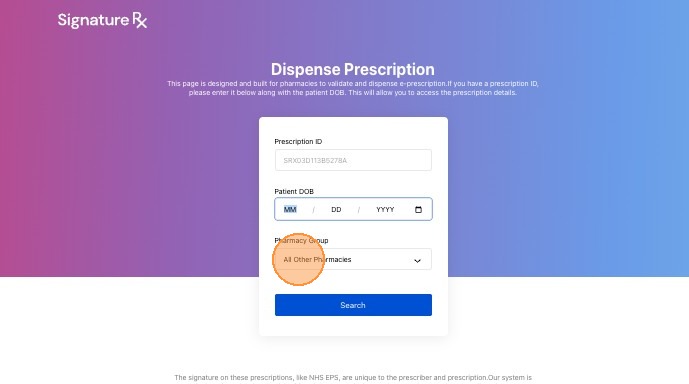
5. Click "Search"
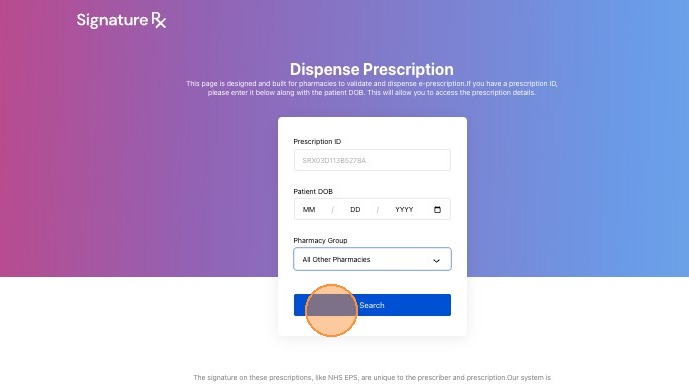
6. Once you click Search, and the details match, you’ll see the e-prescription on the dispensing page.
Before moving on, check the “Available for dispensing” status. This confirms that the prescription is valid and safe to dispense.
Alert: Do Not Dispense If You See These Statuses
If the prescription shows any of the following, do not dispense it:
- Voided
- Expired
- Already dispensed
These statuses indicate that the prescription is no longer eligible for dispensing.
7. Prepare the Medication
- Download the prescription
- Review the details and prepare the medication
- Click “Mark As Dispensed”
Important:
Only mark the prescription as dispensed once the medication has been prepared and is ready for collection or delivery.
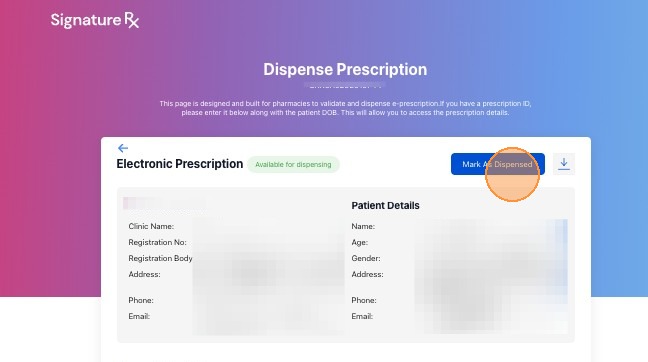
8. Fill out all required fields accurately before clicking “Mark As Dispensed.”
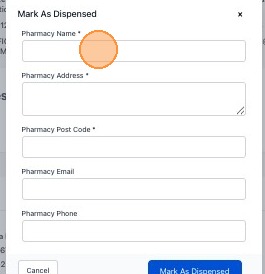
- The patient cannot collect the medication from another pharmacy.
- The prescription is considered complete in the system.
Related Articles
How to Validate and Dispense an e-Prescription
How to Validate and Dispense an e-Prescription This guide explains how pharmacists can validate and safely dispense electronic private prescriptions using SignatureRx. SignatureRx is an electronic private prescription system that allows prescriptions ...How to Use Your SignatureRx Prescription ID
How to Use Your SignatureRx Prescription ID Learn what a prescription ID is and how to use it to collect your medication from a pharmacy or request delivery. What Is a Prescription ID? A prescription ID is a unique code generated when your prescriber ...What If a Prescription Has Already Been Dispensed?
What If a Prescription Has Already Been Dispensed? This guide explains what to do if a prescription appears as already dispensed in SignatureRx, and how to handle this situation safely. What Does “Already Dispensed” Mean? If a prescription shows as ...Checking Prescription Status
Checking Prescription Status Made by Dianne Micah Gonzales with Scribe Learn how to check the status of your prescriptions in SignatureRx and view completed or signed records. 1. Navigate to your SignatureRx dashboard and log in using your prescriber ...View Prescription History
Viewing Prescription History Made by Dianne Micah Gonzales with Scribe Learn how to view a patient’s prescription history in SignatureRx, including previously issued medications and their status. 1. Log into SignatureRx portal using your prescriber ...