Integrating Carebit With SignatureRx
Integrating Carebit With SignatureRx
Learn how to seamlessly connect your Carebit account with SignatureRx to streamline your clinical workflow. This guide provides step-by-step instructions for setup and configuring your account to send digital prescriptions efficiently.
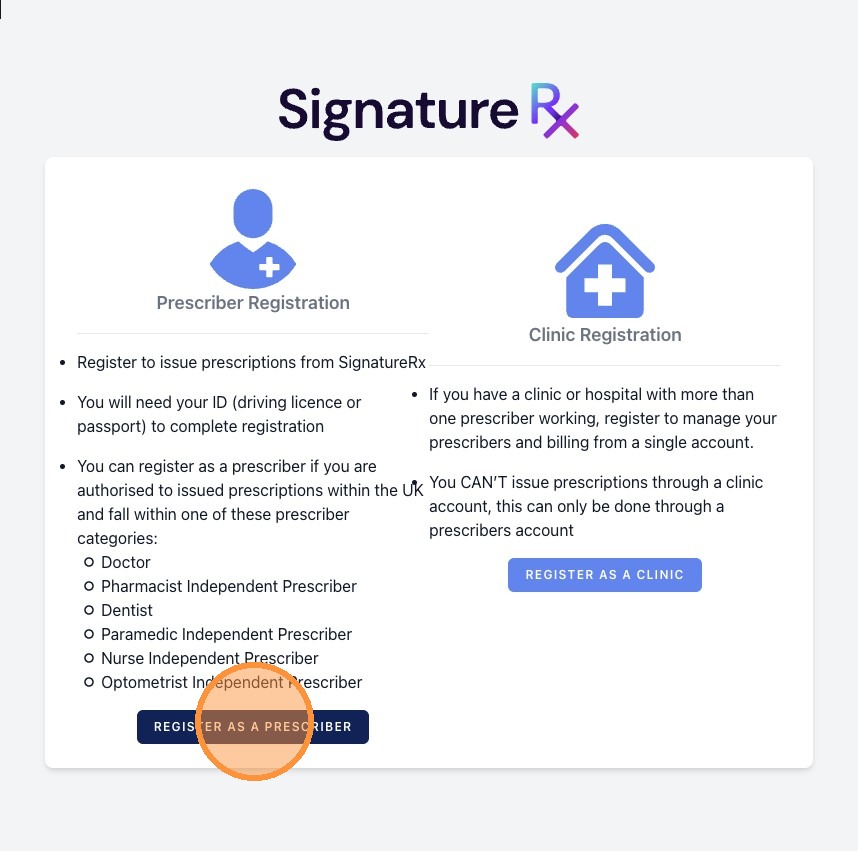
1. Register a SignatureRx Prescriber Account.
Each clinician must first register for their own SignatureRx prescriber account. This account provides the integration code and secure PIN needed for setup.
2. Install the SignatureRx App in Carebit
To install the app: Visit: https://carebit.co/admin/settings/apps
- Click Install apps
- Select SignatureRx from the available apps
- This installs the integration module in your Carebit account.
3. Enter SignatureRx Integration Details
For each clinician:
- Open the installed SignatureRx app settings in Carebit
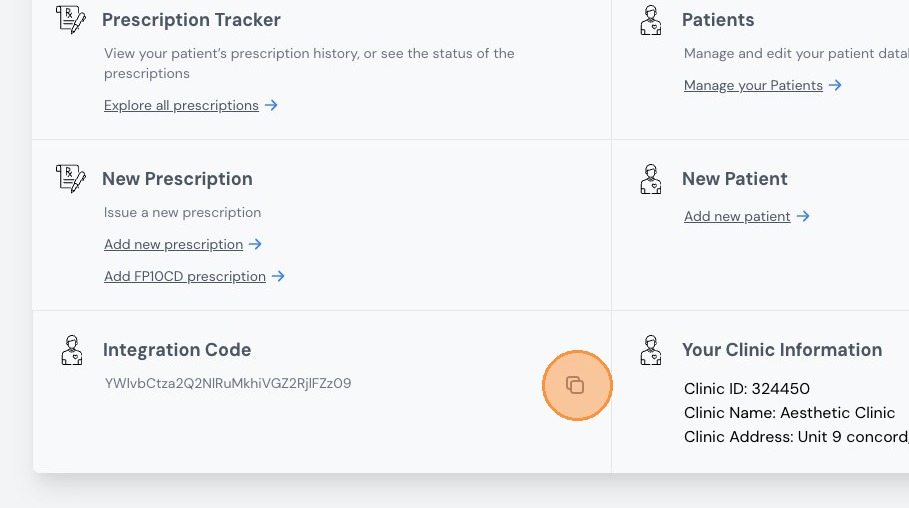
- Retrieve the clinician’s SignatureRx integration code from their SignatureRx dashboard
- Enter the integration code (can be found on your SignatureRx dashboard).
- Enter the 6-digit secure PIN.
- Save the details in the appropriate fields
These codes must be entered for every clinician who will be issuing prescriptions.
4. Confirm Configuration
After entering all details, click the confirmation button at the top of the screen to complete the setup.
Your Carebit integration is now active and ready to use.
5. Sending Prescriptions Through Carebit
Once the integration is set up, you can issue prescription through Carebit.
6. What Happens Next
After sending:
- SignatureRx delivers the prescription code to the patient via email and SMS
- The patient can present the code at any UK pharmacy
- They also have the option to request delivery from our pharmacy
This provides a quick, seamless and secure digital prescribing experience.
Learn to create and send patient prescriptions from Carebit to SignatureRx
This guide shows how to quickly generate, populate and electronically transmit a patient's prescription from Carebit to SignatureRx. It highlights time-saving features like searching drug names and using saved favourites, and walks through creating, saving and sending the prescription. Follow it to streamline medication handling and ensure accurate electronic delivery.
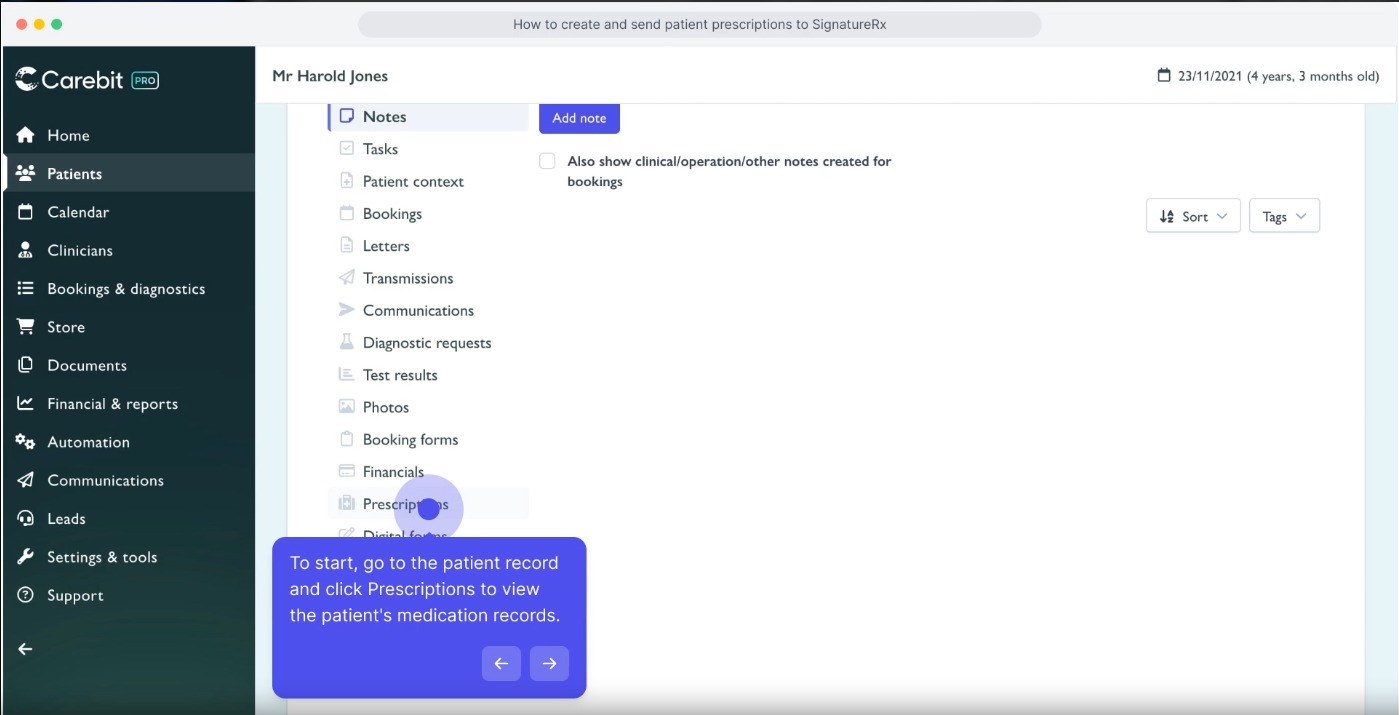
1. To start, go to the patient record and click Prescriptions to view the patient's medication records.
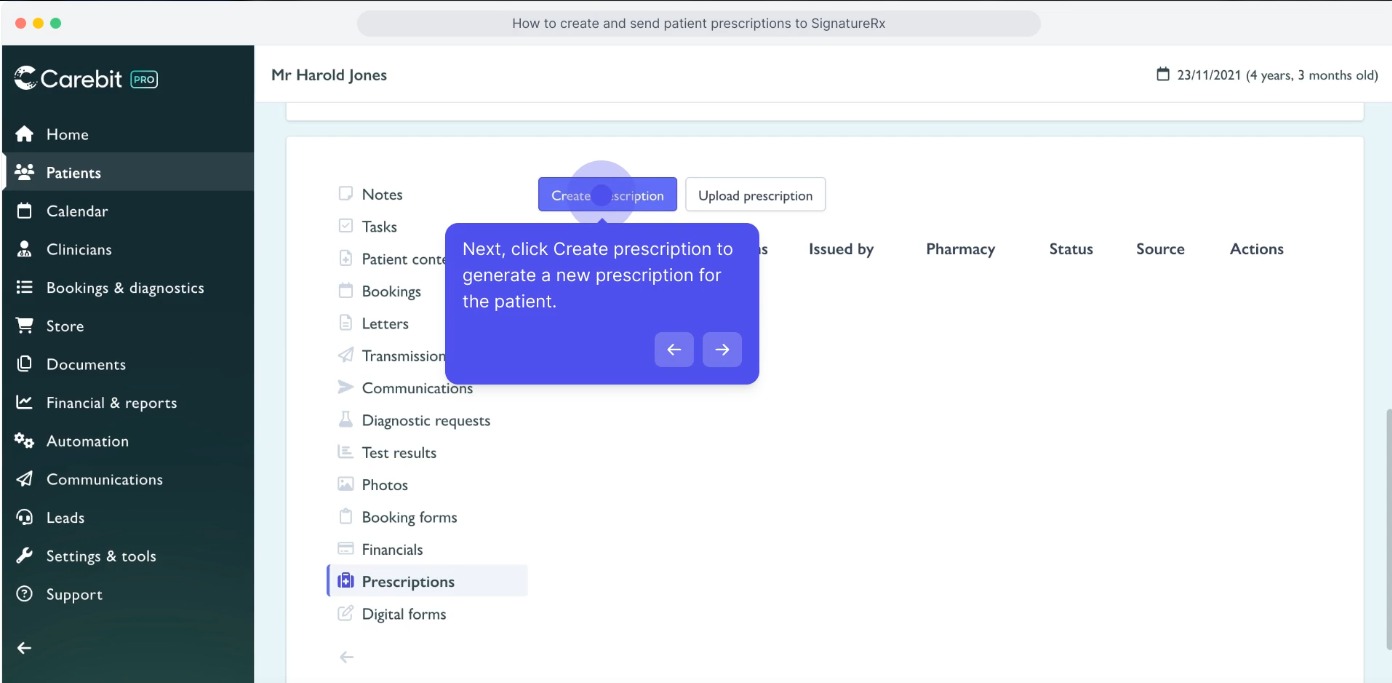
2. Next, click Create prescription to generate a new prescription for the patient.
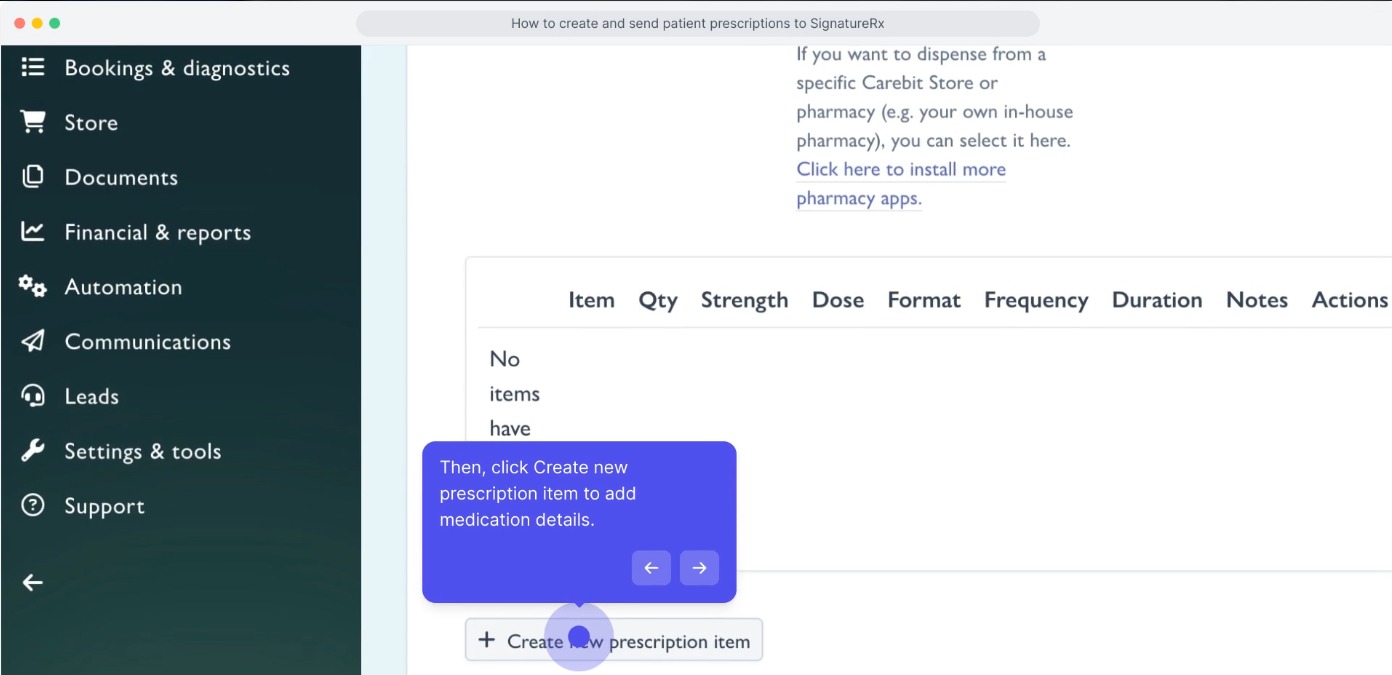
3. Then, click Create new prescription item to add medication details.
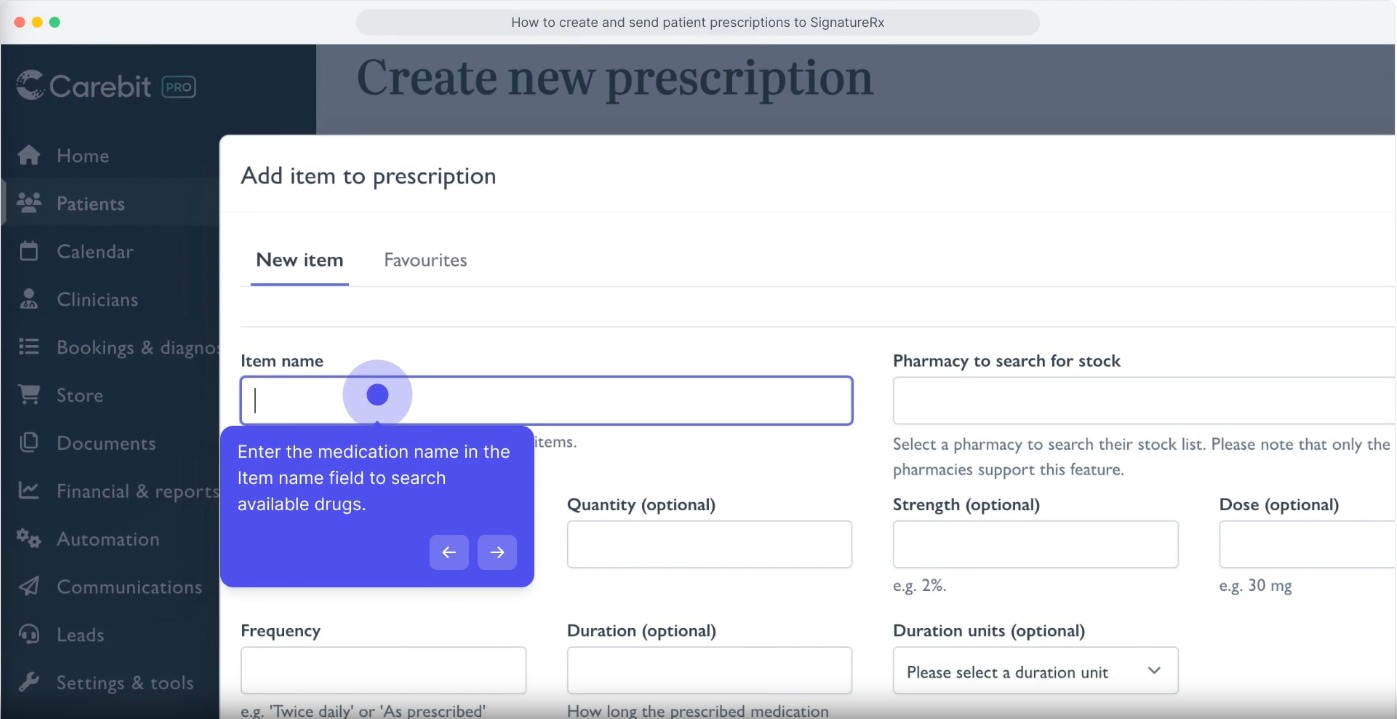
4. Enter the medication name in the item name field to search available drugs.
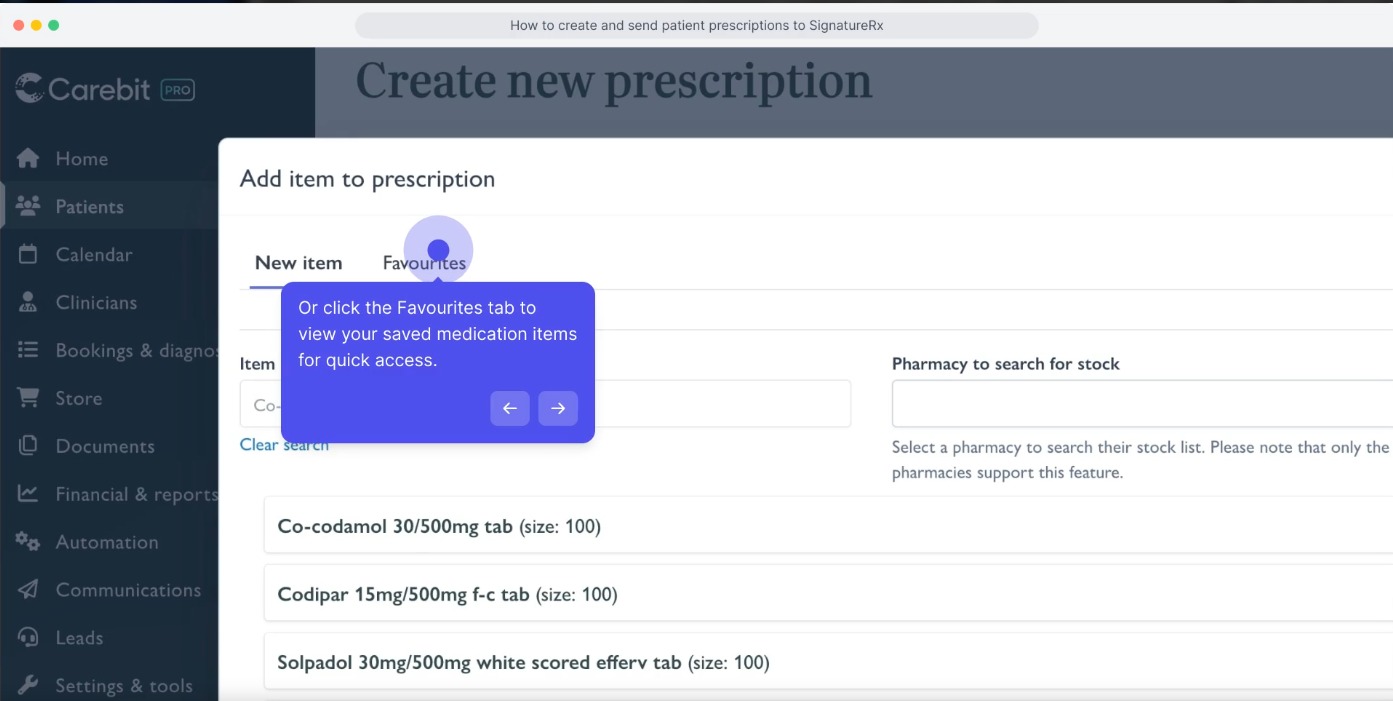
5. Or click the Favourites tab to view your saved medication items for quick access.
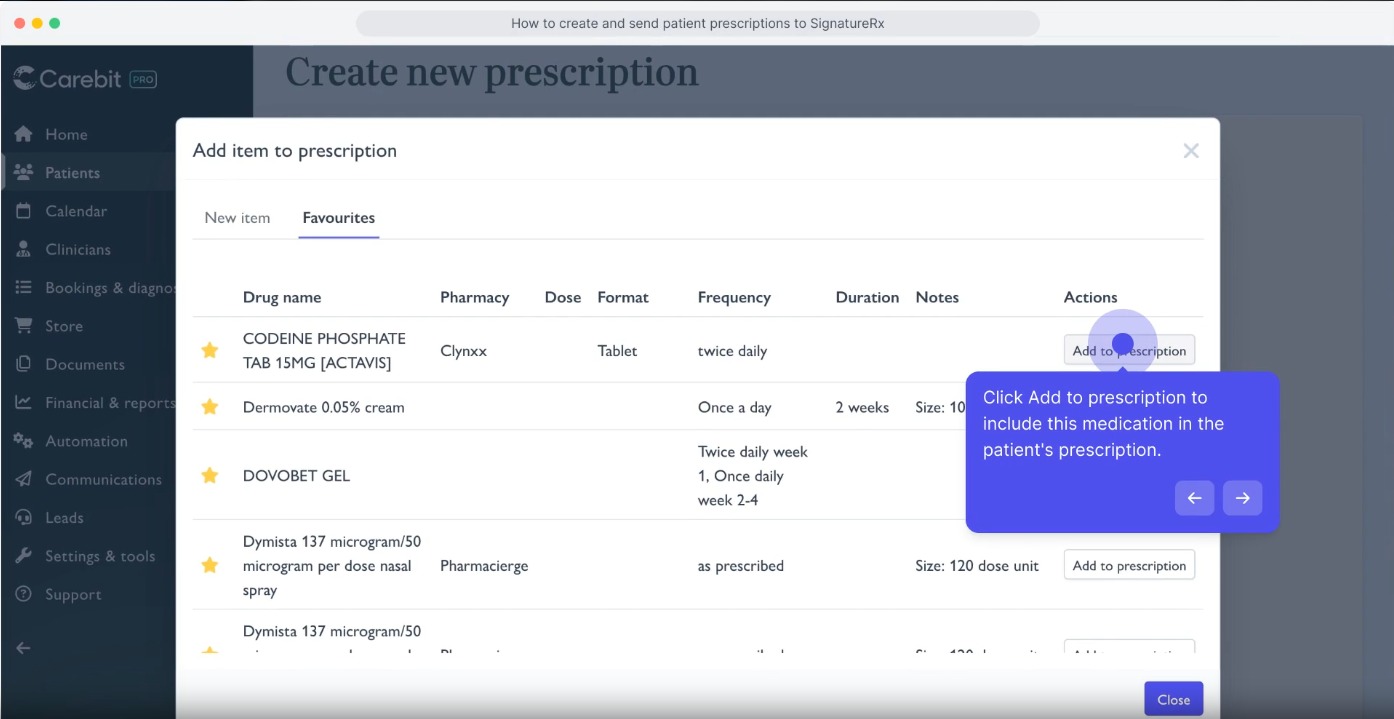
6. Click Add to prescription to include this medication in the patient's prescription.
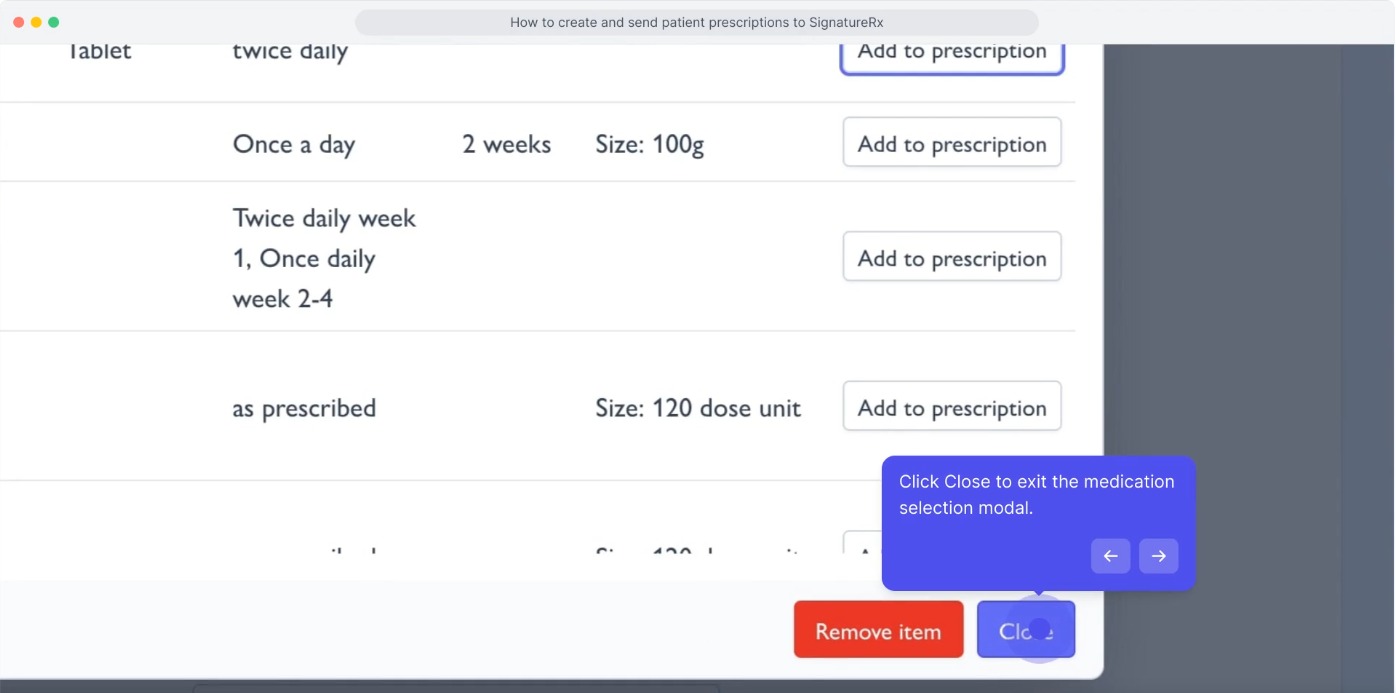
7. Click Close to exit the medication selection modal.
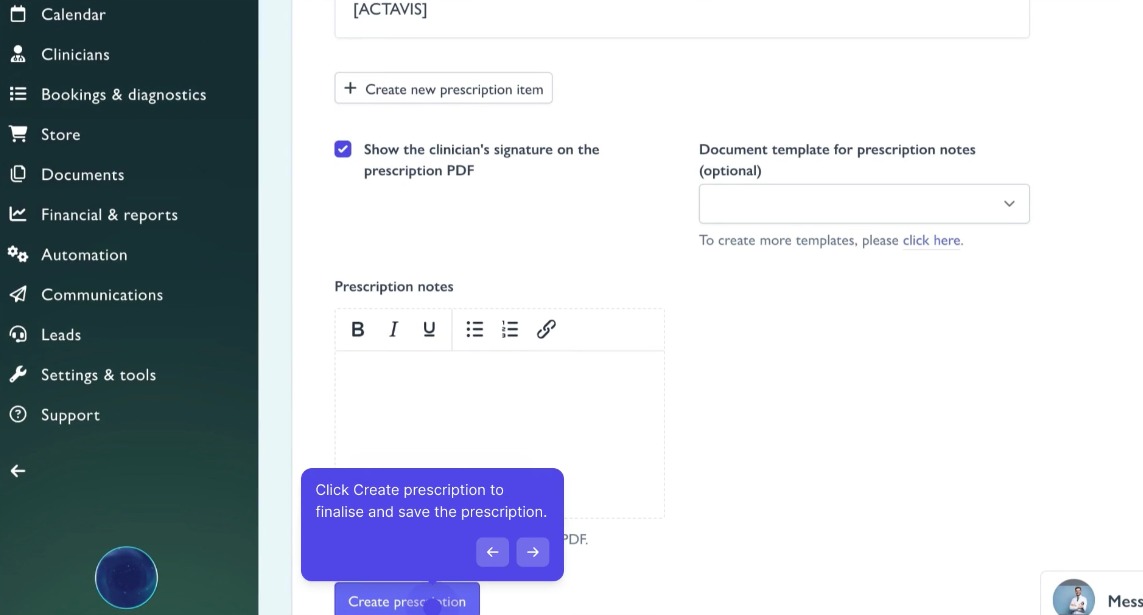
8. Click Create prescription to finalise and save the prescription.
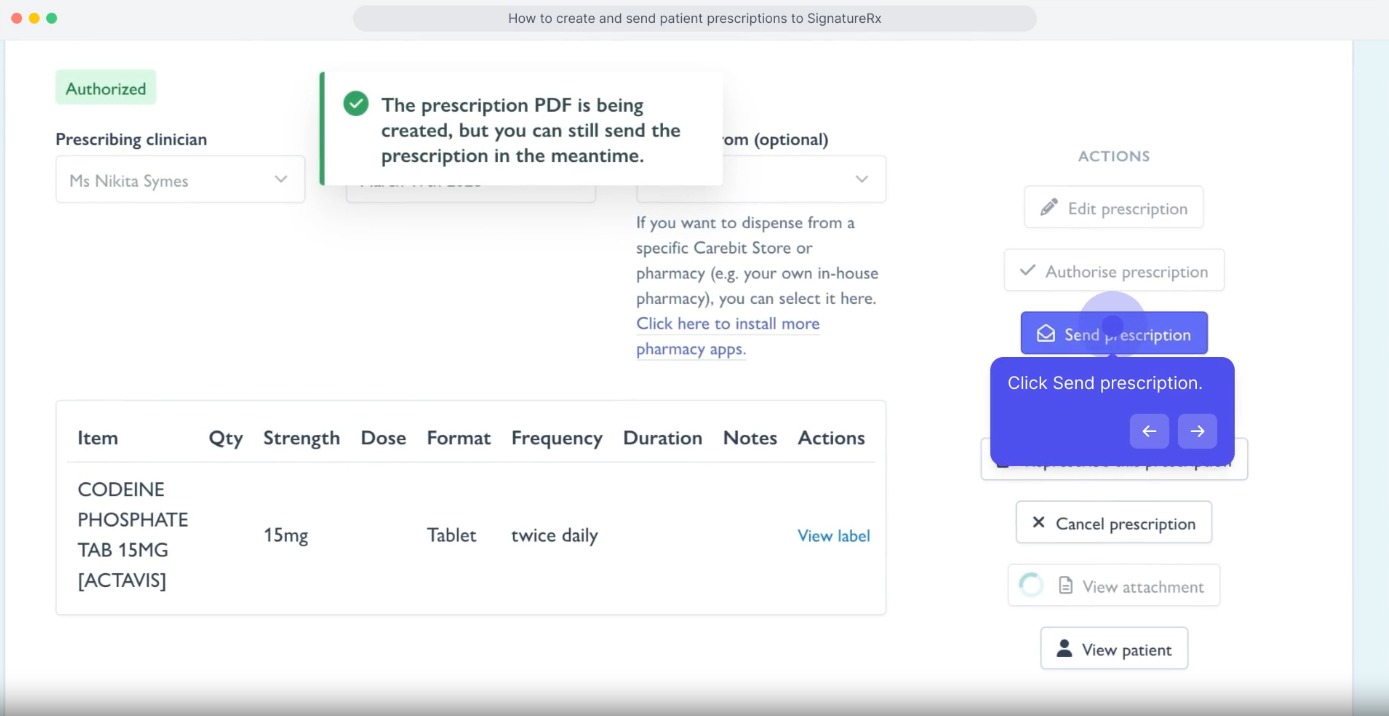
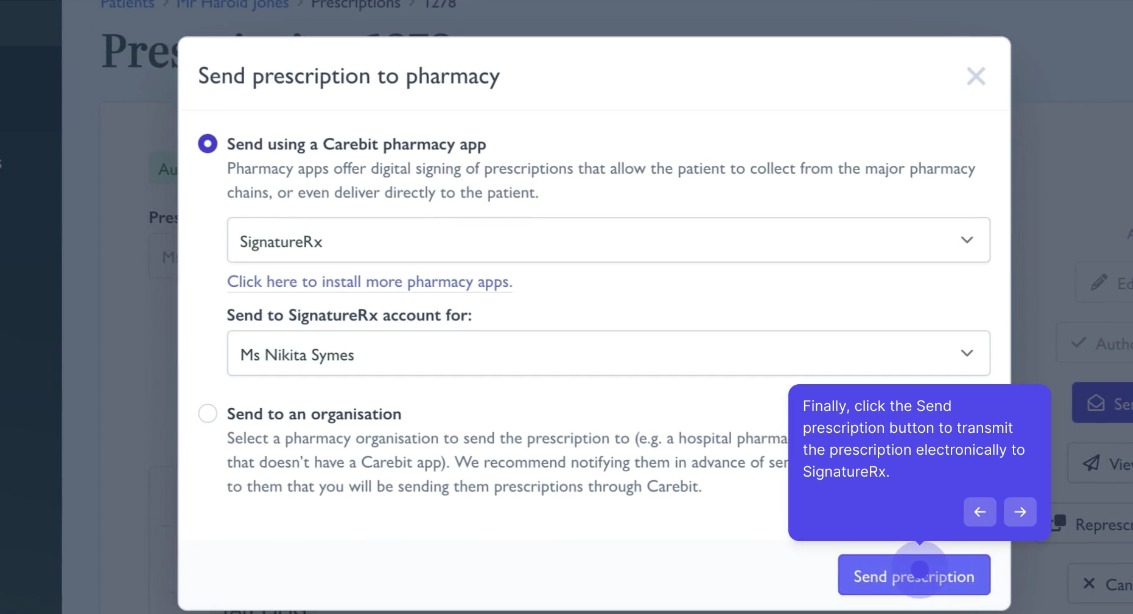
9. Click Send prescription.
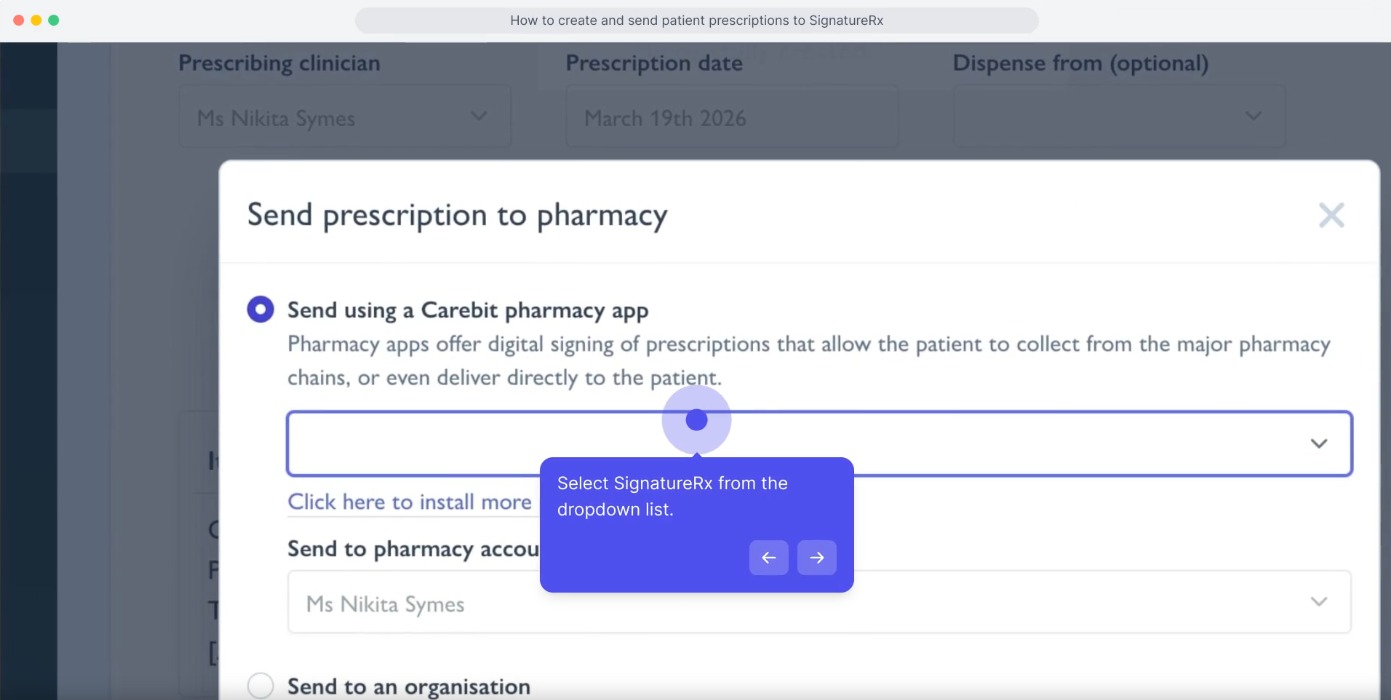
10. Select SignatureRx from the dropdown list.
11. Finally, click the Send prescription button to transmit the prescription electronically to SignatureRx.
Related Articles
Integrating Pabau With SignatureRx
Integrating Pabau With SignatureRx Learn how to seamlessly connect your Pabau account with SignatureRx for streamlined prescription management. This guide provides step-by-step instructions to help you navigate the integration settings and ...Integrating Semble With SignatureRx
Integrating Semble With SignatureRx Learn how to effectively link your Semble account with SignatureRx for streamlined electronic prescribing. This guide walks you through the essential configuration steps to ensure seamless communication between ...Integrating Cliniko With SignatureRx
Integrating Cliniko With SignatureRx Learn how to seamlessly connect your Cliniko account with SignatureRx to streamline your clinical workflow. This guide walks you through locating integration settings, generating your API key, and finalizing the ...Integrating Jelly Software With SignatureRx
Integrating Jelly Software With SignatureRx This guide provides a walkthrough for connecting Jelly Software with your SignatureRx account to streamline your prescription workflow. By following these steps, you will learn how to configure integration ...Integrating Hero Health and EMIS Web With SignatureRx
Hero Health and EMIS Web Integration With SignatureRx Hero Health has partnered with SignatureRx to allow private prescriptions to be generated directly from your Hero account. Prescriptions issued in EMIS Web can be pulled into Hero and sent to ...