Integrating Semble With SignatureRx
Integrating Semble With SignatureRx
Learn how to effectively link your Semble account with SignatureRx for streamlined electronic prescribing. This guide walks you through the essential configuration steps to ensure seamless communication between your clinical platform and the pharmacy network.
Set Up SignatureRx in Semble
With the Semble integration, you can submit patient prescriptions directly to SignatureRx from within Semble. Make sure your Semble role includes editing permissions for Lab and pharmacy settings before you begin.
1. Open Lab and Pharmacy Settings
Go to Settings in Semble and select the Lab and pharmacy settings tab.
2. Add a Pharmacy Account
Scroll to the Pharmacy settings section and click Add pharmacy account.
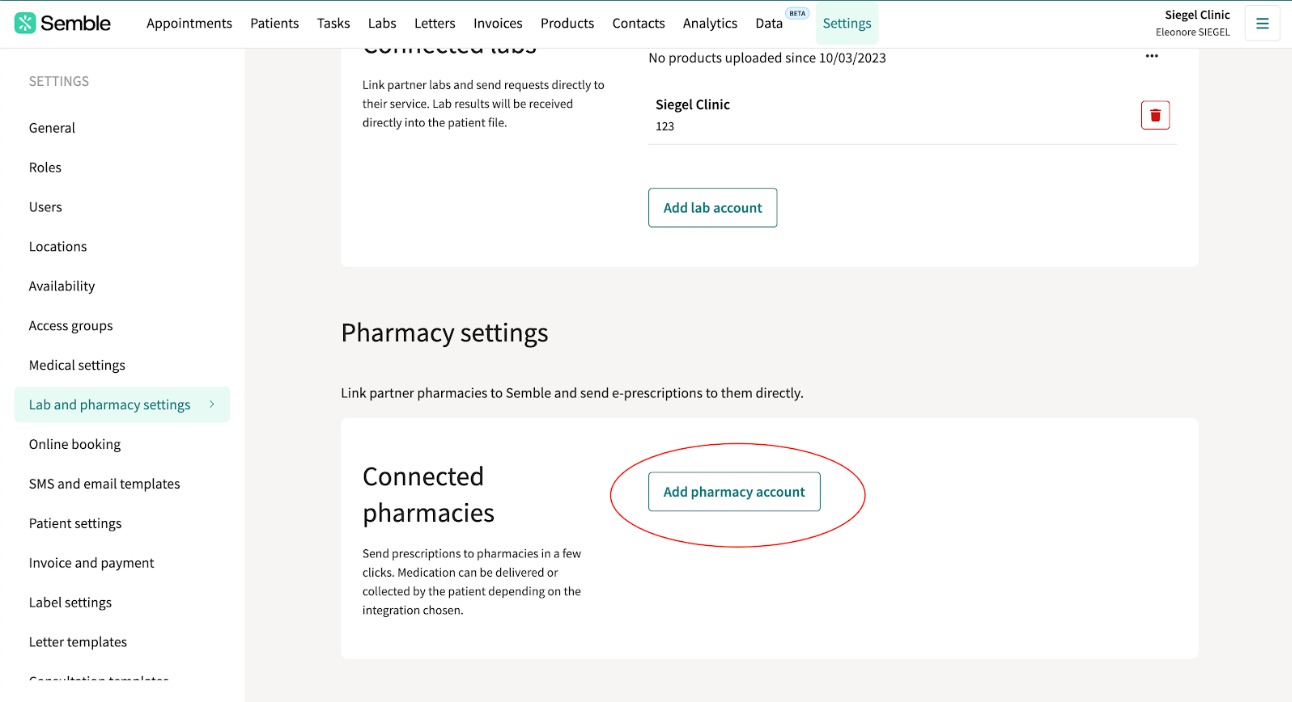
3. Enter Your Integration Details
Fill in the required fields:
- Provider: Select SignatureRx
- Name: Enter your practice name or the clinician name registered with SignatureRx
- Source code: Enter your SignatureRx Clinic ID and six digit PIN in this format: CLINICID.SIXDIGITPIN
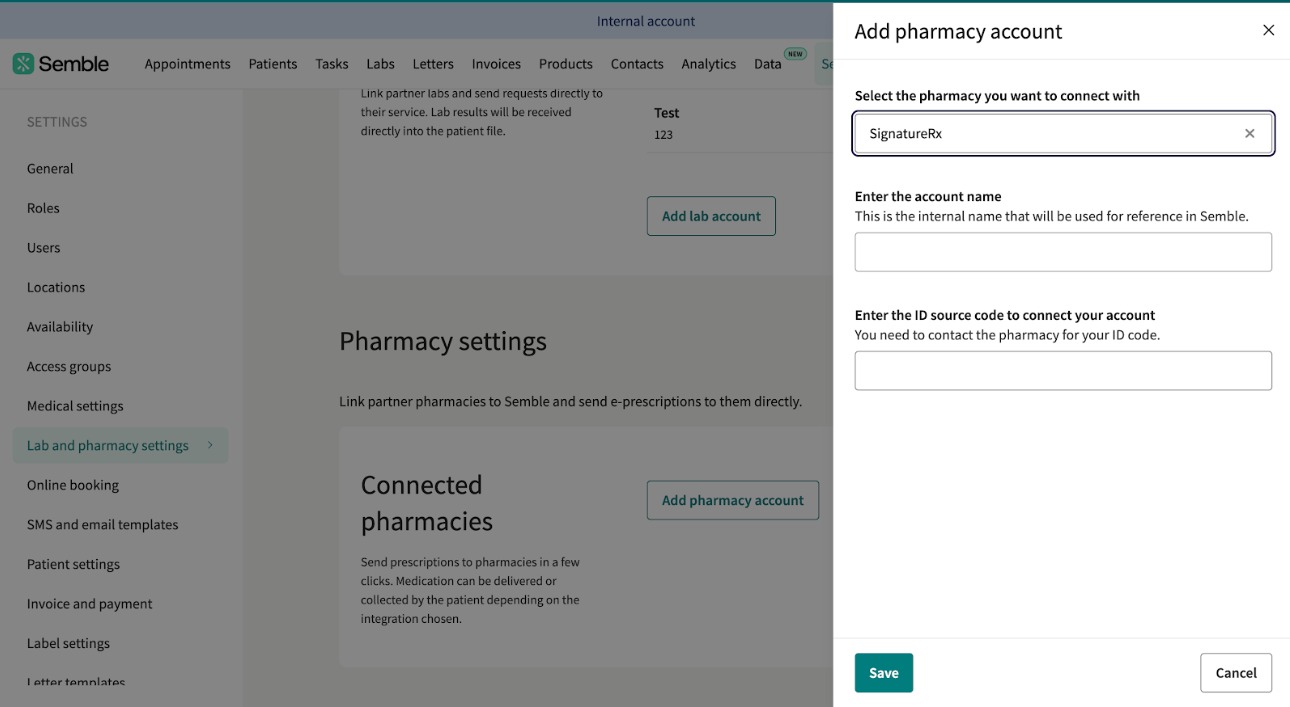
4. Save Your Settings
Click Save to confirm.
Your integration is now active and ready to use.
Submit a Prescription to SignatureRx
Once SignatureRx is connected, you can submit prescriptions at any time.
1. Create the Prescription
Create a patient prescription as usual.
2. Open the Pharmacy Integration
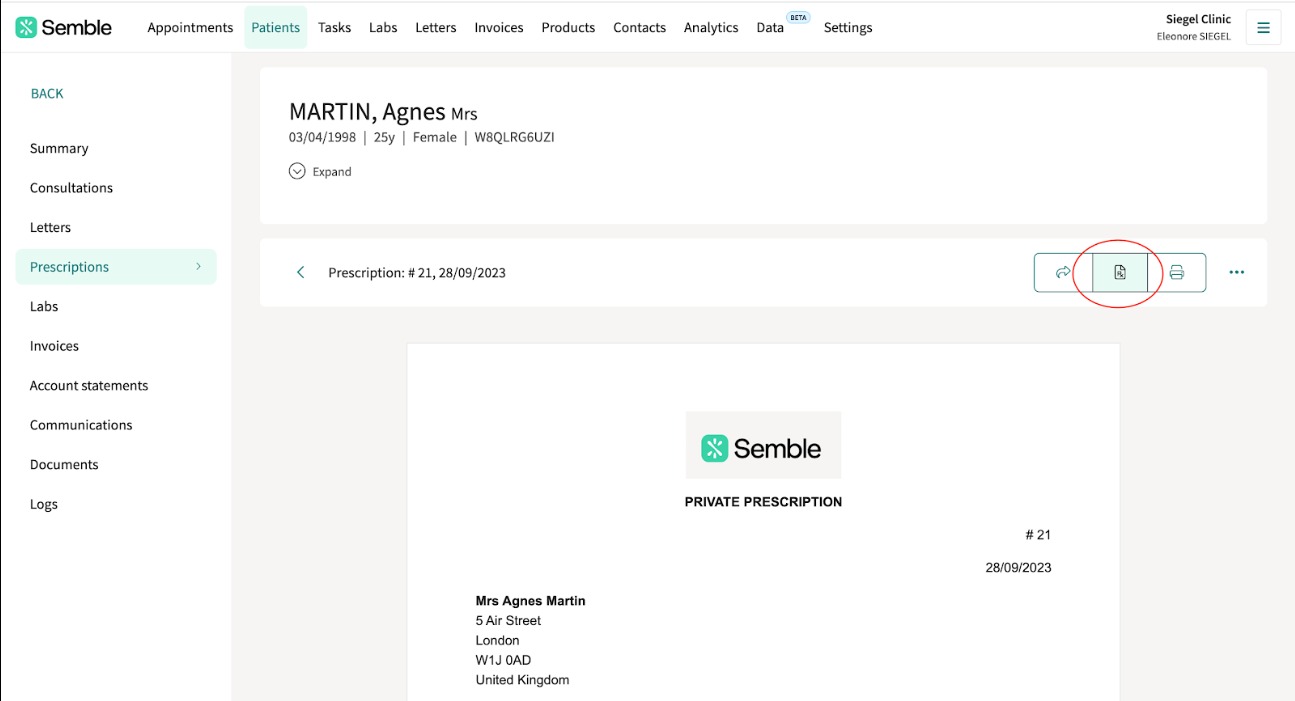
3. Select SignatureRx
Choose SignatureRx from the dropdown menu.
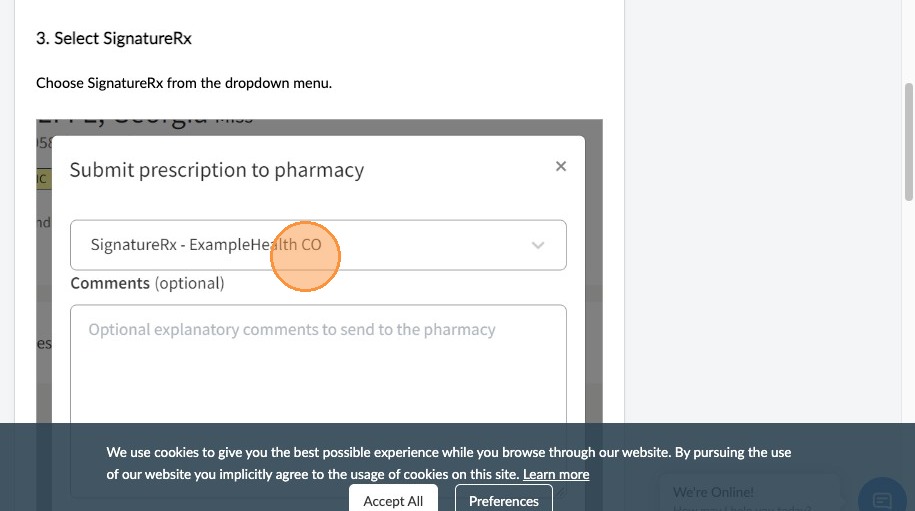
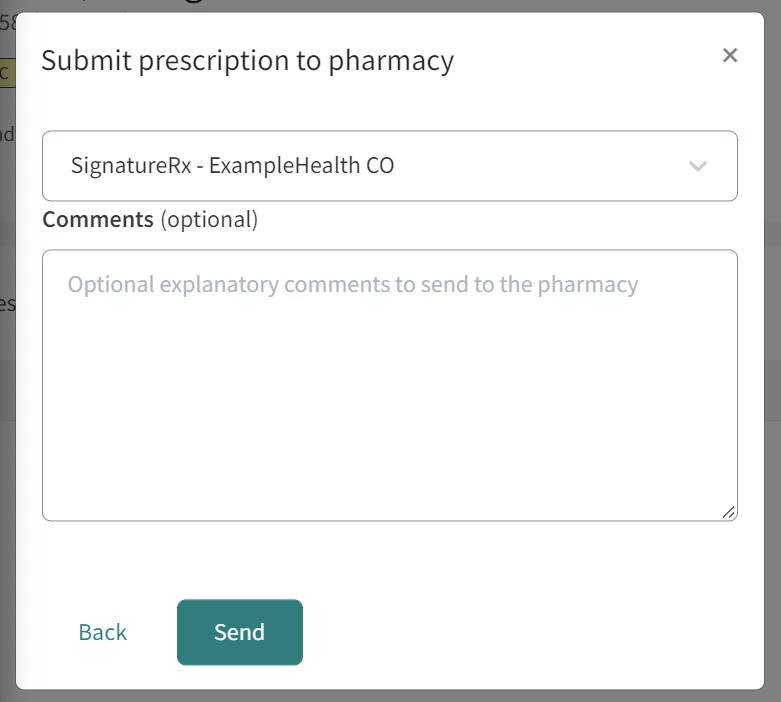
4. Add Comments (Optional)
You may enter any notes or comments for the prescription.
5 Send the Prescription
Click Send. The prescription is then submitted to SignatureRx and a patient's email is sent automatically with their prescription details.
Additional Steps You May Need To Complete
You might need to take extra actions within SignatureRx if:
- The system requires you to release the prescription
- The prescription was sent on your behalf
- The prescription was signed by a clinician without a SignatureRx prescriber account
If the Prescription Fails to Send
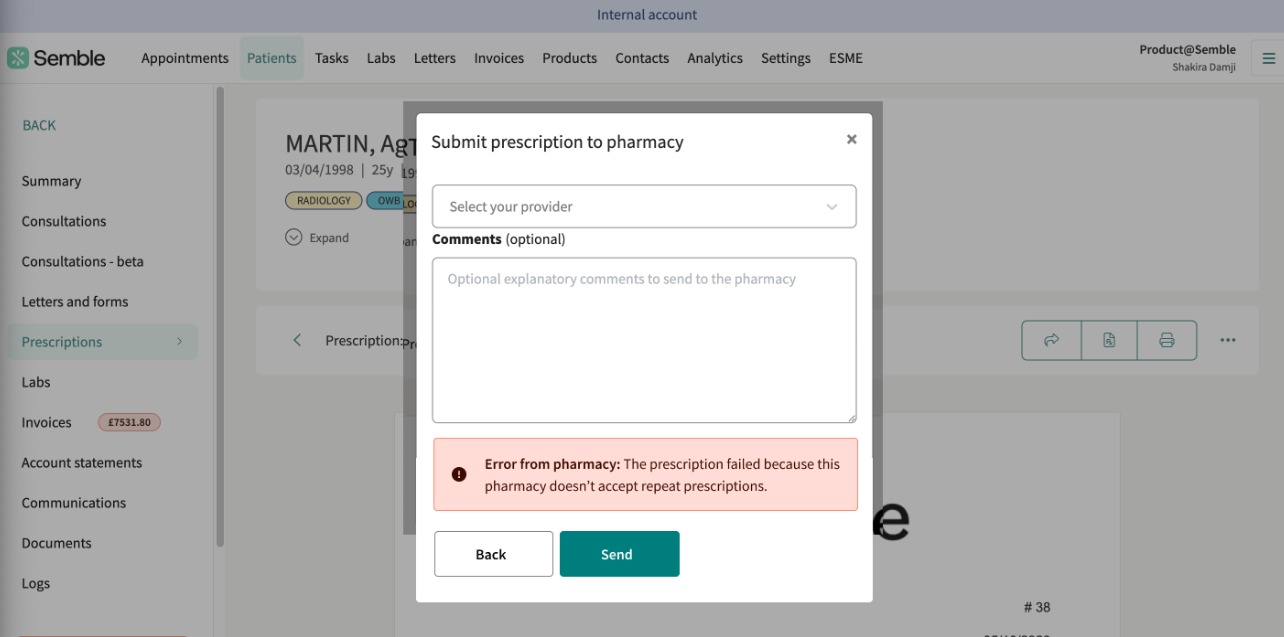
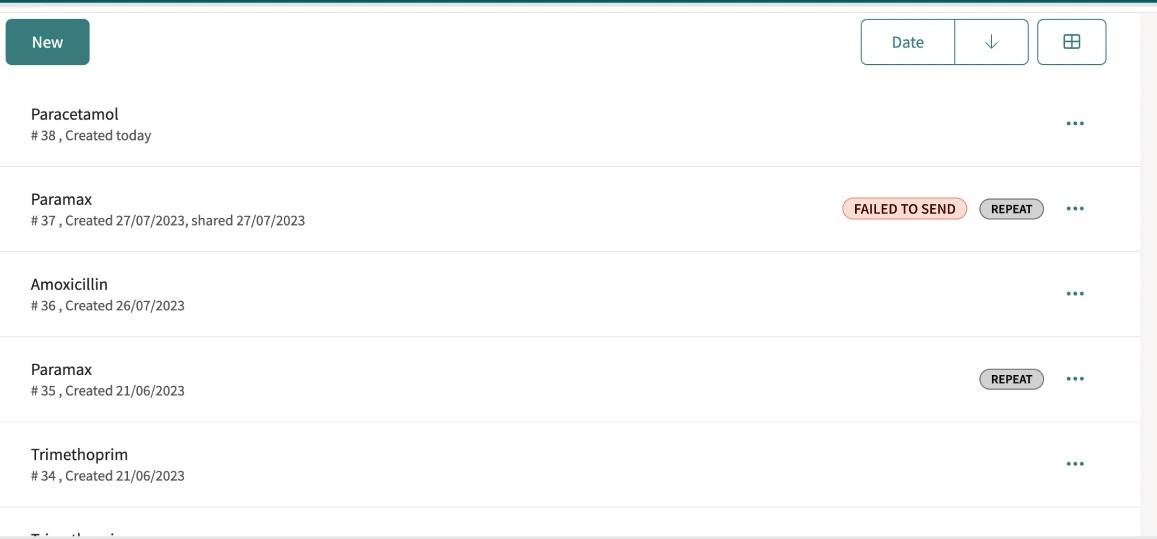
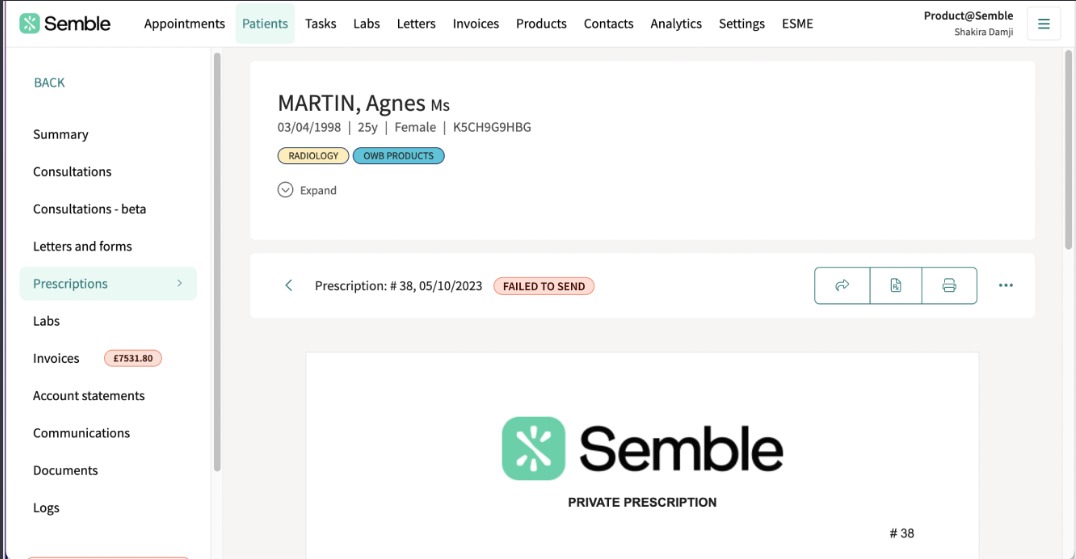
If something goes wrong, an error message will appear:
- As a pop-up on the prescriptions page
- On the prescription listing page
- On the individual prescription page
The error message will explain the reason for the failure.
You can also view all submission attempts and errors in the Logs tab of the patient record.
There are no additional costs from SignatureRx for this integration. Please check directly with Semble regarding any fees they may apply.
Related Articles
Integrating Carebit With SignatureRx
Integrating Carebit With SignatureRx Learn how to seamlessly connect your Carebit account with SignatureRx to streamline your clinical workflow. This guide provides step-by-step instructions for setup and configuring your account to send digital ...Integrating Pabau With SignatureRx
Integrating Pabau With SignatureRx Learn how to seamlessly connect your Pabau account with SignatureRx for streamlined prescription management. This guide provides step-by-step instructions to help you navigate the integration settings and ...Integrating Cliniko With SignatureRx
Integrating Cliniko With SignatureRx Learn how to seamlessly connect your Cliniko account with SignatureRx to streamline your clinical workflow. This guide walks you through locating integration settings, generating your API key, and finalizing the ...Integrating Jelly Software With SignatureRx
Integrating Jelly Software With SignatureRx This guide provides a walkthrough for connecting Jelly Software with your SignatureRx account to streamline your prescription workflow. By following these steps, you will learn how to configure integration ...Integrating Hero Health and EMIS Web With SignatureRx
Hero Health and EMIS Web Integration With SignatureRx Hero Health has partnered with SignatureRx to allow private prescriptions to be generated directly from your Hero account. Prescriptions issued in EMIS Web can be pulled into Hero and sent to ...